
Disable BattlEye for GTA 5
Step-by-step guide for every launcher — Rockstar Games Launcher, Steam, Epic Games, and the Xbox App.
What is BattlEye?
BattlEye is the anti-cheat that ships with GTA V. It blocks most mod menus and injectors from loading. Disabling it lets mods run — every method below does the same thing: it tells the game to start with the -nobattleye launch argument.
The launch argument you need — copy it:
4
Launchers Covered
2 min
Setup Time
Free
No Tools Needed
Read This First
Use an Alt Account
Never run mods on your main account. Disabling BattlEye is how mods load — Rockstar can still ban you server-side.
Run as Administrator
Some launchers won't save launch arguments unless they're running with admin rights.
Game Updates Reset This
A GTA V update can restore the BattlEye files. If mods stop loading, redo these steps.
Antivirus
Temporarily disable antivirus — mod menu files are commonly flagged as false positives.
How to Disable BattlEye
Use the one-click tool, or follow the manual steps for your launcher
One-Click Auto Tool
Don't want to do it by hand? This tool finds your GTA V folder automatically (Rockstar, Steam, Epic, or Xbox), drops in the commandline.txt with -nobattleye, and deletes BattlEye for you.
Right-click → Run as administrator. Windows SmartScreen may warn about an unknown app — click More info → Run anyway. Prefer to do it manually? Follow the steps below.
Rockstar Games Launcher
- Open the Rockstar Games Launcher.
- Click Settings (top right), then select Grand Theft Auto V in the left sidebar.
- Scroll down to Launch Arguments (also called "Command Line Arguments").
- Type
-nobattleyeinto the box. - Close Settings and launch the game from the launcher.
Steam
- Open Steam and go to your Library.
- Right-click Grand Theft Auto V and choose Properties.
- On the General tab, find Launch Options.
- Type
-nobattleyeinto the box. - Close the window and launch GTA V from Steam.
Epic Games Launcher
- Open the Epic Games Launcher.
- Click your profile icon (top right) → Settings.
- Scroll to Manage Games and click Grand Theft Auto V to expand it.
- Tick Additional Command Line Arguments.
- Type
-nobattleyeinto the box that appears. - Launch GTA V from the Epic Games Launcher.
Xbox App (Game Pass / Microsoft Store)
You need the Rockstar Games Launcher. The Game Pass / Microsoft Store copy of GTA V still boots through the Rockstar Games Launcher — make sure it's installed and you're signed in to your Rockstar account before you start.
The Xbox App has no launch-arguments box, so you add the argument with a commandline.txt file inside the game folder instead.
- Open the Xbox App → Library → click Grand Theft Auto V.
- Click the ⋯ menu → Manage → Files → Browse... to open the install folder.
- In that folder, create a new text file named
commandline.txt— or just download the ready-made one below. - Open it, type
-nobattleyeand save. - Launch the game. BattlEye will be skipped.
Don't want to make the file yourself? Download a ready-made commandline.txt and drop it straight into your GTA V folder.
Tip: Make sure Windows isn't hiding file extensions, or you'll accidentally create commandline.txt.txt. In File Explorer: View → Show → File name extensions.
Still Not Working? (Works on Any Launcher)
If BattlEye still loads, delete its files directly:
- Open your GTA V install folder (where
GTA5.exelives). - Delete the
BattlEyefolder. - Delete
BattlEye_x64.dllif it is present. - Launch the game as normal.
Note: Verifying/repairing game files will restore BattlEye, and so will most game updates. Just repeat the steps.
Complete Written Guide
Every step in order, start to finish — no tools required
Turn BattlEye off in the launcher
- Make sure BattlEye is disabled in the Rockstar Games Launcher settings.
- Add the launch argument
-nobattleyefor your launcher using the steps above, or place acommandline.txtcontaining-nobattleyein your game directory (Steam / Epic / Rockstar / Xbox).
Remove the BattlEye service
Open Command Prompt as Administrator and run:
This removes the BattlEye service completely. You can also delete the BattlEye folder and BattlEye_x64.dll from your GTA V install folder.
Load the game to the main menu
- Let the game load to the main menu. Do not load story mode or online yet.
- If auto-loading into story or online mode is enabled, disable it in the game settings, then restart the game.
Inject your mod menu
- Once the game is at the main menu, inject your menu (N3NY000, Scooby, YimMenu, etc.).
- IMPORTANT: after the DLL is injected, go to STORY MODE first.
- Once you are in story mode, open the menu and use Network → Session Starter to join a public or invite-only session.
How to check it worked
If BattlEye is disabled correctly, the game launches without the BattlEye splash/service starting, and your menu injects without being kicked.
Only players who also have BattlEye disabled can join you — players with BattlEye enabled will not be able to connect, and you will not be able to join them. Pair this with FSL if you want a local save.
Video Guide
Prefer to watch? Follow along with the video
Watch the Full Tutorial
A step-by-step walkthrough of disabling BattlEye on every launcher.
Watch on YouTubeWhat's Next?
BattlEye is off — now grab a mod menu
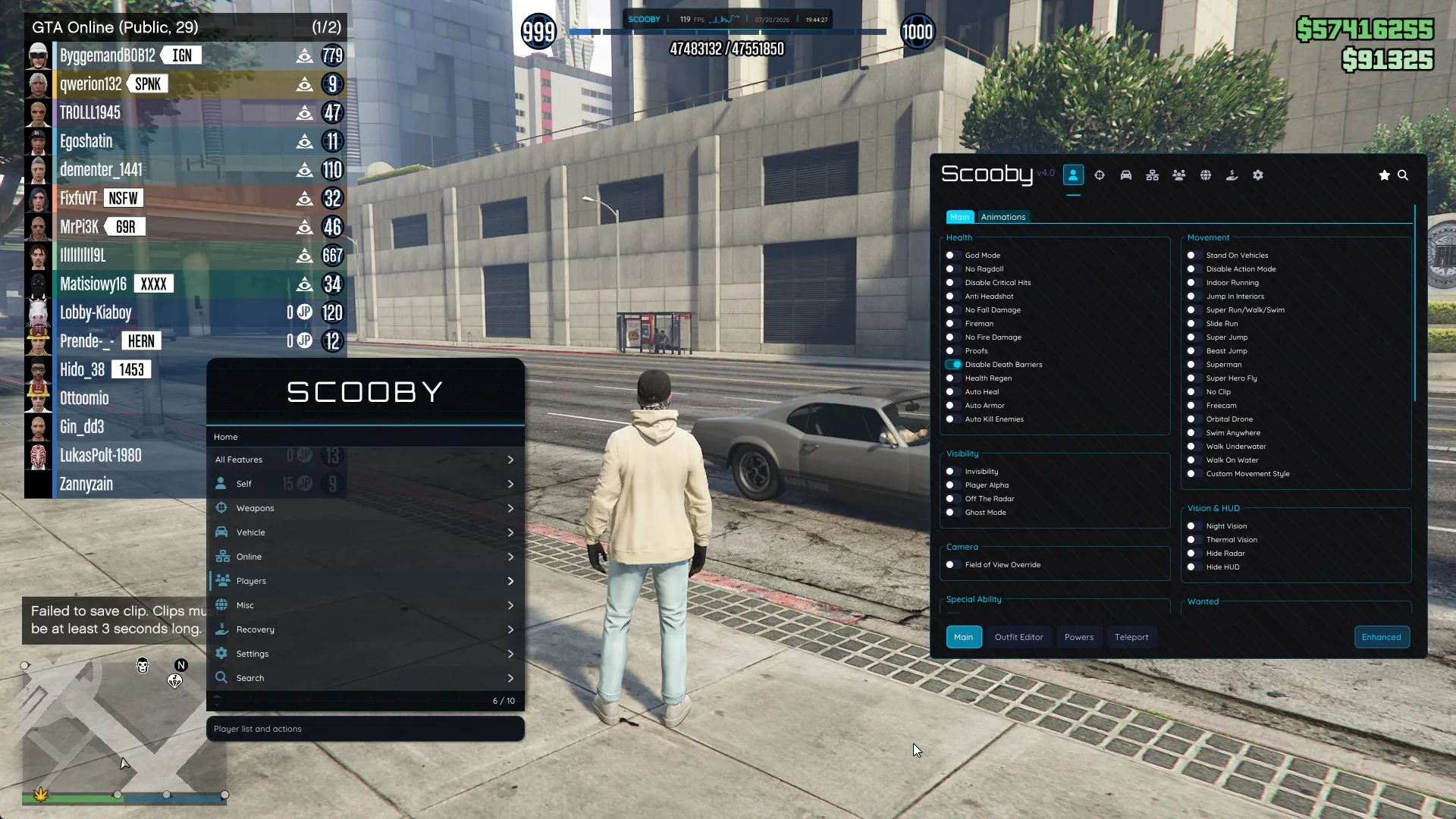
Download Scooby Menu
The best free mod menu for GTA 5 — full Legacy & Enhanced support with money & RP recovery, fun features, and protections.
More Free Mod Menus
Nenyoo, Yim, Riptide and 40+ more free GTA V mod menus
Lua Scripts
Extend your mod menu with recovery, unlock, and utility Lua scripts
Need Help?
Join the Discord for support, updates, and troubleshooting