
IOS
IOS jailbreaking resources, app trust instructions and recovery mode guides for iPhone and iPad.
IOS jailbreaking
Tools and supported firmware ranges listed by ipa-apps.me.
Source: ipa-apps.me. Checked 18 November 2026.
These are the directory's compatibility labels, not independently verified device support. Its “All devices” wording does not confirm every chip or model. Check the tool author's requirements before installing; firmware support can depend on your device. Older builds remain separately listed.
| 工具 | 建造 | IOS firmware (source-listed) | Device scope (source-listed) |
|---|---|---|---|
| DopamineJB | 3.0.11 | 15.0–16.6.1 | All devices |
| NekoJB | 0.1.0 Beta5 | 15.0–15.8.1 | All devices |
| Unc0ver | 8.0.2 | 11.0–14.3 | All devices |
| Unc0ver_old | 6.1.2 | 11.0–14.3 | All devices |
| Fugu15 | 8.0 Beta | 15–15.4.1 | A12–A15 |
| XinaA15 | 2.0.17 Beta | 15–15.1.1 | A12–A15 / M1 |
| Taurine | 1.1.7-3 Beta | 14.0–14.8.1 | All devices |
| OdysseyJB | 1.4.3 | 13.0–13.7 | All devices |
| Chimera | 1.6.5 | 12.2–12.5.7 | All devices |
| Chimera_oldv | 1.6.5 | 12.0–12.5 | All devices |
| Th0r | 2.9.6 | 11.0–11.4.1 | 64位元 |
| Freya | 1.3.8 | 11.0–12.5.7 | 64位元 |
| Th0r4 | 1.4.2 | 13.0–13.7 | A9–A13 |
| Th0r14 | 4.4 | 14.0–14.3 | All devices |
| RootlessJB4 | RC2.1 | 12.0–12.4.7 | A7–A11 |
| Electra | 2.0 | 11.0–11.4.1 | 64位元 |
| Houdini | 3.1 | 11–11.3.1 | 64位元 |
| DoubleH3lix | 8.0 | 10–10.3.3 | 64位元 |
| g0blin | 2.0 | 10–10.3.3 | 64位元 |
| Meridian | 1.0 | 10–10.3.3 | 64位元 |
| Saigon | 3.0 | 10–10.2.1 | 64位元 |
| Yalu102 | 7.0 | 10–10.2 | 64位元 |
| yalu102E1 | 7.0 | 10–10.2 | 64位元 |
| H3lix | RC6 | 10–10.3.4 | 32-bit |
| Socket | 1.1 | 10–10.3.4 | 32-bit |
| PhoenixJB | 5.0 | 9.3.5–9.3.6 | 32-bit |
| EtasonJB | 1.0 | 8 | 32-bit |
| pangu | 1.1 | 9.2–9.3.3 | 64位元 |
Remove a jailbreak
These entries remove a jailbreak; they do not install one.
| 工具 | 建造 | IOS firmware (source-listed) | Device scope (source-listed) |
|---|---|---|---|
| JB Remover | 5.7 | 11.0–11.4b3 | 64位元 |
| Rollectra11 | 1.0.2 | 11.3–11.4b3 | 64位元 |
Freya jailbreak: IOS 12.5.7
Video walkthrough by Alexander, published 1 March 2024.
This video demonstrates IOS 12.5.7. Check your exact device and firmware before following it; do not update to another version just to match a tutorial.
- Check your version (0:12). Open Settings > General > About and check Software Version.
- Install Freya (0:34–1:29). In Safari, visit ipa-apps.me, find Freya and follow its installation prompt. Return to the Home Screen.
- Trust the developer (2:05–2:19). Open Settings > General > Profiles / Device Management, select the developer and confirm Trust. See the illustrated steps below.
- Run Freya (2:19–4:36). Tap Jailbreak. In the demonstration, the first attempt renames a snapshot and reboots. Open Freya again and tap Jailbreak.
- Update Cydia (4:36–5:58). Open Cydia, let sources refresh, then choose Complete Upgrade and Confirm when offered.
- After restarting (5:58–7:44). Open Freya, tap Enable Freya, then respring when prompted to reactivate the jailbreak.
Signing availability can change; the video's installation method is not a guarantee of a working certificate today.
Watch Alexander's full tutorial
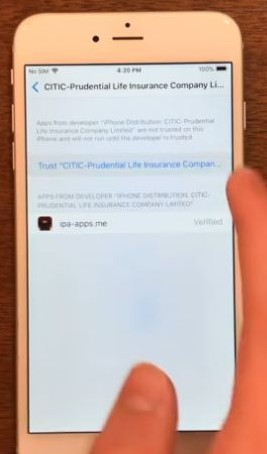
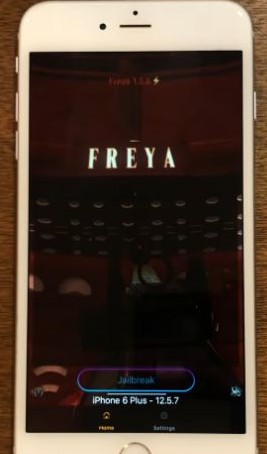
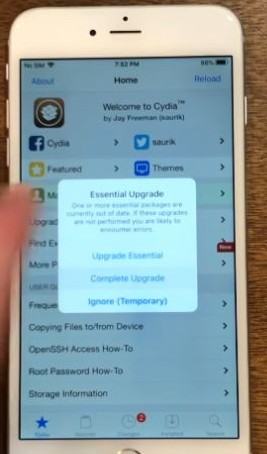
Video stills: Alexander / YouTube. Each image links to its place in the tutorial.
How to trust apps on IOS
For manually installed enterprise apps showing an untrusted developer message.
- Open the installed app. If an untrusted developer message appears, dismiss it.
- 开放 Settings > General > VPN & Device Management.
- Under Enterprise App, select the app's developer.
- On IOS 18 and later, choose Allow & Restart, then follow the prompts after restarting. On earlier versions, choose Trust and confirm.
- Stay connected to the internet for verification, then reopen the app. If it says Not Verified, connect and tap Verify App.
Only trust a developer you recognise. These steps apply to enterprise-signed apps; the trust entry appears after installation.
Written steps: Apple's enterprise app trust guide.
Recovery mode: Update or Restore
Use iTunes, Apple Devices or Finder with a USB connection.
Back up first if possible. Restore erases your device.
- Connect to your computer with USB. Open Apple Devices on Windows, or iTunes if Apple Devices is unavailable. On Mac, use Finder (Catalina or later) or iTunes (Mojave or earlier). Update the computer software first.
- Keep the device connected and follow the matching button sequence below until the recovery screen appears. Continue past the Apple logo.
iPhone button sequences
- iPhone 8 or newer, including SE (2nd/3rd generation): quickly press and release Volume Up, then Volume Down. Hold the Side button until the cable/computer screen appears.
- iPhone 7 / 7 Plus: hold Side and Volume Down together until that screen appears.
- iPhone 6s or older, including SE (1st generation): hold Home and Side/Top together until that screen appears.
iPad button sequences
- Without a Home button: quickly press and release the volume button nearest the Top button, then the one furthest away. Hold Top until the recovery screen appears.
- With a Home button: hold Home and Top together. When the iPad turns off, release Top and keep holding Home until the recovery screen appears.
Choose Update or Restore
Select the device on your computer. Try 更新 first to reinstall the system while keeping data. If unsuccessful, Restore reinstalls it and erases data; set up again and recover your backup afterwards.
If downloading takes over 15 minutes and recovery mode closes, let it finish, then repeat the buttons and retry.
Apple's guides: iPhone recovery, iPad recovery 和 Finder / iTunes instructions.