
Game launcher
Heroic Games Launcher
Install Epic, GOG, and Amazon Prime Games titles. Manage Wine or Proton and add games to Steam for access in Game Mode.
Epic & GOGAmazon GamesSteam Shortcuts

 whatwhatboy
Find the right launcher, emulation setup, plugin, or remote play app for your Deck.
Open Steam > Power > Switch to Desktop. This is where you install most tools.
Valve’s desktop guideUse Discover for Flatpak apps, or follow the project’s official Linux installation instructions.
Find a toolIn desktop Steam, choose Games > Add a Non-Steam Game to My Library. Find the app under Non-Steam in Game Mode.
Setup and compatibility tips29 tools and plugins, grouped by what you want to do.
Try a different name or use Clear filters to show every tool.
Manage your game libraries and choose compatibility tools for Windows games.
Game launcher
Install Epic, GOG, and Amazon Prime Games titles. Manage Wine or Proton and add games to Steam for access in Game Mode.

Compatibility manager
Install community compatibility tools such as GE-Proton. Restart Steam, then select the installed version in a game's Compatibility settings.

Game launcher
Manage non-Steam games and launchers in one library. Install Lutris through Discover in Desktop Mode, then create Steam shortcuts for the games you want in Game Mode.

Game dependency manager
Install game-specific Windows components inside a Steam game's Proton environment. Use its graphical interface when a game's setup instructions call for particular dependencies, rather than changing every game.
Use the dependencies named by the game's setup guide.

Windows app environments
Create separate environments for Windows games and software. Manage runners and dependencies through a graphical interface, then run the installer or program inside its selected bottle in Desktop Mode.
The official supported package is the Flatpak version.
Choose an emulation setup, then organize your games in Steam.

Emulation setup
Install and configure emulators, then add your own games to Steam. A starting point for setting up an emulation library on the Deck.
Emulation setup
A bundled emulation setup with a controller-friendly ES-DE frontend. Install and update through Flathub, then add your own games and required BIOS files.

Steam library utility
Add emulated games and non-Steam apps to your library with matching artwork. Configure parsers for the emulators and game folders you already use.
Install Decky Loader first, then add plugins from its stable store.

Plugin manager
Add a plugin menu and community plugin store to Game Mode. Browse customization, artwork, and utility plugins from the Deck's Quick Access menu.
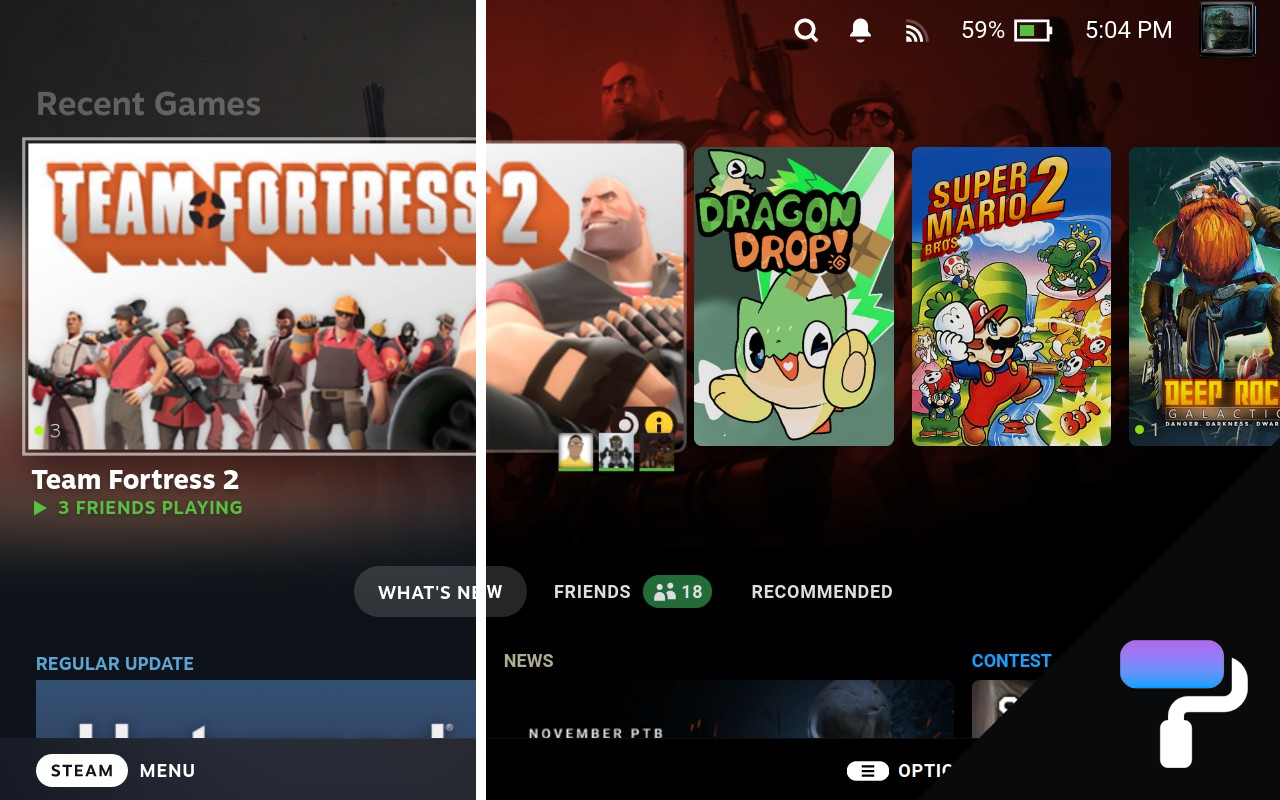
Decky theme plugin
Customize the Steam interface with community CSS themes. Install the plugin through Decky, then choose and manage themes from its menu.
Requires Decky Loader; install through its built-in stable store.
Decky artwork plugin
Change library artwork, icons, and game images in Game Mode, including non-Steam shortcuts. Open a game's context menu and choose Change Artwork.
Requires Decky Loader; install through its built-in stable store.
Decky compatibility plugin
Show tappable ProtonDB community compatibility badges on game pages. Open the reports to compare other players' settings and experiences with a title.
Requires Decky Loader; install through its built-in stable store.
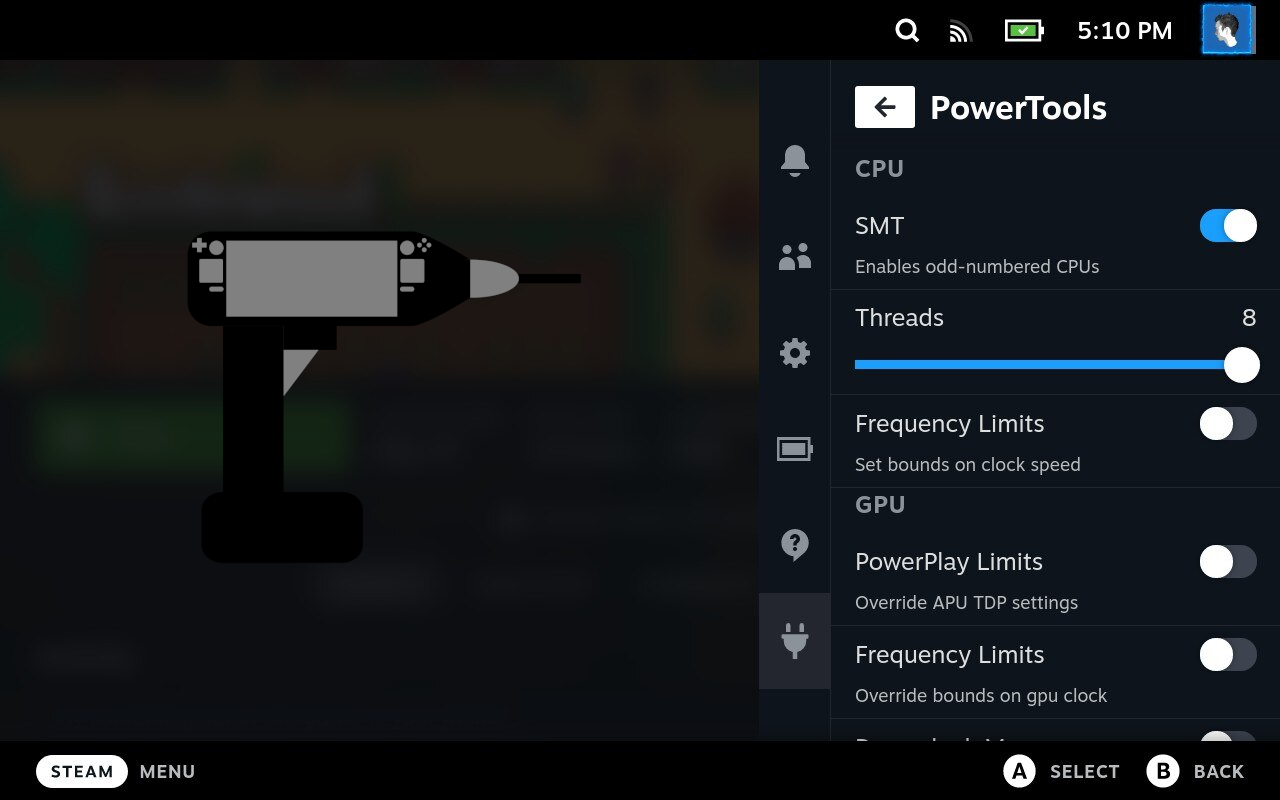
Advanced Decky tuning plugin
Adjust CPU, GPU, and battery controls with per-game settings. For manual tuning: change one setting at a time and keep defaults available to restore.
Requires Decky Loader. Advanced manual tuning; results depend on the game.
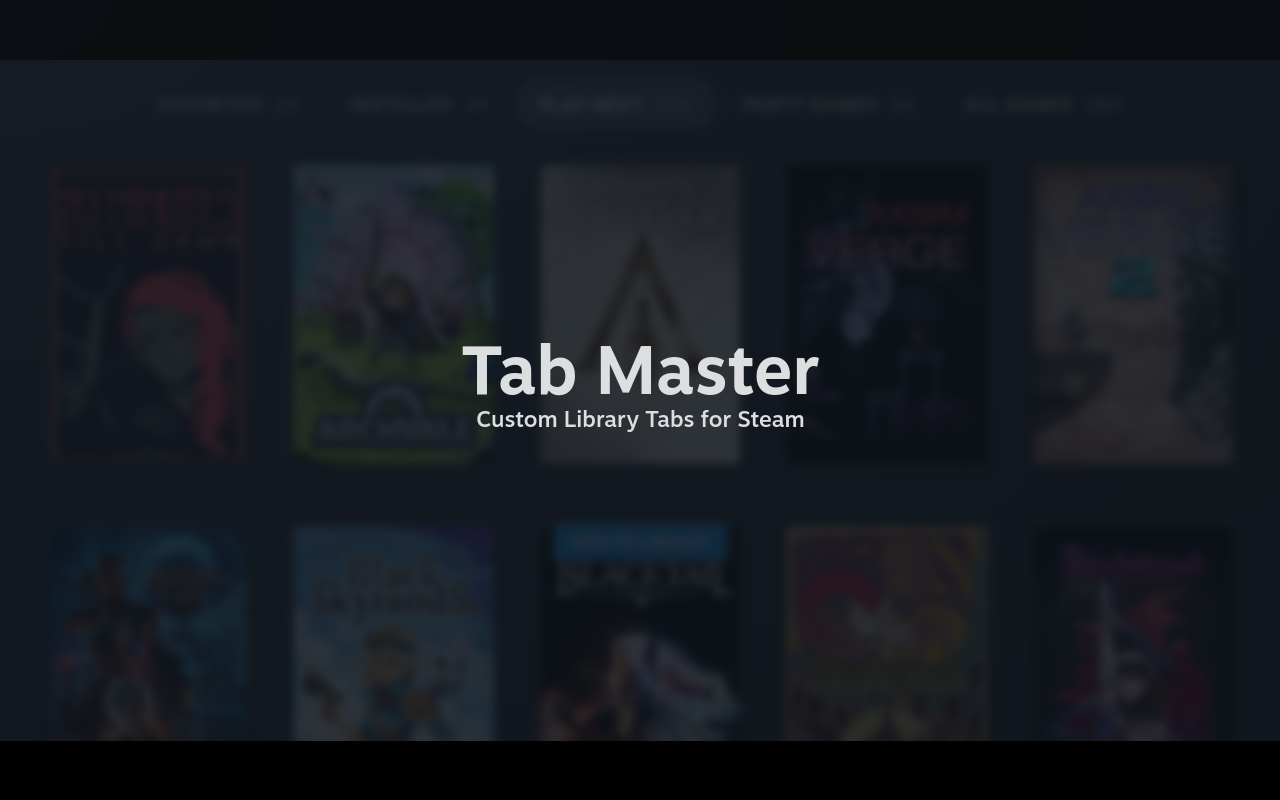
Decky library tabs
Create, reorder, filter, and hide library tabs in Game Mode. Build a tab for a collection, installed games, or non-Steam titles to make a large library easier to browse.
Requires Decky Loader; install through its stable plugin store.
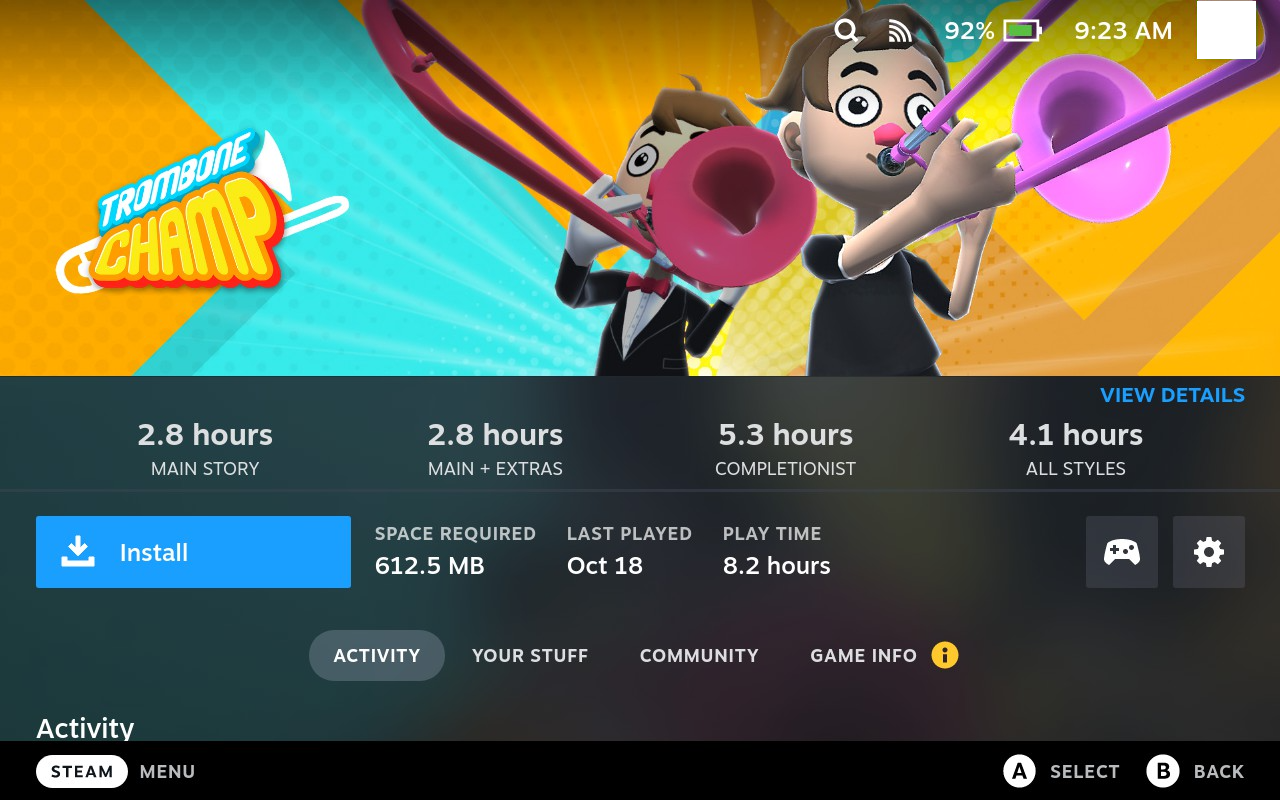
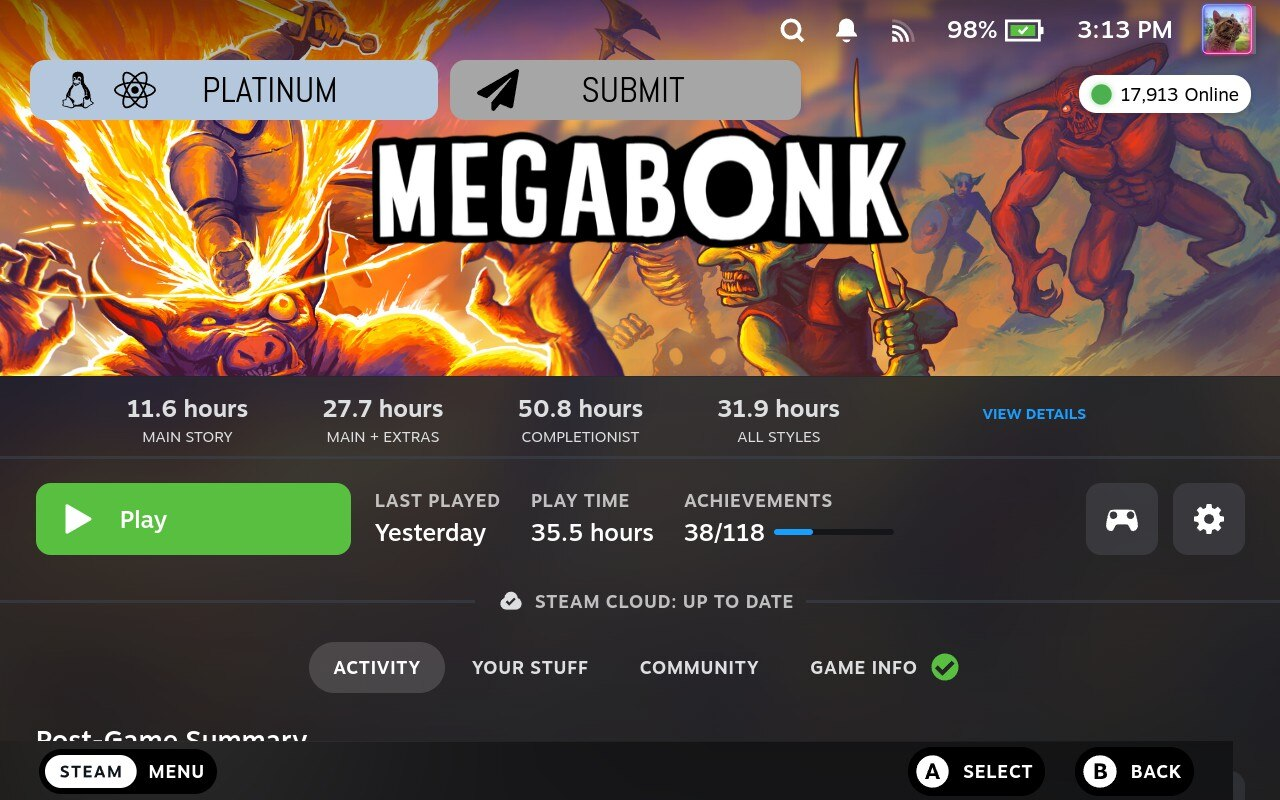
Decky game-length estimates
Display HowLongToBeat completion-time estimates on game pages. Open View Details for the source listing and adjust the information bar from the plugin menu.
Estimates depend on HowLongToBeat data and its availability.
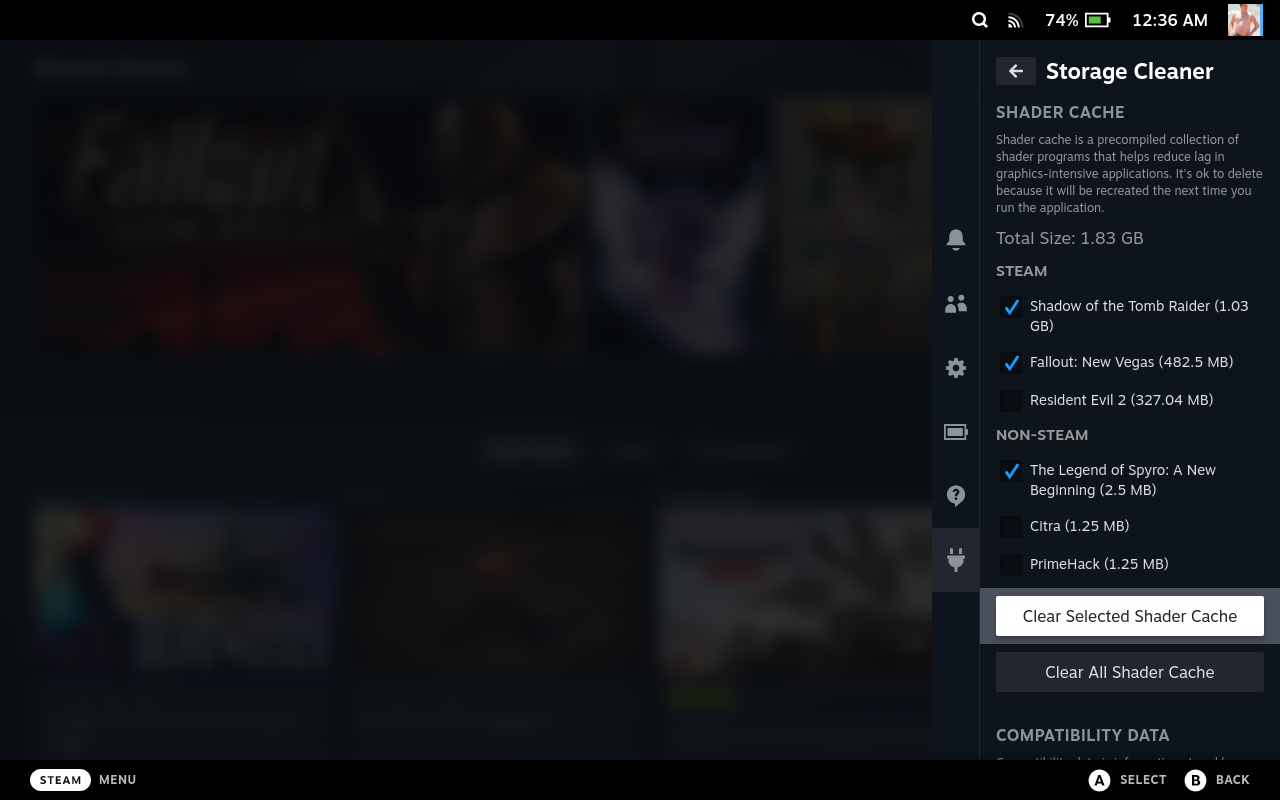
Decky cache inspection
Inspect per-game shader-cache and compatibility-data usage from Game Mode. Identify space usage before considering selective cleanup; compatibility folders can also contain game settings and saves.
Requires Decky Loader. Review data and backups before removing anything.
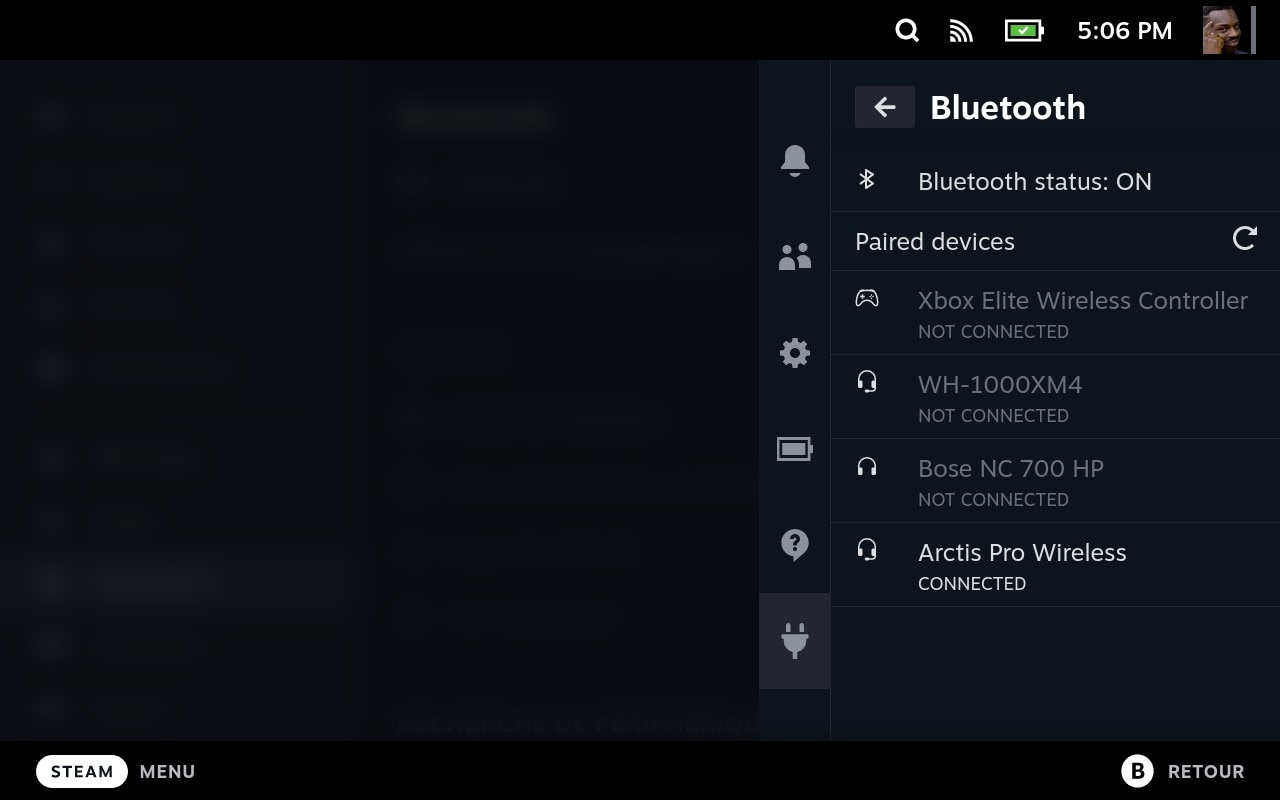
Decky device connections
Reconnect already paired headphones, controllers, and other Bluetooth devices from Quick Access while a game is running.
Pair new devices in Steam Settings first; this plugin is a shortcut to existing pairings.
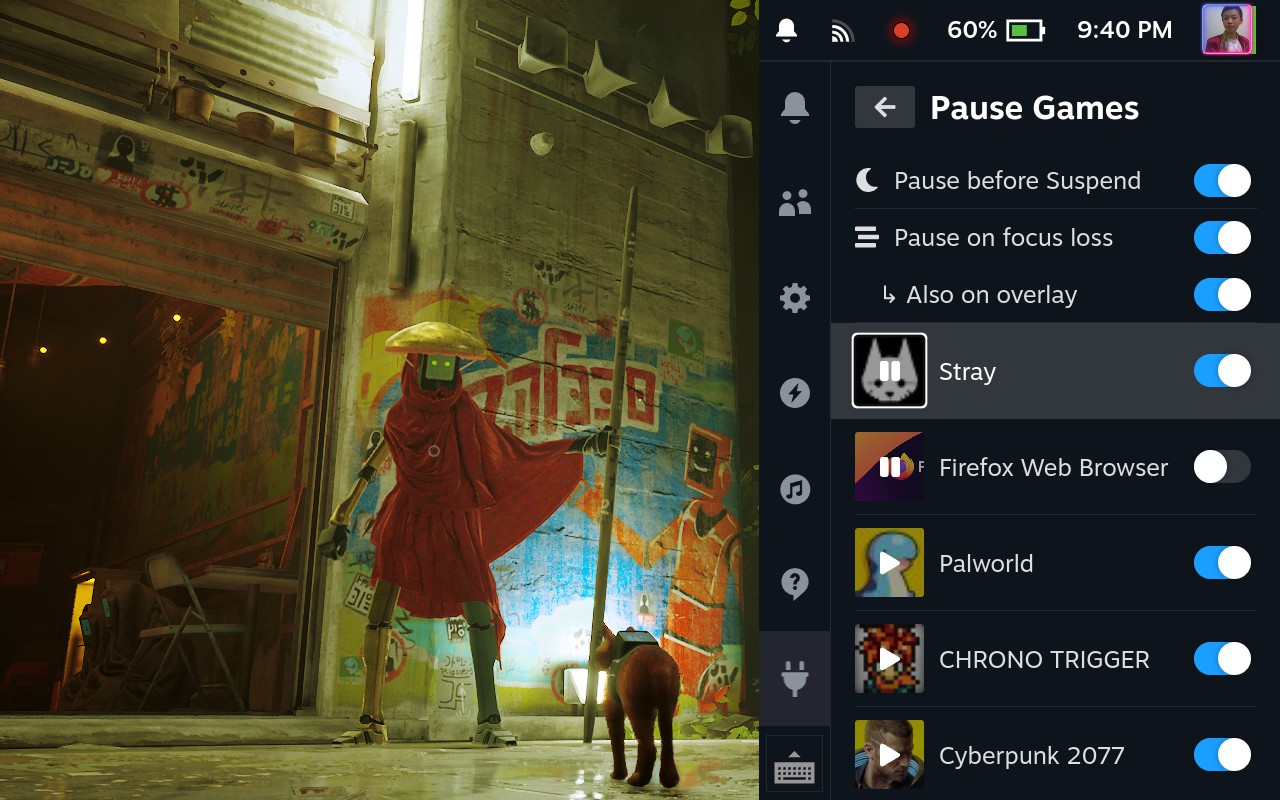
Decky game pausing
Pause and resume a running game from Quick Access, or optionally pause it when it loses focus. Useful for switching between applications without closing them.
Paused games keep their RAM and VRAM. Save first and test with an offline game; some games do not resume reliably.
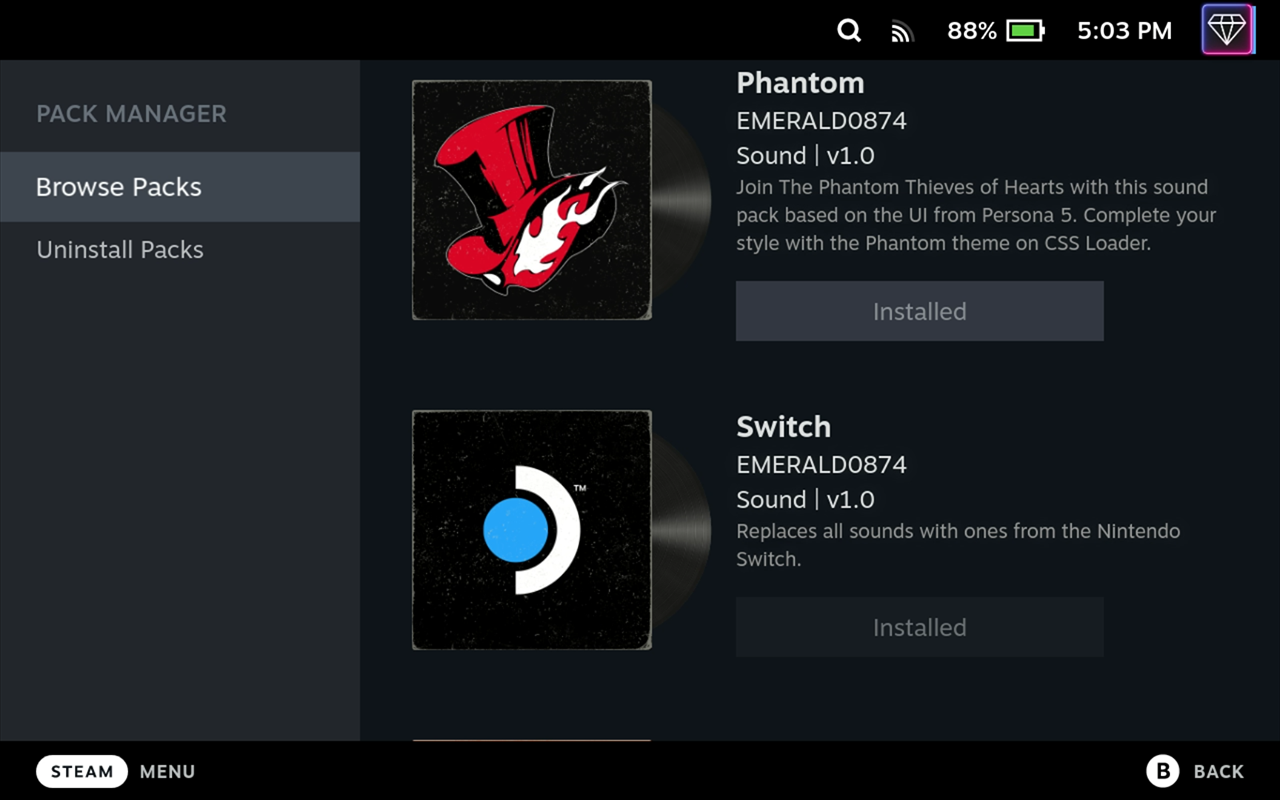
Decky menu sounds
Replace Steam interface sound effects with sound packs from the built-in Pack Manager. Browse packs and try one at a time from Game Mode.
Requires Decky Loader. Sound packs are downloaded separately through the plugin.
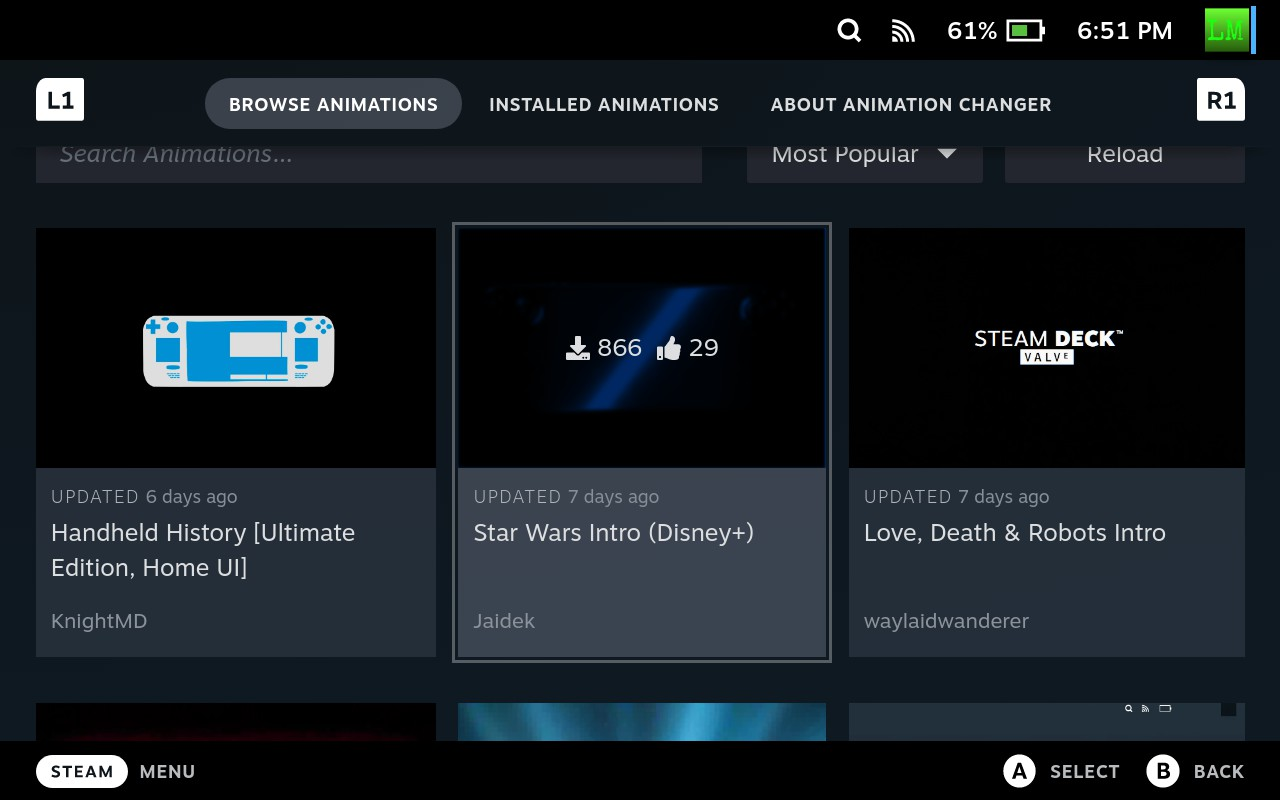
Decky startup customization
Browse and install startup animations, choose an installed animation, or randomize your selection on boot. Manage the selection from Quick Access.
Requires Decky Loader. Animation files are separate downloads; Steam customization settings can affect which movie plays.
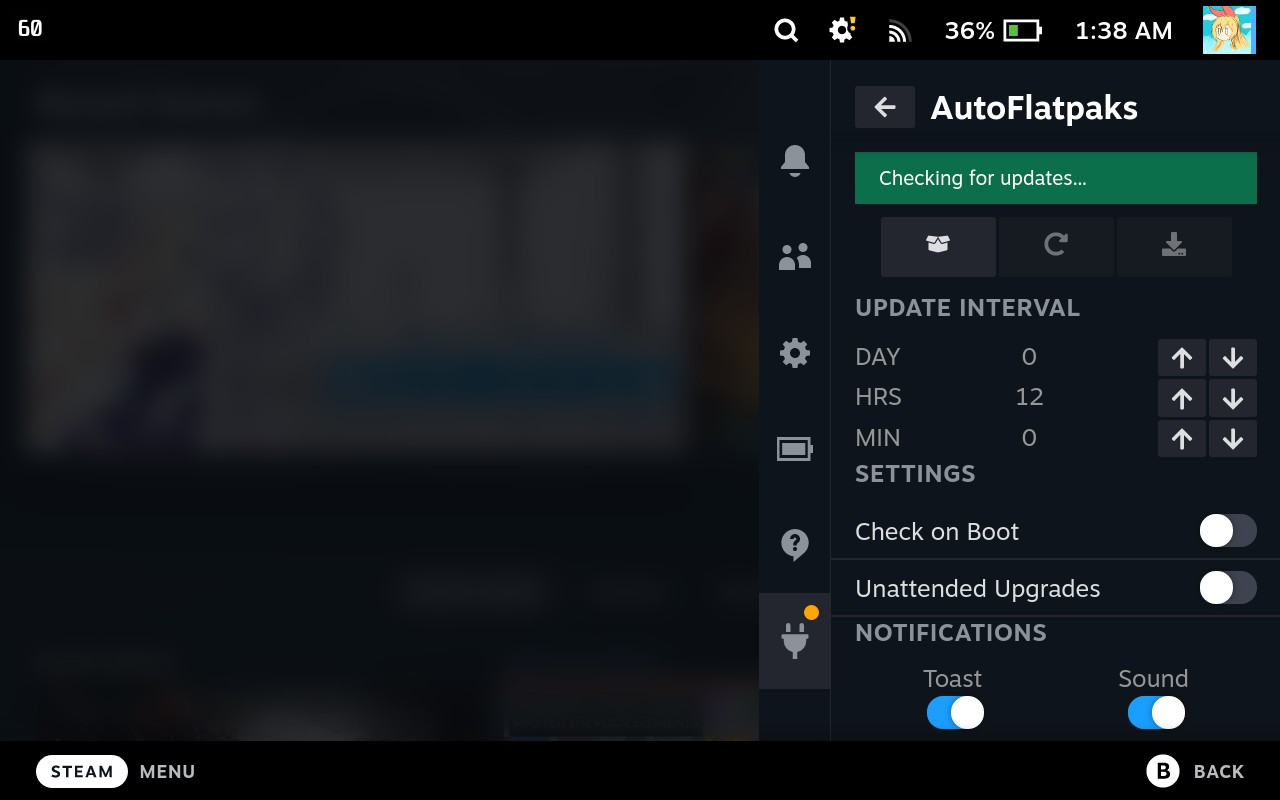
Decky Flatpak updates
Check and install Flatpak app updates without switching to Desktop Mode. Start with manual checks, then choose whether to enable notifications or automatic updates.
Requires root permissions through Decky. Supports system-installed Flatpaks; user-installed apps and extra installation locations are not supported.
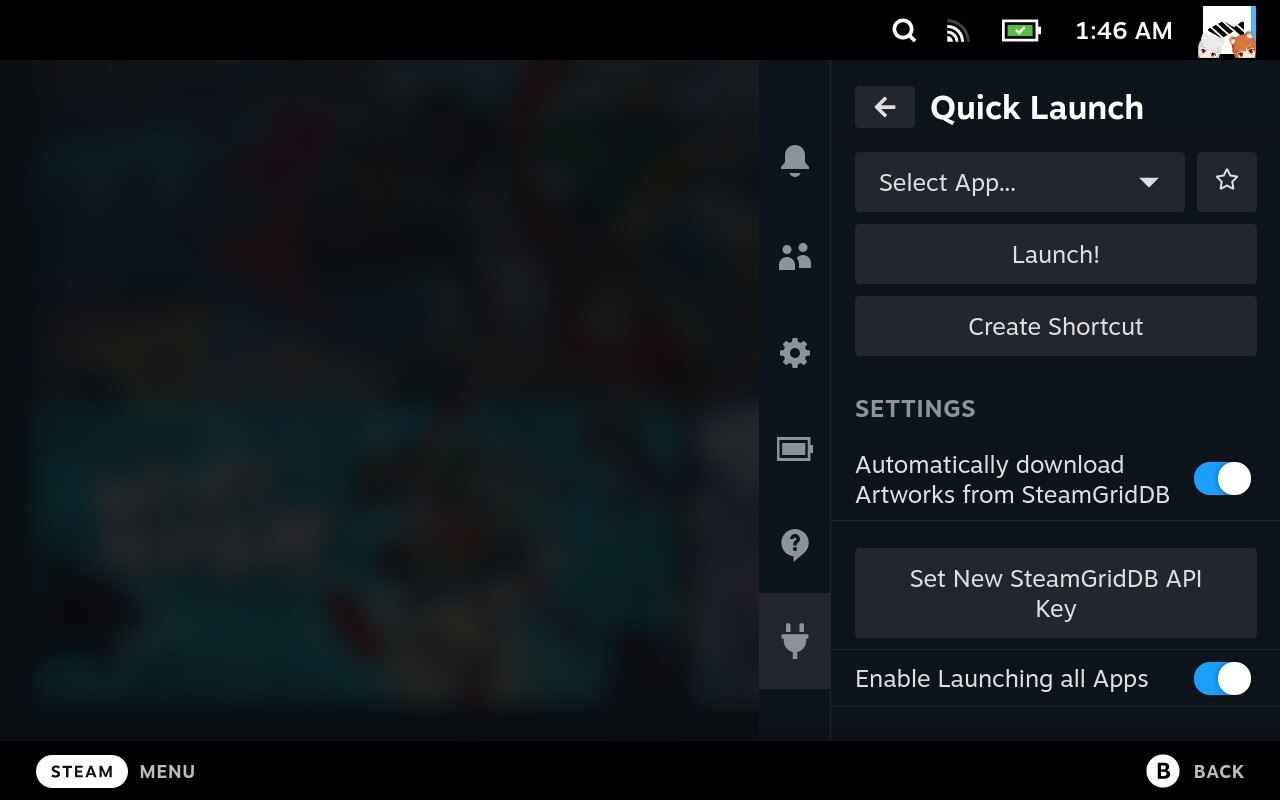
Decky app shortcuts
Launch desktop applications from the Quick Access menu and add shortcuts to your Steam library. Useful for opening an already installed utility from Game Mode.
Limited maintenance: the author cannot promise fixes. The plugin supports one application at a time; Steam library shortcuts remain an alternative.
Play games running on a PC or PlayStation console. The host device is required.

PC remote play
Stream games from your gaming PC. Set up Sunshine on the host, pair Moonlight, and use a reliable network for responsive remote play.

PlayStation remote play
Stream from your PS4 or PS5 to the Deck. Enable Remote Play on the console, then follow the registration guide to pair the app.
Move files between devices and manage Flatpak app permissions.

Flatpak permissions
Review permissions for Flatpak apps and grant access to a particular game folder when needed. Select the affected app, change its permissions, then restart it to apply the changes.
Applies to Flatpak apps; choose the specific folder they need.

Local file transfers
Transfer files between your Deck, phone, and PC over the same local network. Install LocalSend on both devices, select the receiving device, and accept the transfer without creating an account.
Both devices need LocalSend and access to the same local network.

Continuous folder sync
Keep selected folders synchronized between your Deck and another device. Pair the devices, choose a shared folder, and monitor transfers through its browser-based interface in Desktop Mode.
Keep Syncthing running on both devices. Changes and deletions can synchronize.

Disk usage visualizer
Find which folders use the most space using an interactive ring map. Scan your home folder or a selected drive, then explore larger directories before deciding what to manage.

Archive manager
Browse and extract ZIP, RAR, 7Z, and TAR archives in Desktop Mode. Review the contents and choose an output folder while keeping the original archive available.
Choose a walkthrough. Each guide links to the project's own instructions.
Decky adds a plugin menu to Game Mode. Start with its stable release and install plugins through the built-in store.
PowerTools is advanced manual tuning, with no guaranteed FPS gain. ProtonDB Badges shows community reports, separate from Valve's Deck Verified rating.
Use CSS Loader for interface themes and SteamGridDB for game artwork. Both install through Decky's store in Game Mode.
Try one interface theme at a time so you can identify and disable it if a Steam update changes the layout.
ProtonUp-Qt manages additional compatibility tools. Install a version first, then choose it separately for the game that needs it.
Compatibility varies by game. Keep a working configuration available and test changes one game at a time.
Choose the workflow that matches your game's source. Heroic, Lutris, and Bottles each manage their own installations and settings.
Pick one suitable workflow for each installation; adding more launchers does not fix an incompatible game.
Choose EmuDeck or RetroDECK as your starting setup. Steam ROM Manager handles library shortcuts and artwork for an existing collection.
EmuDeck and RetroDECK are alternative setups. Their documentation explains supported formats, folder locations, and emulator-specific requirements.
Moonlight receives the stream on your Deck. Sunshine runs on the gaming PC that renders and launches the games.
Keep the host PC running while streaming. Confirm local play works before following the projects' separate remote-network instructions.
Set up your own PlayStation console first, then register chiaki-ng. Start with the Deck and console on the same home network.
Use the guide matching your console and chosen registration method; account registration and console pairing are separate setup steps.
LocalSend transfers files over your local network. Install it on both devices and keep its receive window available on the destination.
If discovery fails, check the project's network troubleshooting instructions. A guest Wi-Fi network may separate connected devices.
Use Flatseal for a specific app's folder access. Use Protontricks only when a game's instructions require a Windows component or prefix change.
Set up a shared folder between your own devices. Start with a small test folder before choosing a game-save or document folder.
Sync propagates edits and deletions. Keep independent save backups; optional versioning archives incoming changes and is configured separately on each device.
Use Desktop Mode to browse a download before extracting it into a chosen folder.
Filelight maps folders in Desktop Mode. Storage Cleaner shows per-game cache and compatibility-data usage through Decky.
Compatibility folders can contain saves and settings. Shader caches may regenerate after removal, so clearing them is not a permanent storage saving.
TabMaster customizes your library tabs. HLTB for Deck adds completion-time estimates to game pages.
Completion times are community estimates. HLTB data can become temporarily unavailable when its upstream service changes.
Pair a device once in Steam Settings, then use the Bluetooth plugin as a Quick Access shortcut.
The plugin connects existing pairings; it does not replace initial device pairing in Steam Settings.
Use manual pause first so you can check how a game behaves before enabling focus-based automation.
This stops running processes; it does not save their state to disk or release their RAM/VRAM. Network sessions may time out while paused. Save frequently.
Audio Loader uses a curated Pack Manager to install sound packs for the Steam interface.
Menu sound packs are separate from game audio. Use the plugin manager rather than manually copying theme folders.
Animation Changer manages installed startup animations and can choose a different one each boot.
The built-in browser supplies startup animations. Suspend-animation configuration is a separate advanced feature described by the project.
Start with manual update checks before deciding whether you want background automation.
The plugin requires root permissions and currently supports system-installed Flatpaks only. It updates Flatpak apps and runtimes, not SteamOS or Steam games.
Quick Launch opens installed apps in Game Mode and can create Steam library shortcuts.
The author reports limited maintenance and support for one application at a time. If it stops working after a Steam update, add the application to Steam from Desktop Mode instead.
Check Valve's Deck Verified ratings and ProtonDB community reports. GE-Proton is optional and does not make every Windows game compatible.
EmuDeck and RetroDECK are alternative setups. Steam ROM Manager organizes shortcuts and artwork. Games and required BIOS files are supplied separately.
Compare the emulation toolsCheck Decky and plugin compatibility after SteamOS or Steam client updates. Use stable releases and each project's troubleshooting guide when something changes.
Browse Decky plugins