Xbox 360 Homebrew Library

Native XEX apps, homebrew games, ports, emulators and Aurora skins with ready downloads, requirements and setup paths.

Xbox 360 Homebrew Library

Choose your console setup

RGH / JTAG

Harissa64, HarissaDC, Starship, Dusklight, SwanStation and the native Homebrew App Store explicitly require RGH/JTAG. Their releases do not state an exact dashboard minimum or a motherboard list. Keep the working hacked dashboard and follow your hardware-specific setup.

RGH / JTAG requirements

Temporary sessions

BadUpdate targets dashboard 2.0.17559.0 and uses a supported game plus FAT32 USB. It requires a suitable retail-format XEX and runtime payload; unsigned apps are not interchangeable with exploit files. Re-run the entry point after reboot. Balatro360 explicitly supports ABadAvatar; other unconfirmed combinations are labelled individually.

BadUpdate official setup Runtime payload choices

Peer Pressure

The persistent softmod supports Xenon, Zephyr, Falcon, Jasper and Trinity, requires an attached HDD, and excludes Corona / Winchester. It has no DashLaunch plugin support. None of this library’s app entries is presented as separately tested with Peer Pressure; follow its compatibility notes before using modules or plugins.

Official compatibility

Xbox 360 homebrew library

Verified ready builds, exact versions and source credits. Download on your phone or PC, then extract and transfer to your console. Commercial game data and BIOS files are supplied by you.

41 resources

SwanStation artwork
xenosworks · official Homebrew App Catalogue screenshot
EmulatorsZIP / XEX

SwanStation

xenosworks

A PlayStation emulator with a recompiler, playing your own disc images at full speed.

Version
0.1.1.0
Console setup
RGH/JTAG Xbox 360; no minimum dashboard or motherboard revision is pinned in the Xbox release notes.
Homebrew title ID
58535353

Before you launchYour own PS1 BIOS such as SCPH1001.BIN beside swanstation.xex; owned disc images in games\. Supports CUE + BIN, CHD, M3U, PBP, ISO, ECM and MDS/BIN.

Setup, paths & checksum

Temporary exploit: This Xbox release specifies RGH/JTAG. Temporary exploit support is not confirmed.

HDD example
Hdd1:\apps\swanstation\
USB example
Usb0:\apps\swanstation\
Launch
swanstation.xex
  1. Create the shown swanstation app folder on your HDD or USB device. This store ZIP has swanstation.xex at its root; extract its contents directly into that app folder.
  2. Put your own PlayStation BIOS beside swanstation.xex and your owned disc images in games\. Keep all companion files and notices.
  3. Launch swanstation.xex through your existing homebrew launcher, or add the parent apps folder to Aurora’s Content paths and scan it.

Per-game memory cards live in saves\. Wait a few seconds after saving before quitting.

swanstation-0.1.1.0.zip
2,199,302 bytes · SHA-256
4a6844861dd4318fe42d65754feef4d3f822d98fa1acee4b6627626c5a224957

File structure and SHA-256 checked. No console execution test performed.
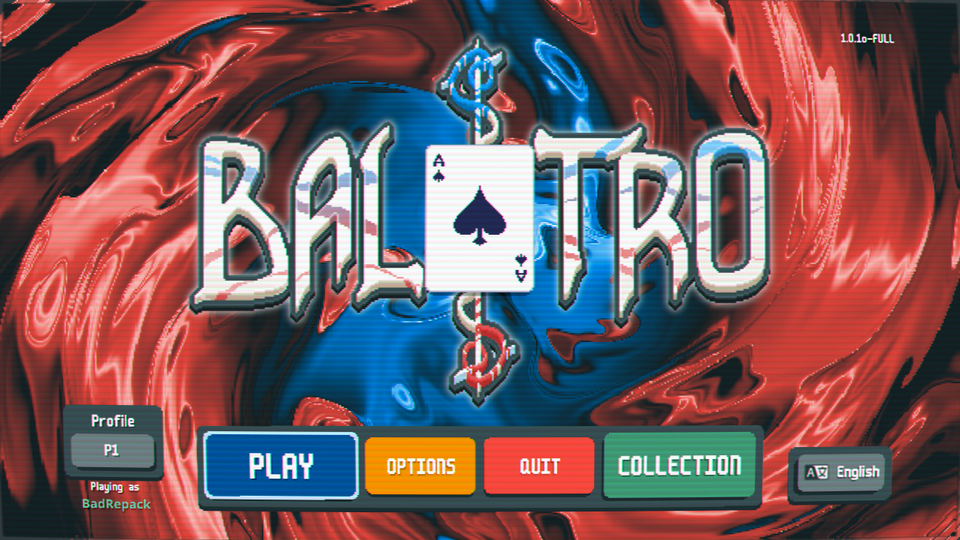
Balatro360 artwork
dougieprishpreed · official Homebrew App Catalogue screenshot
Native game portsZIP / XEX

Balatro360

dougieprishpreed

The poker roguelike, run from your own copy of the PC game at 1280x720.

Version
1.0.0.0
Console setup
Xbox 360 with RGH or ABadAvatar, explicitly supported by the author. No exact dashboard revision is pinned by the app.
Homebrew title ID
42333630

Before you launchYour own Steam Balatro.exe (or Mac Balatro.love) beside default.xex; about 150 MB free for extraction. The manual package extracts the game on first run and removes the supplied EXE; keep the PC original.

Setup, paths & checksum

Temporary exploit: ABadAvatar is explicitly supported. Run its matching runtime workflow after each reboot. BadUpdate and Peer Pressure are not separately certified by this app.

HDD example
Hdd1:\apps\balatro360\
USB example
Usb0:\apps\balatro360\
Launch
default.xex
  1. Extract the manual ZIP on your PC. Copy its apps folder to the root of the console’s HDD, shown as Hdd1 over FTP. If apps already exists, copy only its balatro360 subfolder into it.
  2. The final executable belongs at Hdd1:\apps\balatro360\default.xex. Put the required personal game data beside that XEX as described above. For a USB installation, copy the balatro360 subfolder into the shown USB app directory.
  3. Launch default.xex through your existing homebrew launcher, or add the parent apps folder to Aurora’s Content paths and scan it.

Preserve the save folder. Hold Back + Start for one second to quit.

Balatro360-Xbox360-1.0.0.0.zip
2,331,470 bytes · SHA-256
c63dc4ccce4c848ac8c6b975a8326686c0f32e8334897660a783dc0196535c18

Store package · console files at ZIP root (balatro360-1.0.0.0.zip)

Alternate store package · 2.22 MiB

This contains the same native XEX and supports first-run conversion of your own Balatro PC game files. For manual installation, extract the ZIP contents directly into Hdd1:\apps\balatro360\. The primary manual ZIP adds the apps folder layout and setup instructions.

b938c69e389e63c1ef02cdc44186717ff396f912630b769b232d53fa628941d4

File structure and SHA-256 checked. No console execution test performed.
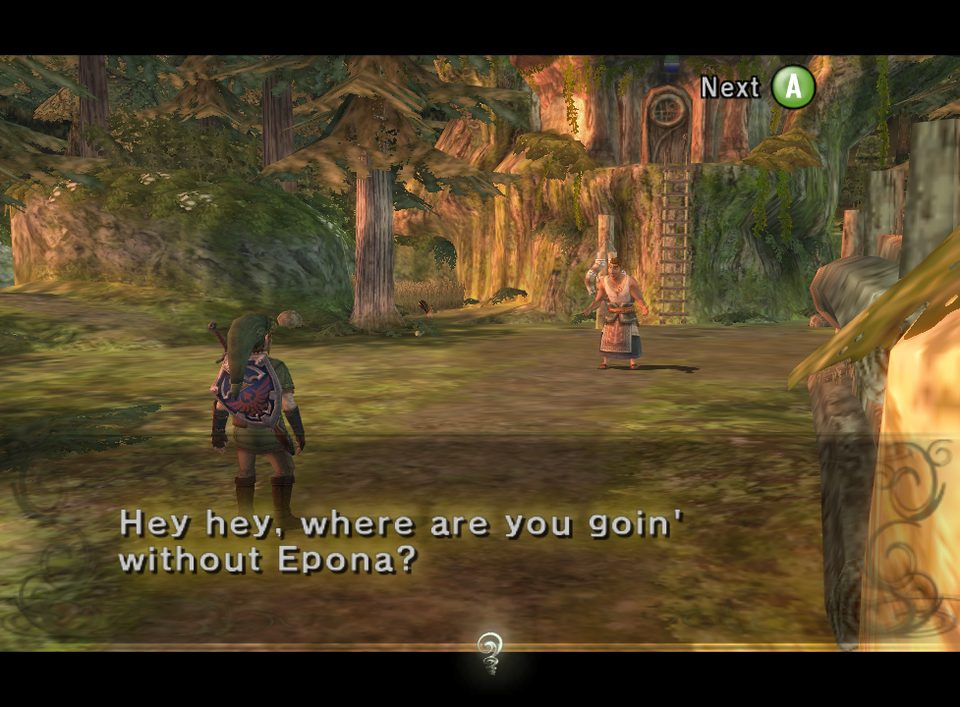
Dusklight artwork
xenosworks · official Homebrew App Catalogue screenshot
Native game portsZIP / XEX

Dusklight

xenosworks

The PC port of a classic GameCube adventure, at 1280x720 with 4 samples of multisampling.

Version
0.1.0.0
Console setup
RGH/JTAG Xbox 360; this release does not pin a motherboard or dashboard revision.
Homebrew title ID
4455534B

Before you launchYour own US GameCube Twilight Princess GZ2E01 full uncompressed ISO, exactly 1,459,978,240 bytes, named dusklight.iso beside dusklight.xex. Keep the res folder intact.

Setup, paths & checksum

Temporary exploit: The publisher specifies RGH/JTAG; no temporary-exploit compatibility claim is made.

HDD example
Hdd1:\apps\dusklight\
USB example
Usb0:\apps\dusklight\
Launch
dusklight.xex
  1. Create the shown dusklight app folder on your HDD or USB device. This store ZIP has dusklight.xex at its root; extract its contents directly into that app folder.
  2. Keep the res folder intact. Put your own supported disc image beside dusklight.xex with the exact name dusklight.iso.
  3. Launch dusklight.xex through your existing homebrew launcher, or add the parent apps folder to Aurora’s Content paths and scan it.

Keep Unlock Framerate off. Preserve TwilitRealm / Dusklight saves, settings and shader caches. Shader compilation and pop-in remain known limitations.

dusklight-0.1.0.0.zip
21,359,103 bytes · SHA-256
59b69f3e447c83165ff034d407316a1834aa6967408e935a8e51daa080993c19

File structure and SHA-256 checked. No console execution test performed.
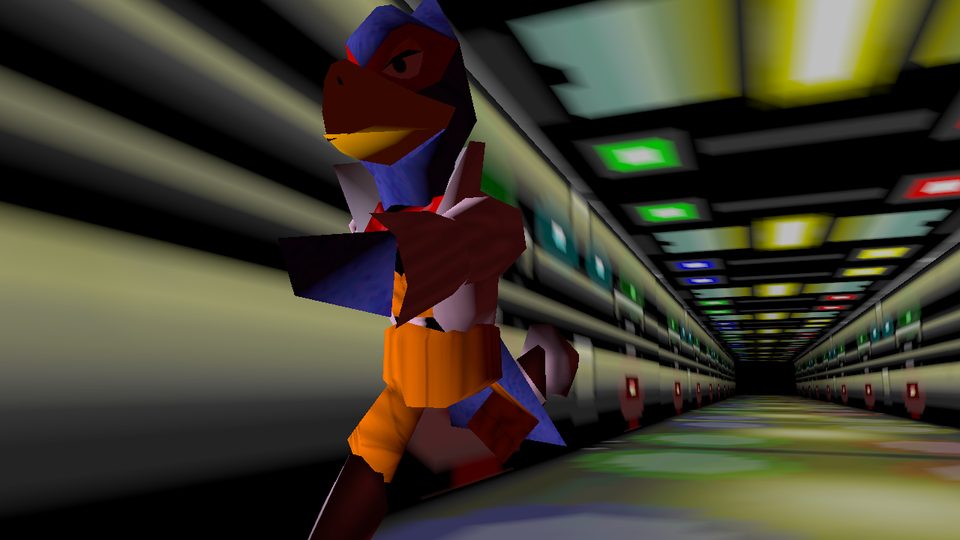
Starship artwork
xenosworks · official Homebrew App Catalogue screenshot
Native game portsZIP / XEX

Starship

xenosworks

The PC port of a classic N64 space shooter, at 1280x720 and the game's own 30 fps.

Version
0.2.0.0
Console setup
RGH/JTAG Xbox 360; no minimum dashboard or motherboard revision is specified by this release.
Homebrew title ID
53544152

Before you launchYour own Star Fox 64 US 1.0 or 1.1 ROM (.z64, .n64 or .v64), placed beside starship.xex. First run creates sf64.o2r and removes the supplied input ROM; retain your original on your PC. An existing compatible sf64.o2r also works.

Setup, paths & checksum

Temporary exploit: This release specifies RGH/JTAG. BadUpdate, ABadAvatar and Peer Pressure support is not claimed by the publisher.

HDD example
Hdd1:\apps\starship\
USB example
Usb0:\apps\starship\
Launch
starship.xex
  1. Extract the manual ZIP on your PC. Copy its apps folder to the root of the console’s HDD, shown as Hdd1 over FTP. If apps already exists, copy only its starship subfolder into it.
  2. The final executable belongs at Hdd1:\apps\starship\starship.xex. Put the required personal game data beside that XEX as described above. For a USB installation, copy the starship subfolder into the shown USB app directory.
  3. Launch starship.xex through your existing homebrew launcher, or add the parent apps folder to Aurora’s Content paths and scan it.

Leave frame interpolation at the default 30 FPS; scene-loading stalls are a known limitation.

Starship-Xbox360-0.2.0.0.zip
6,787,372 bytes · SHA-256
cfd6f0343d167869843f46d31165212249675e2ab9a28fa81e21b66947c56222

File structure and SHA-256 checked. No console execution test performed.
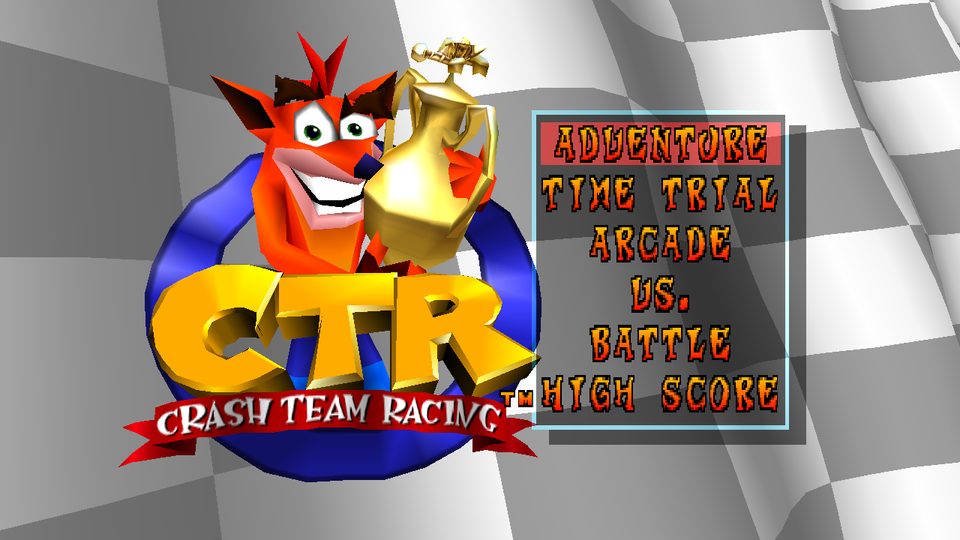
CTR360 artwork
dougieprishpreed · official Homebrew App Catalogue screenshot
Native game portsZIP / XEX

CTR360

dougieprishpreed

The PC port of a classic PlayStation kart racer, at 1280x720 and up to 60 fps.

Version
1.0.3.0
Console setup
Homebrew-enabled Xbox 360 capable of unsigned XEX loading (for example Aurora); writable HDD or USB. No exact motherboard or dashboard revision is specified.
Homebrew title ID
43545233

Before you launchYour own NTSC-U Crash Team Racing SCUS-94426 raw BIN (2352-byte sectors, data track at sector 0) and matching CUE beside default.xex; about 610 MB free. The manual package converts to assets\ctr-u.bin on first run and deletes the supplied BIN/CUE. Retain your originals. Other regions, ISO and compressed inputs are unsupported.

Setup, paths & checksum

Temporary exploit: A specific temporary exploit/payload is not certified by the author. Do not infer compatibility from another app’s requirements.

HDD example
Hdd1:\apps\ctr360\
USB example
Usb0:\apps\ctr360\
Launch
default.xex
  1. Extract the manual ZIP on your PC. Copy its apps folder to the root of the console’s HDD, shown as Hdd1 over FTP. If apps already exists, copy only its ctr360 subfolder into it.
  2. The final executable belongs at Hdd1:\apps\ctr360\default.xex. Put the required personal game data beside that XEX as described above. For a USB installation, copy the ctr360 subfolder into the shown USB app directory.
  3. Launch default.xex through your existing homebrew launcher, or add the parent apps folder to Aurora’s Content paths and scan it.

Preserve memcards\ and ctr360.ini. A Windows converter is included in the official manual package as an optional helper; it is not required for the console conversion path and was not run.

CTR360-Xbox360-1.0.3.0.zip
12,571,568 bytes · SHA-256
96fc653f711a9c94950eeb397de824c61fceb7be1c82ece71910cb5509c2ac99

Store package · console files at ZIP root (ctr360-1.0.3.0.zip)

Alternate store package · 1.05 MiB

This contains the same native XEX and supports first-run conversion of your own supported BIN disc image. For manual installation, extract the ZIP contents directly into Hdd1:\apps\ctr360\. The optional Windows converter is included in the primary manual ZIP.

4b510db3cfc005af24a1a64c95cb5a524ae9075894a471f6d7a768814072d716

File structure and SHA-256 checked. No console execution test performed.
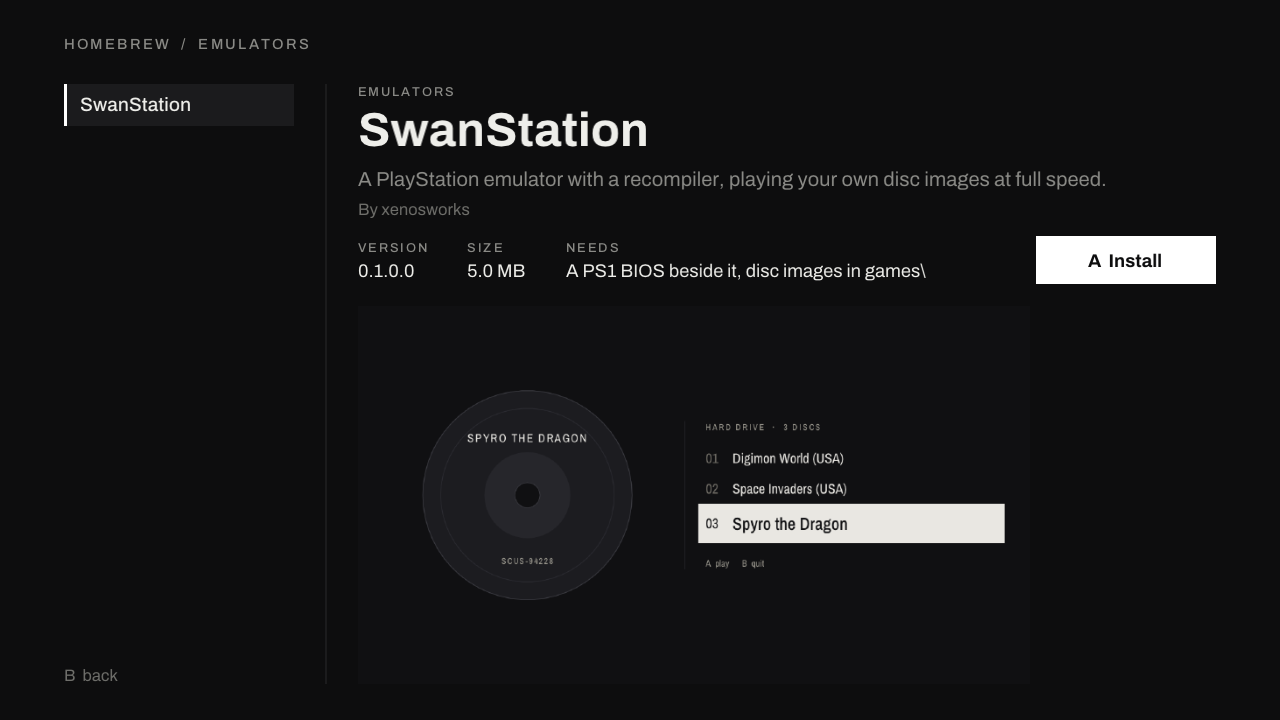
Homebrew App Store artwork
xenosworks · official Homebrew App Catalogue screenshot
Apps & dashboardZIP / XEX

Homebrew App Store

xenosworks

Find, install, update and launch Xbox 360 homebrew.

Version
0.1.0.0
Console setup
RGH/JTAG Xbox 360 with a network connection, explicitly required by the bundled README. No exact motherboard or dashboard revision is pinned.
Homebrew title ID
58534153

Before you launchWritable HDD for hdd:/apps/<id> installations and network access for the catalogue/downloads. Keep cacert.pem beside homebrew_app_store.xex. This store is a native XEX app, separate from Aurora’s Lua Homebrew Store script.

Setup, paths & checksum

Temporary exploit: The bundled release README specifies RGH/JTAG. A temporary exploit/payload combination is not confirmed by the publisher.

HDD example
Hdd1:\apps\hbstore\
USB example
Usb0:\apps\hbstore\
Launch
homebrew_app_store.xex
  1. Extract the manual ZIP on your PC. Copy its apps folder to the root of your console’s HDD, shown as Hdd1 over FTP. If apps already exists, copy the hbstore subfolder into it.
  2. The final path is Hdd1:\apps\hbstore\homebrew_app_store.xex. Keep cacert.pem beside that XEX. App installations require the writable HDD even if the store itself is placed on USB.
  3. Start homebrew_app_store.xex from your dashboard. Installed apps each get their own folder in Hdd1:\apps\.

Homebrew-App-Store-Xbox360-0.1.0.0.zip
1,891,078 bytes · SHA-256
43eaec792e733b5cacb85e299af93ac9bac00891e5abd816da65e9db0f929d33

File structure and SHA-256 checked. No console execution test performed.

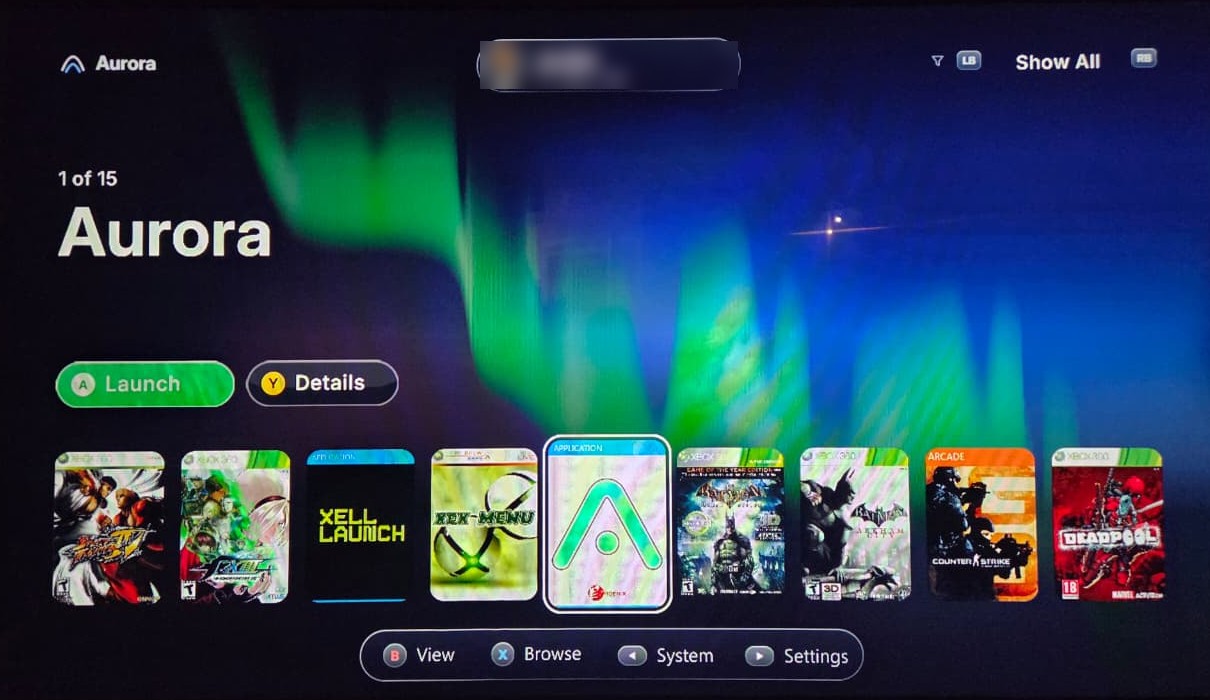
Aurora Dashboard artwork
Phoenix / XboxUnity · Aurora logo
Apps & dashboardRAR / XEX

Aurora Dashboard

Phoenix / XboxUnity

Coverflow dashboard, content scanner, file manager and Aurora script host.

Version
0.7b.2 · Rev1655
Console setup
Homebrew-enabled Xbox 360. This download is a dashboard application and does not modify retail firmware by itself.

Before you launchExisting unsigned-code loading and writable internal HDD or FAT32 USB storage. NOVA / DashLaunch plugin features require their own compatible runtime.

Setup, paths & checksum

Temporary exploit: Use only after a compatible runtime payload. A temporary exploit session ends on reboot; do not install DashLaunch into NAND to make this dashboard persistent. Peer Pressure has separate plugin limitations.

HDD example
Hdd1:\Aurora\
USB example
Usb0:\Aurora\
Launch
Aurora.xex
  1. Extract the full official package into a new Aurora folder on your HDD or USB drive. Keep your existing installation until the new one has been checked.
  2. Launch Aurora.xex with your existing unsigned-code loader. Configure Content → Manage Paths for your Homebrew folders and choose a scan depth that reaches the XEX.
  3. Back up your database and settings before migrating. Enable network modules only if the runtime supports them.

Aurora 0.7b.2 - Release Package.rar
22,647,806 bytes · SHA-256
0c7c765c3a5b938cfc64c71beda276a17d109b88df2a88e3f91eb1e74b7e46a0

File structure and SHA-256 checked. No console execution test performed.

Aurora A–Z artwork
haimbilia · Aurora A–Z icon
Apps & dashboardZIP / XEX

Aurora A–Z

haimbilia / Karotech

Adds an alphabet selector to Aurora’s coverflow without changing the skin.

Version
1.1
Console setup
Homebrew-capable Xbox 360, exact Aurora 0.7b.2 Rev1655; no extra launch.ini entry.

Before you launchExactly Aurora 0.7b.2 Rev1655. Occupies Plugins\NetDbgDll.xex and cannot run alongside Aurora’s Network Debugger. Keep a file-manager recovery route.

Setup, paths & checksum

Temporary exploit: Publisher does not certify BadUpdate, ABadAvatar or Peer Pressure. Aurora plugin compatibility depends on your active runtime. The corrected v1.1 installer is not yet verified on-console by the author.

HDD example
Hdd1:\Aurora\User\Scripts\Utility\AuroraAZInstaller\
USB example
Usb0:\Aurora\User\Scripts\Utility\AuroraAZInstaller\
Launch
Aurora script: Install Aurora A-Z
  1. Extract AuroraAZInstaller into your actual Aurora\User\Scripts\Utility\ directory. Keep Main.lua, AuroraAZ.xex and icon.png together.
  2. In Aurora open Scripts, refresh with X, run Install Aurora A-Z and select Install. The installer backs up an existing NetDbgDll.xex.
  3. Reboot manually, restoring the temporary runtime first if applicable. Hold R3 to browse letters; R3 + L3 changes Browse / Filter mode.

AuroraAZ-v1.1-Installer.zip
1,623,449 bytes · SHA-256
725b6918c693e8bcf3f6f217f638a8fe4d1ed6b86bf0c7bdefbd8a7689fb6b27

File structure and SHA-256 checked. No console execution test performed.
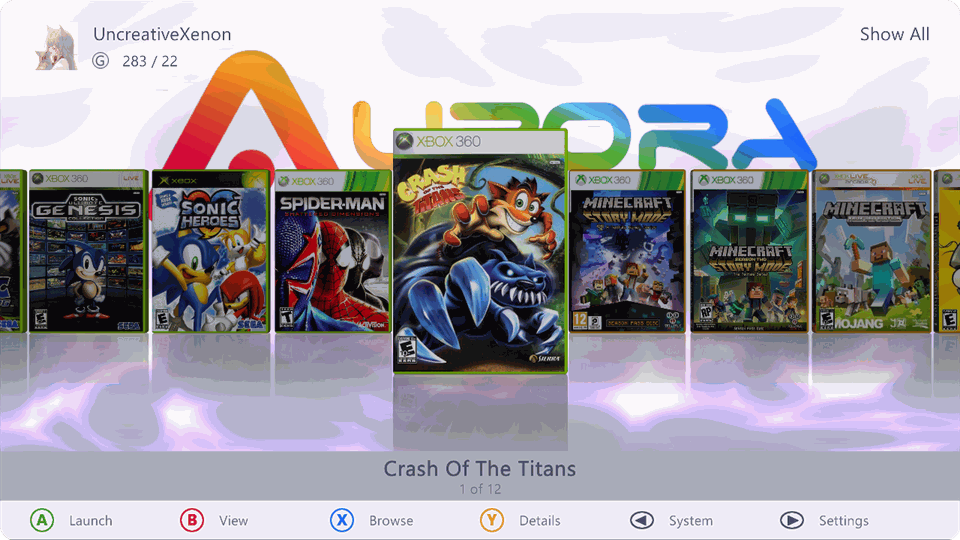
Catppuccin Latte skin preview
Catppuccin Org · Latte Aurora skin preview
Aurora skinsXZP

Catppuccin Latte

Catppuccin Org · UncreativeXenon, AlwaysNur, thismoon

Ready Aurora skin in the Latte palette, with a blue accent. Preview shows the publisher’s flavor overview; other accent colors are available upstream.

Version
Snapshot 21f6ef552491 · Blue accent
Console setup
Aurora Dashboard on a homebrew-enabled Xbox 360; not a stock Microsoft dashboard theme.

Before you launchAurora installed and a working unsigned-code setup. The skin author does not state a minimum Aurora revision; keep the working skin as a fallback.

Setup, paths & checksum

Temporary exploit: Skin selection does not provide an exploit or make a temporary homebrew session persistent.

HDD example
Hdd1:\Aurora\Skins\Catppuccin-Latte-Blue.xzp
USB example
Usb0:\Aurora\Skins\Catppuccin-Latte-Blue.xzp
Launch
Aurora → B → Skin → Change
  1. Copy the XZP file into the Skins directory of your actual Aurora installation. Do not unpack the XZP.
  2. In Aurora press B → Skin → Change and select the new skin.
  3. Press Back → Restart. Keep the previous XZP until the replacement loads correctly.

Catppuccin-Latte-Blue.xzp
8,259,338 bytes · SHA-256
473ef6e2cf880aba2e41be89ccbabc2f12875ab017eafaf5bd2a653c23579196

File structure and SHA-256 checked. No console execution test performed.
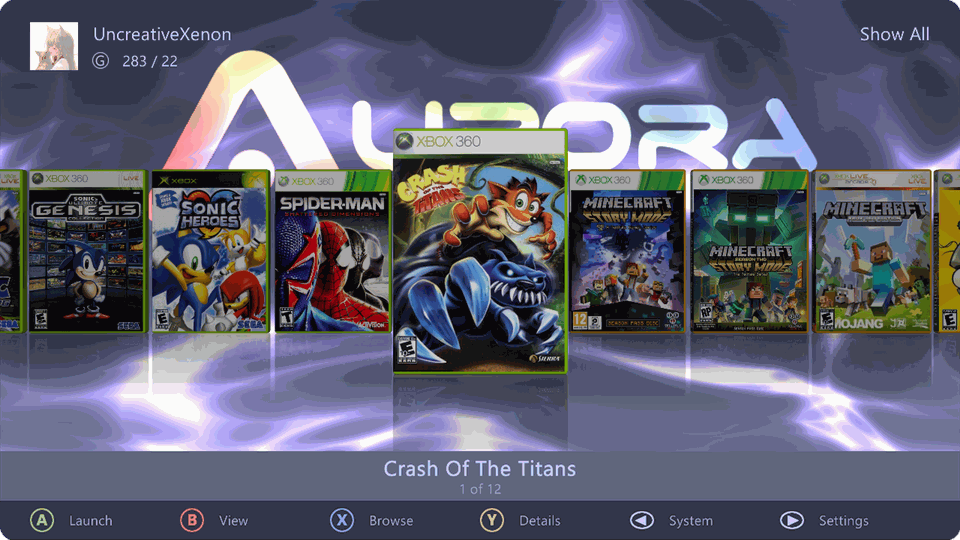
Catppuccin Frappé skin preview
Catppuccin Org · Frappe Aurora skin preview
Aurora skinsXZP

Catppuccin Frappé

Catppuccin Org · UncreativeXenon, AlwaysNur, thismoon

Ready Aurora skin in the Frappé palette, with a blue accent. Preview shows the publisher’s flavor overview; other accent colors are available upstream.

Version
Snapshot 21f6ef552491 · Blue accent
Console setup
Aurora Dashboard on a homebrew-enabled Xbox 360; not a stock Microsoft dashboard theme.

Before you launchAurora installed and a working unsigned-code setup. The skin author does not state a minimum Aurora revision; keep the working skin as a fallback.

Setup, paths & checksum

Temporary exploit: Skin selection does not provide an exploit or make a temporary homebrew session persistent.

HDD example
Hdd1:\Aurora\Skins\Catppuccin-Frappe-Blue.xzp
USB example
Usb0:\Aurora\Skins\Catppuccin-Frappe-Blue.xzp
Launch
Aurora → B → Skin → Change
  1. Copy the XZP file into the Skins directory of your actual Aurora installation. Do not unpack the XZP.
  2. In Aurora press B → Skin → Change and select the new skin.
  3. Press Back → Restart. Keep the previous XZP until the replacement loads correctly.

Catppuccin-Frappe-Blue.xzp
8,253,241 bytes · SHA-256
6649ac7add90fcc26a790845585b0b3b747211368f56e921e2792c1e426ddbf1

File structure and SHA-256 checked. No console execution test performed.
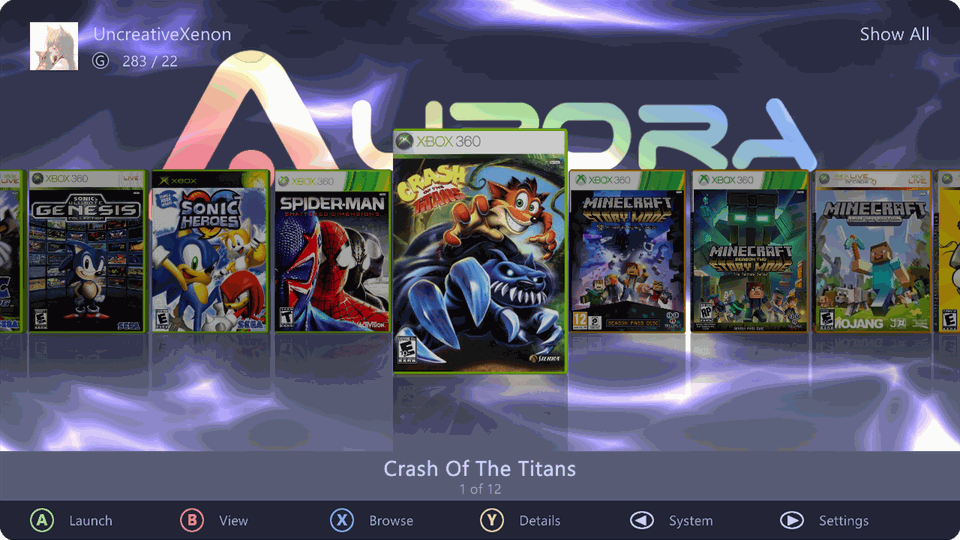
Catppuccin Macchiato skin preview
Catppuccin Org · Macchiato Aurora skin preview
Aurora skinsXZP

Catppuccin Macchiato

Catppuccin Org · UncreativeXenon, AlwaysNur, thismoon

Ready Aurora skin in the Macchiato palette, with a blue accent. Preview shows the publisher’s flavor overview; other accent colors are available upstream.

Version
Snapshot 21f6ef552491 · Blue accent
Console setup
Aurora Dashboard on a homebrew-enabled Xbox 360; not a stock Microsoft dashboard theme.

Before you launchAurora installed and a working unsigned-code setup. The skin author does not state a minimum Aurora revision; keep the working skin as a fallback.

Setup, paths & checksum

Temporary exploit: Skin selection does not provide an exploit or make a temporary homebrew session persistent.

HDD example
Hdd1:\Aurora\Skins\Catppuccin-Macchiato-Blue.xzp
USB example
Usb0:\Aurora\Skins\Catppuccin-Macchiato-Blue.xzp
Launch
Aurora → B → Skin → Change
  1. Copy the XZP file into the Skins directory of your actual Aurora installation. Do not unpack the XZP.
  2. In Aurora press B → Skin → Change and select the new skin.
  3. Press Back → Restart. Keep the previous XZP until the replacement loads correctly.

Catppuccin-Macchiato-Blue.xzp
8,253,392 bytes · SHA-256
49c2f5e541358c6ef45657ff6ce287fc87f5e0e7bda14aad2a408c0db6a47632

File structure and SHA-256 checked. No console execution test performed.
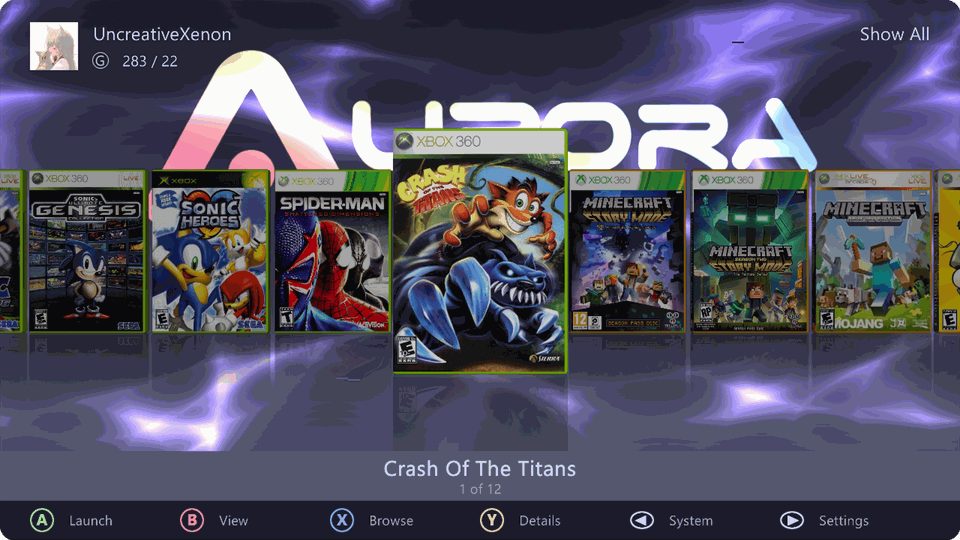
Catppuccin Mocha skin preview
Catppuccin Org · Mocha Aurora skin preview
Aurora skinsXZP

Catppuccin Mocha

Catppuccin Org · UncreativeXenon, AlwaysNur, thismoon

Ready Aurora skin in the Mocha palette, with a blue accent. Preview shows the publisher’s flavor overview; other accent colors are available upstream.

Version
Snapshot 21f6ef552491 · Blue accent
Console setup
Aurora Dashboard on a homebrew-enabled Xbox 360; not a stock Microsoft dashboard theme.

Before you launchAurora installed and a working unsigned-code setup. The skin author does not state a minimum Aurora revision; keep the working skin as a fallback.

Setup, paths & checksum

Temporary exploit: Skin selection does not provide an exploit or make a temporary homebrew session persistent.

HDD example
Hdd1:\Aurora\Skins\Catppuccin-Mocha-Blue.xzp
USB example
Usb0:\Aurora\Skins\Catppuccin-Mocha-Blue.xzp
Launch
Aurora → B → Skin → Change
  1. Copy the XZP file into the Skins directory of your actual Aurora installation. Do not unpack the XZP.
  2. In Aurora press B → Skin → Change and select the new skin.
  3. Press Back → Restart. Keep the previous XZP until the replacement loads correctly.

Catppuccin-Mocha-Blue.xzp
8,255,172 bytes · SHA-256
c96c549c3e5a70bd3c4c1e024b46f5d1f2adaec2f4067a3020a46ae752359400

File structure and SHA-256 checked. No console execution test performed.

Harissa64 artwork
kernel64 · Harissa64 background from the official release
EmulatorsZIP / XEX

Harissa64

kernel64

Native Nintendo 64 emulator with a game browser and per-game configuration.

Version
2.0.8
Console setup
RGH/JTAG Xbox 360 with Aurora or FreeStyle Dash; the author does not pin a motherboard or dashboard build.

Before you launchYour own N64 games in roms\: .z64, .n64, .v64 or .zip. Keep ROM filenames at most 42 characters, without commas, +, ;, = or accents, as required by the bundled INSTALL.txt. Retain the complete release folder.

Setup, paths & checksum

Temporary exploit: Publisher specifies RGH/JTAG; temporary exploit and Peer Pressure support are unverified.

HDD example
Hdd1:\Emulators\Harissa64\
USB example
Usb0:\Emulators\Harissa64\
Launch
default.xex
  1. Extract the ZIP on your PC, then copy its whole Harissa64 folder into Hdd1:\Emulators\ or the shown USB Emulators folder. The XEX should be directly inside Harissa64, without a second nested Harissa64 folder.
  2. Put your own games in Harissa64\roms\. Add the parent Emulators folder to Aurora’s scan paths, or browse to Harissa64 and launch default.xex.
  3. For games in another location, open Files, browse to the desired folder, then press Y to use that current folder as the game folder.

Harissa64-2.0.8.zip
39,116,506 bytes · SHA-256
d181ce07e2b30a78e200cb4a1bea5906f0db38f54508ff109cbbd312aca3f8fc

File structure and SHA-256 checked. No console execution test performed.

HarissaDC artwork
Xbox 360 console illustration · no HarissaDC release artwork supplied
EmulatorsZIP / XEXDevelopment build

HarissaDC

kernel64

Early Dreamcast emulator for Xbox 360. Expect game-specific graphical and performance problems.

Version
0.1.0-dev
Console setup
RGH/JTAG Xbox 360 with Aurora, FreeStyle Dash or XeXMenu; no exact firmware or motherboard pin.

Before you launchYour own games in games\. No external BIOS required. Formats: GDI with tracks, Redump GD-ROM CUE/BIN, CHDv5, ISO (data only), and 7z containing one game with space for cache extraction.

Setup, paths & checksum

Temporary exploit: The publisher specifies RGH/JTAG; temporary exploit support is not confirmed.

HDD example
Hdd1:\Emulators\HarissaDC\
USB example
Usb0:\Emulators\HarissaDC\
Launch
default.xex
  1. Extract the ZIP on your PC, then copy its whole HarissaDC folder into Hdd1:\Emulators\ or the shown USB Emulators folder. The XEX should be directly inside HarissaDC, without a second nested HarissaDC folder.
  2. Add your own games under HarissaDC\games\, keeping multi-track GDI / BIN sets together.
  3. Launch default.xex through your existing homebrew launcher. Keep game settings and saves when upgrading.

Development build: graphical glitches and slow cutscenes are known. CHD loading may be slower.

HarissaDC-0.1.0-dev.zip
21,495,409 bytes · SHA-256
b49d608656832e2dad835f5d56ce4ee22c06b20538f7250269d4c7fd3a00bfb7

File structure and SHA-256 checked. No console execution test performed.
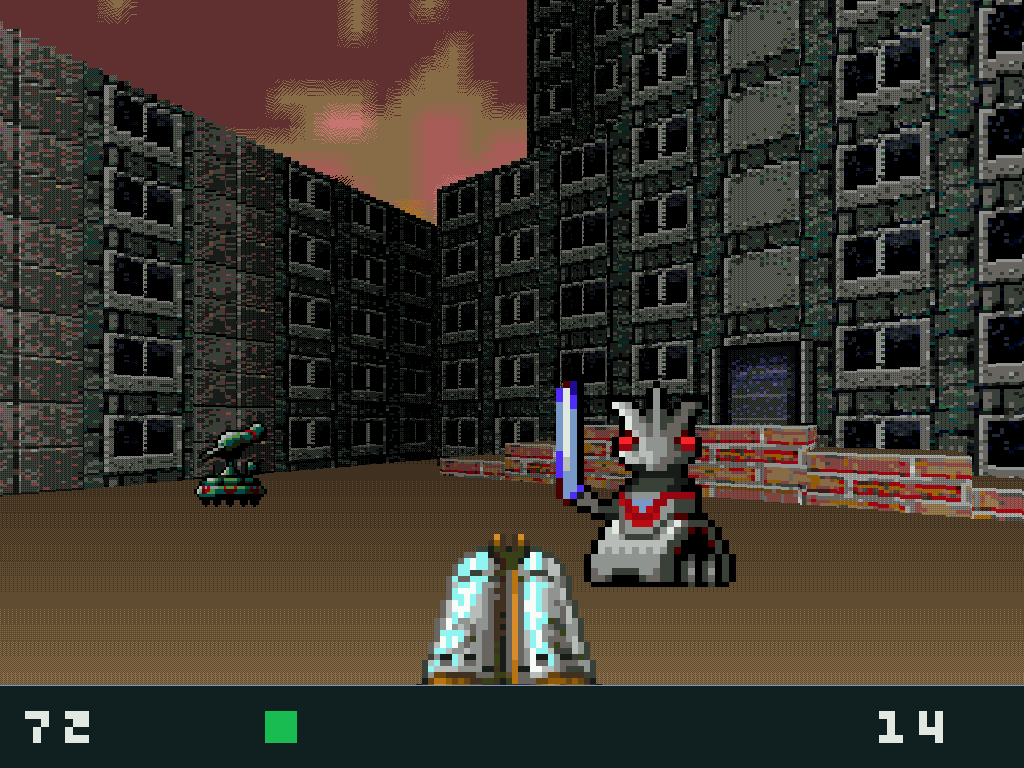
Anarch360 artwork
drummyfish / Fhoughton · original Anarch artwork, CC0; not a hardware-test screenshot
Homebrew gamesXEX

Anarch360

Fhoughton · original game by drummyfish

Self-contained public-domain first-person game with original low-resolution artwork and robot enemies.

Version
1.0.0
Console setup
A hacked Xbox 360 with Aurora is specified by the author; no particular motherboard or firmware revision is stated.

Before you launchNo external ROM, BIOS or commercial game data required. This XEX contains the game.

Setup, paths & checksum

Temporary exploit: The author does not certify a temporary exploit/payload combination. Use an established compatible unsigned-code runtime.

HDD example
Hdd1:\Homebrew\Anarch360\
USB example
Usb0:\Homebrew\Anarch360\
Launch
anarch360.xex
  1. Create a new Homebrew\Anarch360 folder on the HDD or FAT32 USB drive.
  2. Copy anarch360.xex into it. Launch it from your existing unsigned-code file manager or add the folder to Aurora’s scan paths.

anarch360.xex
3,252,224 bytes · SHA-256
0652e4aaac97cbecf57ae8bbb1b87d812a80fd0595396d655b73f5c8fc01e23e

File structure and SHA-256 checked. No console execution test performed.
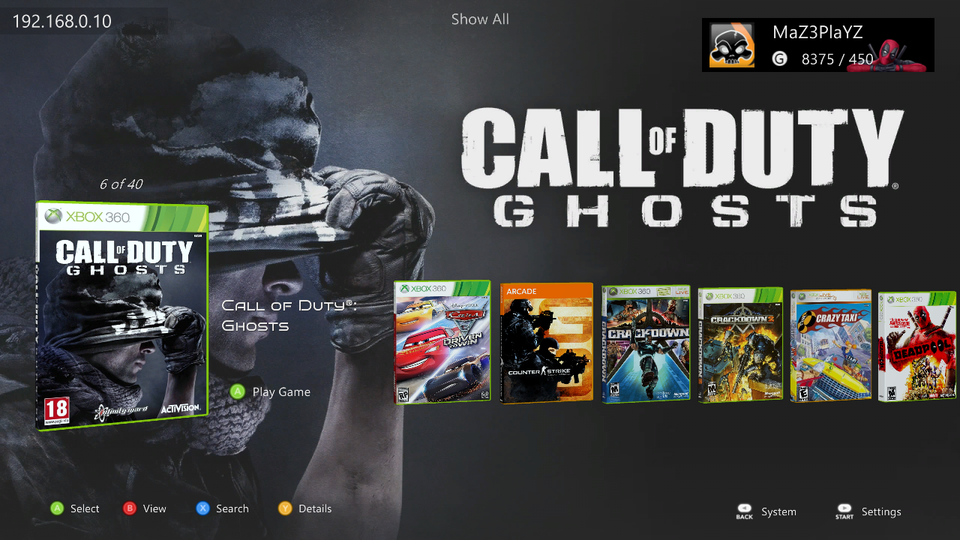
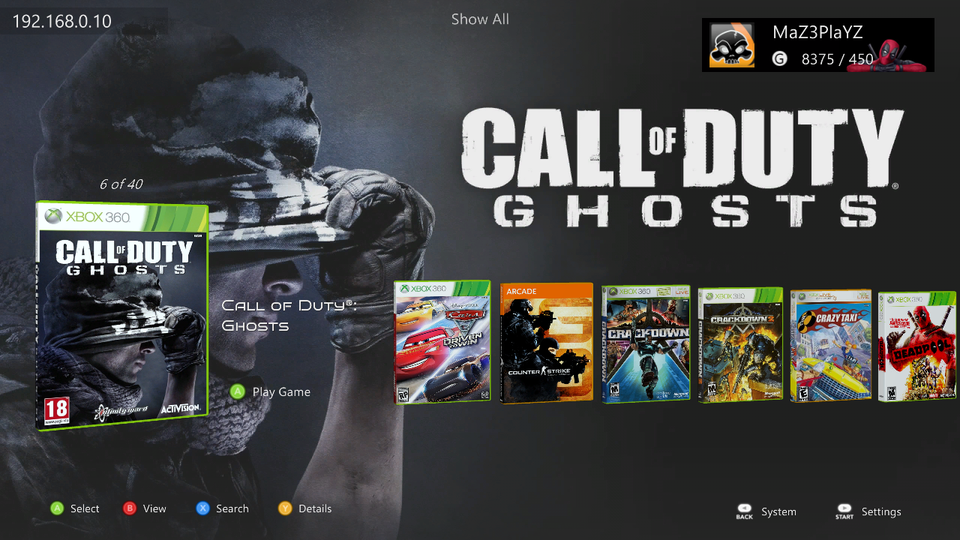
AuroraFlow Global skin preview
MaZ3PlaYZ · official AuroraFlow interface screenshot from author repository; shared family preview
Aurora skinsXZP

AuroraFlow Global

MaZ3PlaYZ / MaZ3; based on CH360 Full Background Theme and Dark Ultimate/DASH menu assets

Modern full-background Aurora skin with temperature/IP panels, green borders and a matching coverflow layout.

Version
Final v1.5
Console setup
Aurora Dashboard 0.7 family on a homebrew-enabled Xbox 360. No exact console model or system-dashboard pin is published by this skin author.

Before you launchAurora 0.7 family, any Aurora language. Use the matching Global Modern by MaZ3 layout; language variants are not interchangeable.

Setup, paths & checksum

Temporary exploit: This skin does not enable unsigned code or persist a temporary exploit. A working Aurora setup is required; no specific temporary exploit or Peer Pressure certification is made.

HDD example
Hdd1:\Aurora\Skins\AuroraFlow.Global.xzp
USB example
Usb0:\Aurora\Skins\AuroraFlow.Global.xzp
Launch
Aurora → B → Skin → Change
  1. Copy AuroraFlow.Global.xzp into the Skins folder of your actual Aurora installation. Keep your existing XZP until the new skin is checked.
  2. Copy Modern.by.MaZ3.Global.cfljson into Aurora\Media\Layouts\. Keep skin and layout language variants matched.
  3. Press B → Skin and select AuroraFlow (Global). Disable Animation and select the matching Modern by MaZ3 layout. Restart Aurora.

Keep the skin and layout language variants matched and disable Animation. The publisher’s skin metadata contains trailing legacy text; the original release is preserved unchanged. Keep a working skin available; physical-console behavior was not tested.

AuroraFlow.Global.xzp
31,007,960 bytes · SHA-256
bdc72ccda62de7ebdaa05bccf08311ec7ce65e4ca3021f60e945af8510abeaf3

Matching Global layout

Matching Global layout · 40.0 KiB

Copy to Aurora\Media\Layouts\Modern.by.MaZ3.Global.cfljson.

643fc6e17f24330c8cc59a1d954528365eaacf40de539f7b37cb197caf4a37ec

File structure and SHA-256 checked. No console execution test performed.

AuroraFlow English skin preview
MaZ3PlaYZ · official AuroraFlow interface screenshot from author repository; shared family preview
Aurora skinsXZP

AuroraFlow English

MaZ3PlaYZ / MaZ3; based on CH360 Full Background Theme and Dark Ultimate/DASH menu assets

Modern full-background Aurora skin with temperature/IP panels, green borders and a matching coverflow layout.

Version
Final v1.5
Console setup
Aurora Dashboard 0.7 family on a homebrew-enabled Xbox 360. No exact console model or system-dashboard pin is published by this skin author.

Before you launchAurora 0.7 family, English only. Use the matching English Modern by MaZ3 layout; language variants are not interchangeable.

Setup, paths & checksum

Temporary exploit: This skin does not enable unsigned code or persist a temporary exploit. A working Aurora setup is required; no specific temporary exploit or Peer Pressure certification is made.

HDD example
Hdd1:\Aurora\Skins\AuroraFlow.EN.xzp
USB example
Usb0:\Aurora\Skins\AuroraFlow.EN.xzp
Launch
Aurora → B → Skin → Change
  1. Copy AuroraFlow.EN.xzp into the Skins folder of your actual Aurora installation. Keep your existing XZP until the new skin is checked.
  2. Copy Modern.by.MaZ3.cfljson into Aurora\Media\Layouts\. Keep skin and layout language variants matched.
  3. Press B → Skin and select AuroraFlow (EN). Disable Animation and select the matching Modern by MaZ3 layout. Restart Aurora.

Keep the skin and layout language variants matched and disable Animation. The publisher’s skin metadata contains trailing legacy text; the original release is preserved unchanged. Keep a working skin available; physical-console behavior was not tested.

AuroraFlow.EN.xzp
31,210,299 bytes · SHA-256
868fc3c8374c5217da4247077e51e8693cb81f146bf4d50339c9b17eac41bb83

Matching English layout

Matching English layout · 40.0 KiB

Copy to Aurora\Media\Layouts\Modern.by.MaZ3.cfljson.

831aed750a6fe9c8d5c6c179cc38c2f4193bb3cfe922f7152b918762b85bf412

File structure and SHA-256 checked. No console execution test performed.
NXE Splash + Avatar + Xbox logo skin preview
Phoenix / Mynam3isnathan / Theodor94 · packaged skin background artwork, not a UI screenshot
Aurora skinsXZP

NXE Splash + Avatar + Xbox logo

Phoenix, Mynam3isnathan and Theodor94 / Theodor Andrei

Default-style Aurora skin with an NXE-inspired splash, an avatar and Xbox-logo elements.

Version
v5
Console setup
Aurora 0.7 family on an already homebrew-enabled Xbox 360; packaged skin.ver is0.7 revision1622. Later-Aurora compatibility is not independently hardware-tested.

Before you launchAurora 0.7 family (packaged skin.meta targets 0.7; skin.ver contains revision1622). No minimum system dashboard or motherboard is specified.

Setup, paths & checksum

Temporary exploit: This skin does not enable unsigned code or persist a temporary exploit. A working Aurora setup is required; no specific temporary exploit or Peer Pressure certification is made.

HDD example
Hdd1:\Aurora\Skins\Def-NXESp-Av-Xblogov5.xzp
USB example
Usb0:\Aurora\Skins\Def-NXESp-Av-Xblogov5.xzp
Launch
Aurora → B → Skin → Change
  1. Copy the original XZP to the Skins folder of your actual Aurora install via USB or FTP.
  2. Press B → Skins and choose NXE Splash + Avatar + Xblogo. Restart Aurora.
  3. Keep a working skin and file-manager recovery route before changing themes.

The author reports avatar prop animation is faster than normal. For personal use only; author grants no commercial or derivative-use license.

Def-NXESp-Av-Xblogov5.xzp
5,605,497 bytes · SHA-256
b7fcd1cfbb9f4ebd96b717e6afc03716c18291d5d23185f3a94b2f5a35be7b53

File structure and SHA-256 checked. No console execution test performed.
Xbox ONE Experience · Aurora0.6b skin preview
CEOISS / juanoliveira82 · packaged skin background artwork, not a UI screenshot
Aurora skinsXZP

Xbox ONE Experience · Aurora0.6b

CEOISS / juanoliveira82; based on Aurora SteamOS by mrknorton

Legacy Aurora skin with Xbox One / Windows10-inspired colors, buttons and layouts.

Version
Revision1 · snapshot e7c17cada718
Console setup
Legacy Aurora0.6b on an RGH Xbox360, as described by the author; no exact system firmware or motherboard requirement published.

Before you launchSpecifically Aurora0.6b as stated by the author. Packaged skin.ver is0.6 revision1238. Do not assume0.7b.2 support.

Setup, paths & checksum

Temporary exploit: Original source describes an RGH setup. Temporary exploit and Peer Pressure compatibility are not confirmed; the skin itself cannot enable homebrew.

HDD example
Hdd1:\Aurora\Skins\XboxOneExperience.xzp
USB example
Usb0:\Aurora\Skins\XboxOneExperience.xzp
Launch
Aurora → B → Skin → Change
  1. Confirm you are using the source-pinned Aurora0.6b installation and retain the working skin.
  2. Copy XboxOneExperience.xzp into that installation’s Skins folder. Do not unpack it or overwrite Default.xzp.
  3. Select Xbox ONE Experience in Aurora’s B → Skin menu, then restart Aurora.

The repository ships a ready XZP directly; only that file was downloaded, not a repository/source archive. Original packaged metadata identifies author CEOISS, revision1, creationdate2017-06-05 and auroraver0.6.

XboxOneExperience.xzp
6,420,180 bytes · SHA-256
bca1ecf133245b6e6a61d83633f3ef3a85c9878bf467308ec95c8fdf56fbc4c7

File structure and SHA-256 checked. No console execution test performed.
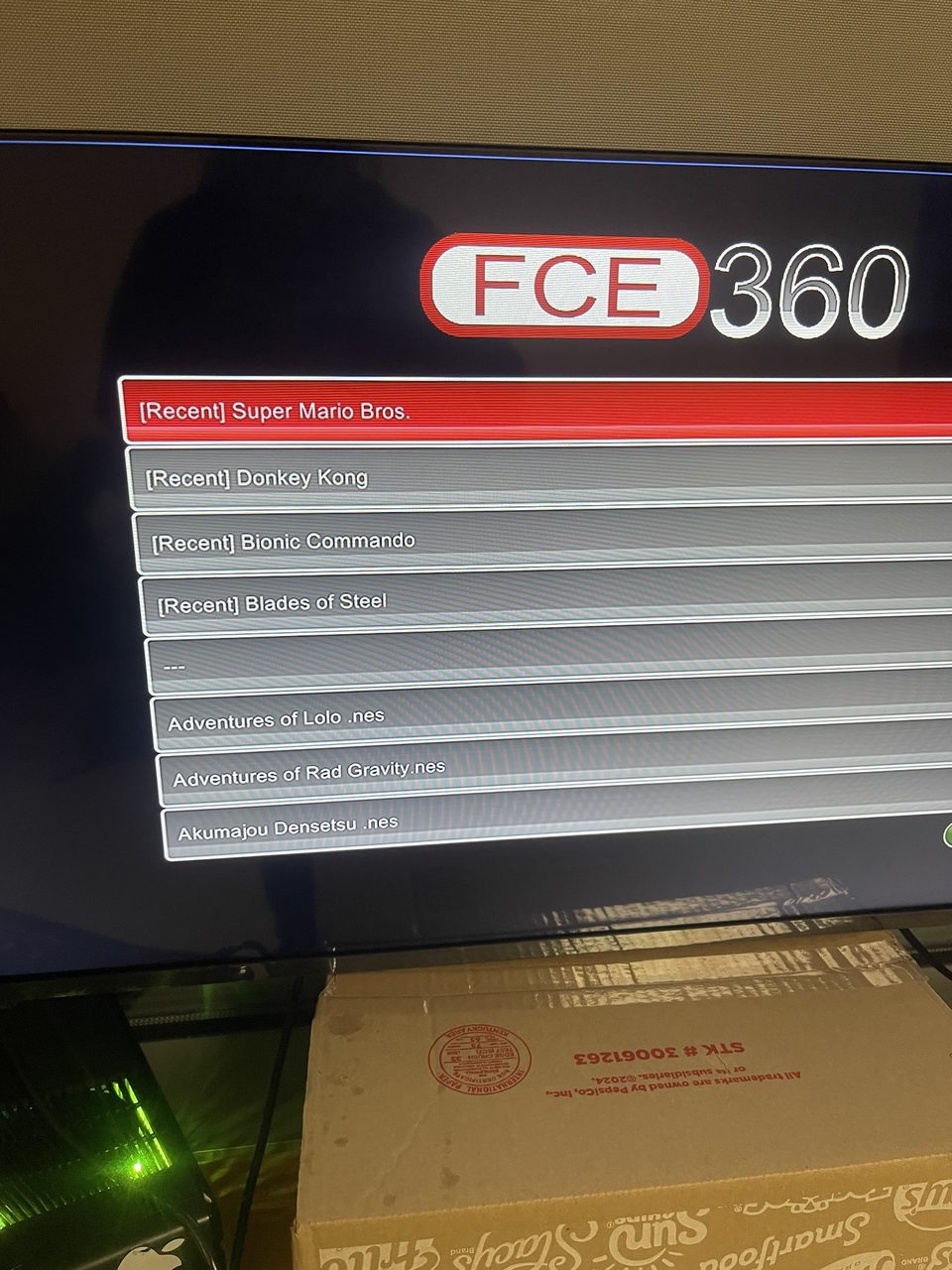
FCE360 Enhanced artwork
frankischilling · official FCE360 Enhanced recent-games screenshot
EmulatorsZIP / XEX

FCE360 Enhanced

frankischilling · original FCE360 / FCEUX contributors

NES / Famicom emulator with ROM search, favorites, rewind, save states and Lua scripting.

Version
0.8.10
Console setup
RGH/JTAG Xbox 360, explicitly targeted by the author. No exact motherboard or minimum dashboard version is published.

Before you launchYour own .nes or .zip ROMs in roms\. Keep the full media folder, including ui.xzp and xarialuni.ttf, beside fceux.xex. Famicom Disk System use additionally needs your own matching BIOS.

Setup, paths & checksum

Temporary exploit: The author targets RGH/JTAG; BadUpdate, ABadAvatar and Peer Pressure are not separately certified. Release 0.8.10 still lists Xbox 360 timing/gameplay testing as outstanding.

HDD example
Hdd1:\Emulators\FCEUX360\
USB example
Usb0:\Emulators\FCEUX360\
Launch
fceux.xex
  1. The release ZIP has fceux.xex and media at its root. Extract its contents directly into the shown FCEUX360 folder, keeping media/ui.xzp and media/xarialuni.ttf beside the executable’s directory.
  2. Put your own .nes / .zip files in roms\ and launch fceux.xex from Aurora, FSD or XeXMenu.
  3. Keep fceui.ini, scripts, ROMs, BIOS, screenshots, saves and states when upgrading. Battery saves use sav\; screenshots use snaps\.

START + BACK opens the in-game menu; LT rewinds, RT fast-forwards and right-stick click captures a screenshot. Use the full ZIP for a new installation; the standalone XEX asset alone omits required media.

fce360-enhanced.v0.8.10.zip
11,968,834 bytes · SHA-256
52870b7d2320814f2cb0e1f5f97b2b8c533b73b752ab7a314740de2fe8f91711

File structure and SHA-256 checked. No console execution test performed.
Salvia 360 artwork
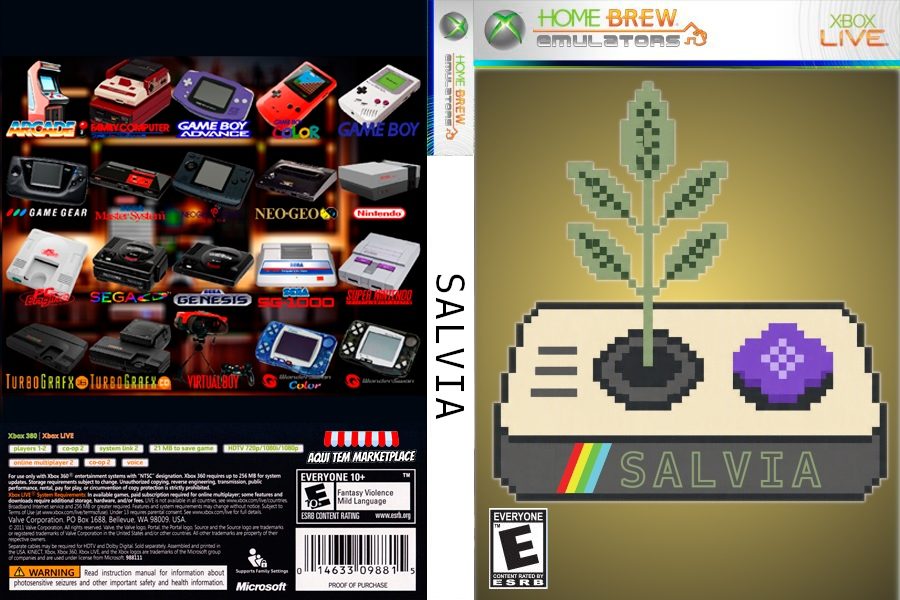
danibiker · official Salvia Aurora cover artwork from the Xbox 360 release
EmulatorsZIP / XEX

Salvia 360

danibiker · libretro core contributors

Native libretro frontend for Nintendo, Sega, PlayStation, arcade and computer systems, with per-core settings and RetroAchievements.

Version
1.1.0
Console setup
Homebrew-enabled Xbox 360 capable of unsigned XEX loading. The base frontend does not publish an exact minimum dashboard or motherboard list. Optional USB mouse support specifically needs kernel 17559 and a DashLaunch plugin.

Before you launchYour own games in the appropriate Roms system subfolders and any required personal BIOS files in system\. Keep all bundled cores, configurations and supporting assets together; Xbox 360 and Windows releases are distinct downloads.

Setup, paths & checksum

Temporary exploit: No specific temporary-exploit combination is certified in the frontend documentation. The optional hidmouse.xex DashLaunch plugin is a separate setup and must not be assumed compatible with Peer Pressure or another runtime without plugin support.

HDD example
Hdd1:\Emulators\Salvia\
USB example
Usb0:\Salvia\
Launch
default.xex
  1. The Xbox 360 ZIP has default.xex, core XEX files, salvia.cfg and supporting directories at its root. Extract all contents directly into a dedicated Salvia folder, such as Usb0:\Salvia\ or the shown HDD path. Launch default.xex; individual core XEX files stay alongside it.
  2. Keep Roms next to the XEX files or at the USB root. Put personal games into their system subfolders, such as nes, snes, Genesis, gb, gba, n64, psx and fbneo. Supply only BIOS files needed by the cores you use.
  3. Change the library parent directory in Options → Emulation → Roms Main Directory, or roms_path in salvia.cfg. The frontend uses Hdd:\ for internal-HDD game paths and usb:\ to detect the USB port automatically.

SELECT + START exits emulation and SELECT + Y toggles the options menu by default. Saves/states are under data\saves and data\states. N64 support improved in 1.1.0; game compatibility remains core-specific. Mouse support is optional, not a requirement for controller use.

Salvia-360.zip
140,795,200 bytes · SHA-256
3e82efe38d35aa71567faf998c7e8db75adb471964b2df8915f067327303b47c

File structure and SHA-256 checked. No console execution test performed.
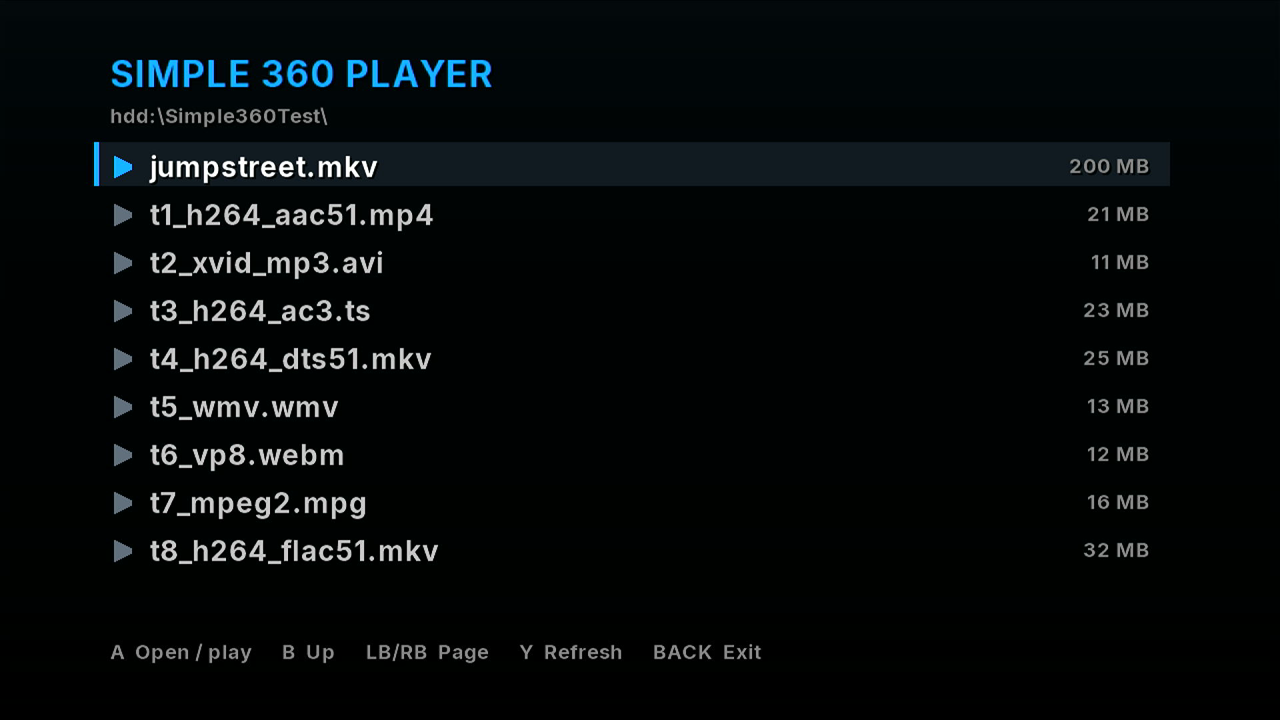
Simple 360 Player artwork
HG-ERIK · official Simple 360 Player file-browser screenshot
Apps & dashboardZIP / XEX

Simple 360 Player

HG-ERIK · FFmpeg / FFPlay360 contributors

Local media player with subtitle and audio-track selection for videos on HDD, USB or disc.

Version
0.2
Console setup
RGH/JTAG Xbox 360, explicitly specified by the author. Launch through Aurora, FSD or XeXMenu. No exact motherboard or dashboard build is pinned.

Before you launchSupported personal media files. H.264 up to 720p, Xvid/DivX, MPEG-2 and WMV/VC-1 are supported; H.265/HEVC, VP8/VP9 and AV1 are unsupported. Keep the complete release folder.

Setup, paths & checksum

Temporary exploit: BadUpdate, ABadAvatar and Peer Pressure are not separately certified by this app’s documentation.

HDD example
Hdd1:\Apps\Simple360Player\
USB example
Usb0:\Apps\Simple360Player\
Launch
default.xex
  1. Extract the ZIP on your PC and copy the whole Simple360Player folder into Apps on the console’s HDD or USB drive.
  2. Launch default.xex from Aurora, FSD or XeXMenu and browse your own videos. Matching external .srt subtitles stay beside the video file.
  3. Keep settings.ini when upgrading. The app writes settings and a log only beside its executable.

Press X during playback for aspect ratio and Y for audio/subtitle/options controls. 1080p H.264 is too demanding according to the author. Surround passthrough was not physically tested by this site.

Simple360Player-0.2.zip
6,398,773 bytes · SHA-256
eadb457719b5b6c92420e1e0c8bfa0986d00dcb2727f107b8421fff72f01e226

File structure and SHA-256 checked. No console execution test performed.
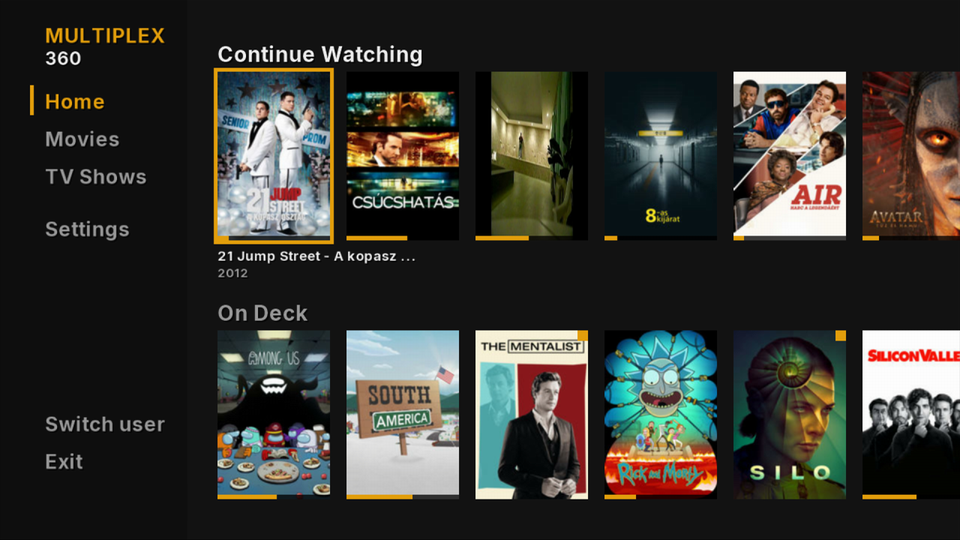
Multiplex 360 artwork
HG-ERIK · official Multiplex 360 home-screen screenshot
Apps & dashboardZIP / XEX

Multiplex 360

HG-ERIK · FFmpeg / FFPlay360 contributors

Unofficial Plex client with server libraries, profiles, subtitles and playback resume.

Version
0.4
Console setup
RGH / JTAG / BadUpdate Xbox 360, all explicitly named by the author. No exact motherboard or dashboard requirement is specified by the app; the BadUpdate entry point itself requires dashboard 17559.

Before you launchNetwork access, your Plex account and an accessible Plex server/library. H.264 up to 720p can play directly; the Plex server transcodes other formats. Keep the entire app folder writable.

Setup, paths & checksum

Temporary exploit: BadUpdate is explicitly supported. Re-establish its temporary unsigned-code session after reboot. ABadAvatar and Peer Pressure are not separately certified in the app documentation.

HDD example
Hdd1:\Apps\Multiplex360\
USB example
Usb0:\Apps\Multiplex360\
Launch
default.xex
  1. Extract the release ZIP and copy its complete Multiplex360 folder to HDD or USB; start default.xex through your existing homebrew dashboard.
  2. On first launch the console displays a code. Enter it at plex.tv/link on your phone or PC and select your Plex profile.
  3. Keep auth.ini and settings when upgrading. From version 0.4 the app asks before installing its own updates and preserves the previous executable as default.old.

The author states it works with DashLaunch liveblock enabled and needs neither Xbox Live nor a stealth server. It writes only inside its own folder. Sign out through Settings or remove auth.ini yourself.

Multiplex360-0.4.zip
6,792,896 bytes · SHA-256
de565422ccf2789a3c9ec8305c57e6ca21981e6c7e1a8b57d413a9a56861bcc8

File structure and SHA-256 checked. No console execution test performed.
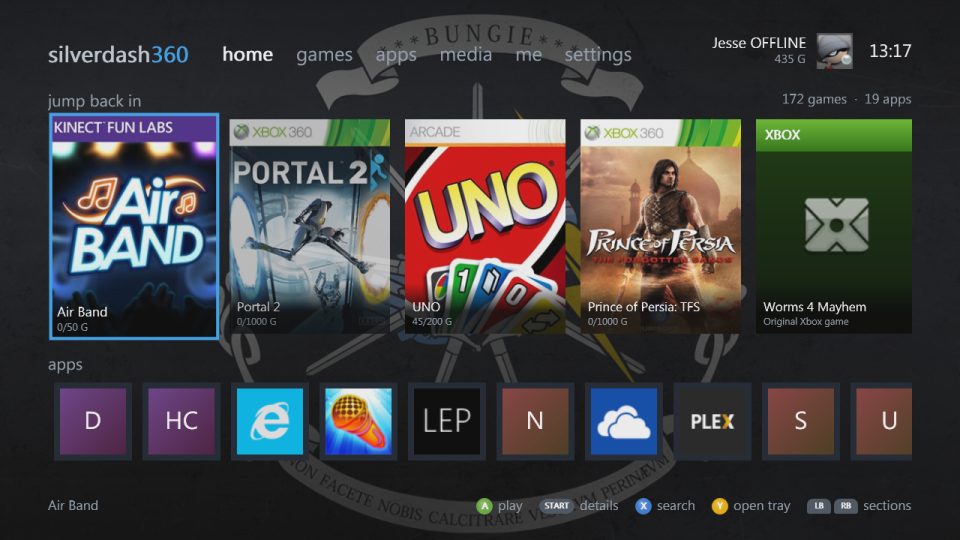
Silverdash360 artwork
jessenic / Digiex · official Silverdash360 home screenshot
Apps & dashboardZIP / XEX

Silverdash360

jessenic / Digiex

Silverlight-based dashboard with game/app shelves, box art, local and DLNA media, file browser and FTP.

Version
0.1.3 · full 0.1.2 base + update
Console setup
RGH/JTAG Xbox 360, explicitly required by the official installation guide. The app is not signed for a stock retail console; no exact dashboard or motherboard revision is stated.

Before you launchThe complete console base package plus the 0.1.3 update below. The small GitHub update is not a standalone installation. Keep a way to return to your existing dashboard.

Setup, paths & checksum

Temporary exploit: BadUpdate, ABadAvatar and Peer Pressure are not separately certified by the author. Do not infer support merely because another dashboard launches in that runtime.

HDD example
Hdd1:\Apps\Silverdash360\
USB example
Usb0:\Apps\Silverdash360\
Launch
default.xex
  1. Extract Silverdash360-0.1.2-console.zip. It contains the complete Silverdash360 folder and required runtime files.
  2. Extract the 0.1.3 update into that Silverdash360 folder on your PC, applying the new files there. Preserve both original archives and a copy of your existing installation.
  3. Copy the prepared Silverdash360 folder into Apps on HDD or USB, then start default.xex. Review the first-run FTP settings; the first library scan may take time.
  4. Keep the Data folder beside default.xex when upgrading: it holds settings, library data and cached artwork.

Silverdash360-0.1.2-console.zip
64,510,979 bytes · SHA-256
6478589dd4963294eca15961b5ecca8347d0442b4fbc5c136d20643194c5a1f1

Required update to 0.1.3

Required update to 0.1.3 · 207.0 KiB

Copy to Hdd1:\Apps\Silverdash360\.

a8b64351790f0750b51143d3347a588beb00a6b71552e76eac53a633875b2adc

File structure and SHA-256 checked. No console execution test performed.
Quad Carnage artwork
JaredLevi · Quad Carnage official itch.io artwork
Homebrew gamesZIP / XEX

Quad Carnage

JaredLevi

Local arena shooter for up to four players, with geometric visuals and power-ups.

Version
Publisher build · 2025-03-30 release bug-fix
Console setup
Xbox 360 capable of running unsigned homebrew. The original author identifies the download as Xbox 360 homebrew but does not pin a dashboard version or motherboard.

Before you launchAt least one Xbox 360 controller; additional controllers for local multiplayer. No external commercial game data is requested by the author.

Setup, paths & checksum

Temporary exploit: The publisher does not certify BadUpdate, ABadAvatar or Peer Pressure; use a compatible established unsigned-code setup.

HDD example
Hdd1:\Homebrew\QuadCarnage\
USB example
Usb0:\Homebrew\QuadCarnage\
Launch
default.xex
  1. Extract the ZIP on your PC. Copy its QuadCarnage folder to the shown HDD or USB Homebrew directory.
  2. Keep Media, game data and all companion files beside default.xex. Launch the XEX through your existing homebrew file manager or add the directory to Aurora scan paths.

No physical-console execution was performed.

Quad Carnage for 360.zip
87,175,153 bytes · SHA-256
3df04b186612f6b10cf9ae6201c0e01f46c4753b45dcded3abff843842756b9c

File structure and SHA-256 checked. No console execution test performed.

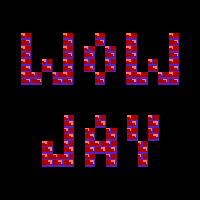
WowJay artwork
JaredLevi · WowJay official itch.io artwork
Homebrew games7Z / XEX

WowJay

JaredLevi

Retro arcade platformer released by its original creator for Xbox 360.

Version
Unversioned publisher build · reviewed 2026-11-02
Console setup
Xbox 360 capable of running unsigned homebrew; no exact dashboard or motherboard is specified by the author.

Before you launchKeep the complete Xbox 360 game folder together. No separate commercial game data is requested by the author.

Setup, paths & checksum

Temporary exploit: A particular temporary exploit or runtime payload is not certified by this game’s author.

HDD example
Hdd1:\Homebrew\WowJay\
USB example
Usb0:\Homebrew\WowJay\
Launch
default.xex
  1. Extract the full 7z archive directly into the shown WowJay directory: default.xex is at the archive root.
  2. Keep the complete Media directory and data alongside default.xex. Launch default.xex through your existing homebrew launcher.

No physical-console execution was performed.

WOWJAY360.7z
37,455,015 bytes · SHA-256
d8d9fbfe8394c43e2c23f89ed6e5663257d4f83f2a17f8163acda6979da9eafb

File structure and SHA-256 checked. No console execution test performed.
Nest Bound artwork
JaredLevi · Nest Bound official itch.io artwork
Homebrew gamesZIP / XEX

Nest Bound

JaredLevi

Drawing puzzle game: draw a path to guide a sliding bird to its goal.

Version
V1 · 2025-07-07 publisher release
Console setup
Xbox 360 capable of running unsigned homebrew. The author names Xbox 360 but does not specify a firmware or motherboard.

Before you launchRetain the full game directory and data files; no separate commercial data is requested.

Setup, paths & checksum

Temporary exploit: The publisher does not certify a particular temporary exploit or payload combination.

HDD example
Hdd1:\Homebrew\NestBound\
USB example
Usb0:\Homebrew\NestBound\
Launch
NestBoud 360.xex
  1. Extract the ZIP on your PC. Copy the contents of its NestBoud 360 folder to the shown NestBound directory.
  2. Keep Media and all companion data intact. Launch NestBoud 360.xex; do not rename managed module XEX files inside Media.

No physical-console execution was performed.

NestBoud 360.zip
52,807,754 bytes · SHA-256
6580ec0cc55f3e44adbb1695d07cf2e83aaa9007f8d9b6e7763377459721bc62

File structure and SHA-256 checked. No console execution test performed.
Slither360 artwork
MathuwsGamerMW / lxMWxl · Slither360 official itch.io artwork
Homebrew gamesRAR / XEX

Slither360

MathuwsGamerMW / lxMWxl

Experimental offline snake game with up to 64 bots, nine interface languages and local score records. Multiplayer is disabled.

Version
0.10.2-dev.1 · development build
Console setup
RGH/JTAG homebrew-capable Xbox 360, explicitly named by the author; no dashboard minimum or motherboard list is published.

Before you launchController. Keep assets/atlas.rgba beside default.xex in the original folder structure; no external commercial game data required.

Setup, paths & checksum

Temporary exploit: BadUpdate, ABadAvatar and Peer Pressure are not separately certified by this release.

HDD example
Hdd1:\Homebrew\Slither360\
USB example
Usb0:\Homebrew\Slither360\
Launch
default.xex
  1. Extract the complete RAR on your computer.
  2. Copy the contents of Slither360-v0.10.2-dev.1-PUBLIC into the shown app folder, retaining assets/atlas.rgba and the license files.
  3. Launch default.xex with your homebrew dashboard or file manager.

Development build: multiplayer disabled; back up saves before upgrading. Optional LIVE Vision support is for local testing. Independent project; developer discloses AI-assisted code. The bundled checksum list matches default.xex, assets/atlas.rgba and five other files; LEIA-ME.txt has a stale listed hash. The original RAR remains unchanged and its actual SHA-256 is recorded. No physical-console execution was performed.

Slither360-v0.10.2-dev.1-PUBLIC.rar
1,826,917 bytes · SHA-256
a28c7ce96e817a4cd270fb461348c6806edbcea8283ac039655ac2e315fe4dbc

File structure and SHA-256 checked. No console execution test performed.
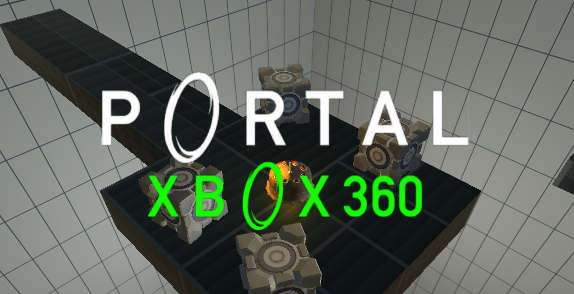
Portal Clone · tech demo artwork
Cayama0811 · official itch.io artwork
Homebrew gamesRAR / XEX

Portal Clone · tech demo

Cayama0811

Small Portal-inspired Unity 5.4.1f experiment: a room for trying portals, rather than a full campaign or puzzle set.

Version
Unversioned tech demo · reviewed 2026-11-02
Console setup
Xbox 360 capable of homebrew/unsigned software with a USB or external storage device supported by the existing setup. No firmware or model pin is published.

Before you launchRetain the complete PortalClone directory and companion data. No retail Portal game is requested by the author.

Setup, paths & checksum

Temporary exploit: The author does not certify specific temporary exploits or payloads.

HDD example
Hdd1:\Homebrew\PortalClone\
USB example
Usb0:\Homebrew\PortalClone\
Launch
default.xex
  1. Extract only the Xbox archive PortalCloneXbox.rar on your PC.
  2. Copy the complete PortalClone directory into a game/homebrew folder scanned by Aurora, or open its XEX from a file manager.
  3. Launch PortalClone\default.xex with all Media files retained.
  4. Launch PortalClone\default.xex with all Media files retained.

Tech demo: no test chambers or actual puzzles. Controls: sticks move/look; RT/LT place blue/orange portals, A jumps, left-stick click sprints. No physical-console execution was performed.

PortalCloneXbox.rar
55,805,775 bytes · SHA-256
2dbc6172f0802f8adab9e2ce53bde3d5397785caf4fca0dfac5e5d45574630cd

File structure and SHA-256 checked. No console execution test performed.
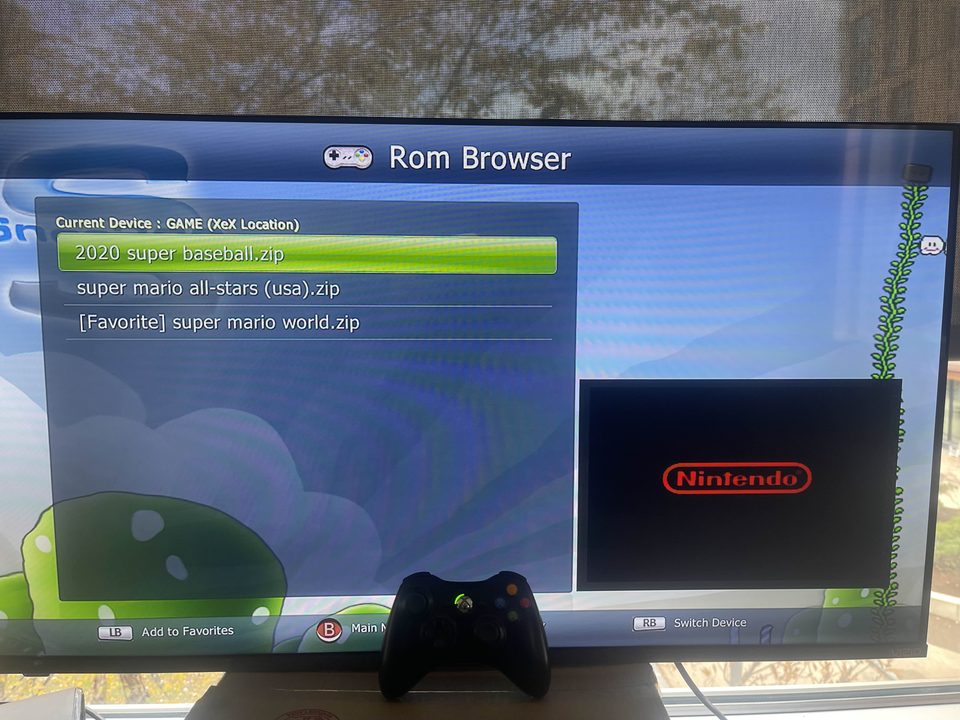
SNES360 Enhanced artwork
frankischilling · official ROM-browser screenshot; publisher says screenshot shows an earlier interface version
EmulatorsZIP / XEX

SNES360 Enhanced

frankischilling · Snes9x / original Snes360 contributors

Standalone Snes9x 1.51 port with ROM search, favorites, Game Genie input, save states and display filters.

Version
0.38 Beta
Console setup
Xbox 360 able to run homebrew XEX files, including RGH/JTAG or a development kit. No exact motherboard or minimum system dashboard is published.

Before you launchYour own SNES ROMs in Roms\ or paths configured in settings.xml. Keep Snes360.xex with the entire media folder, including Snes360.xzp, Snes360.ttf and compiled shaders.

Setup, paths & checksum

Temporary exploit: No specific BadUpdate, ABadAvatar or Peer Pressure combination is certified by this release. The author says version 0.38 launch, UI navigation and gameplay still require hardware testing.

HDD example
Hdd1:\Emulators\Snes360\
USB example
Usb0:\Emulators\Snes360\
Launch
Snes360.xex
  1. The complete ZIP has Snes360.xex and media at its root. Extract all contents directly into the shown Snes360 folder.
  2. Add your own ROMs to Roms or configure settings.xml, then launch Snes360.xex from Aurora, FSD or XeXMenu.
  3. Preserve settings.xml, favorites.txt, saves and states when installing another version. Press both thumbsticks for the in-game menu.

Beta build. Achievement integration is removed. Supplied screenshots show an earlier interface version; they are publisher references, not hardware tests by this site.

snes360-enhanced.v0.38.zip
11,740,360 bytes · SHA-256
a305a177bc16d481333ed98fbfc217d0cbbc0f9775a0c54554d194ceba6176d6

File structure and SHA-256 checked. No console execution test performed.
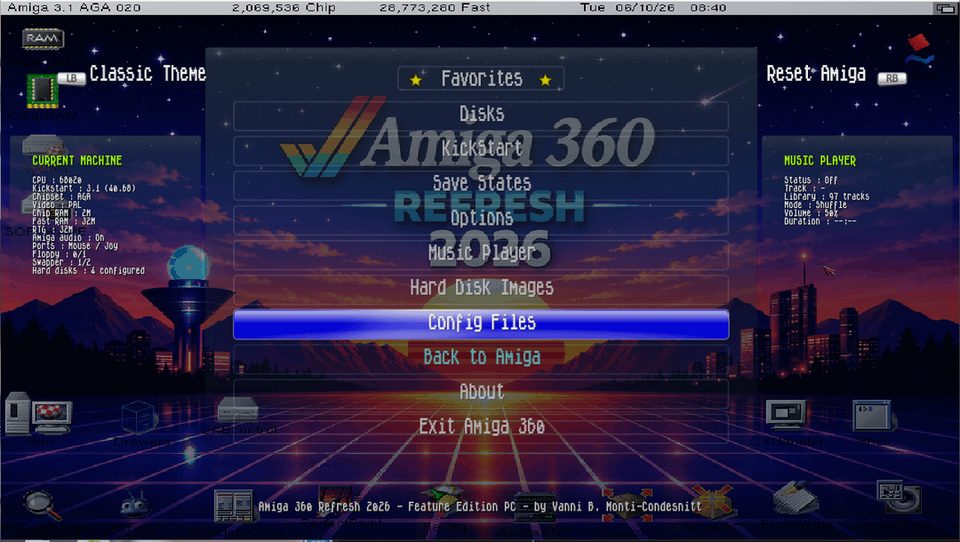
Amiga360 Refresh 2026 artwork
Vanni B. Monti-Condesnitt · official GUI screenshot linked by the original-author README
Emulators7Z / XEX

Amiga360 Refresh 2026

Vanni B. Monti-Condesnitt · Amiga360 / P-UAE contributors

Controller-first Amiga emulator with machine profiles, multidisk swapping, savestates and Workbench hardfile support.

Version
1.5 Feature Edition
Console setup
JTAG/RGH Xbox 360, explicitly required by the author. No particular motherboard or system-dashboard build is pinned.

Before you launchYour own Kickstart 3.1 ROM at Kickstart\kick31.rom for A1200 startup, or Kickstart 1.3 at Kickstart\kick13.rom for A500. Put owned floppy images in Roms and hardfiles in Hardfiles. The release includes no Kickstart, Workbench, games, HDF collection or music.

Setup, paths & checksum

Temporary exploit: The publisher targets JTAG/RGH; no BadUpdate, ABadAvatar or Peer Pressure certification is provided.

HDD example
Hdd1:\Emulators\Amiga360Refresh\
USB example
Usb0:\Emulators\Amiga360Refresh\
Launch
A360RF26.xex
  1. The 7z contains the runtime directly at its root. Extract all directories and A360RF26.xex together into the shown folder; keep media and the supplied Software helpers intact.
  2. Supply your owned Kickstart and media in the exact folders above, then launch A360RF26.xex.
  3. Preserve Config, SAVE, personal media and hardfiles between versions. If a Workbench hardfile misses its first boot, use Reset Amiga in the app before retrying.

The optional 115 MB Tools CD is not needed for the basic emulator and was not downloaded. The author reports hardware testing of this branch; this site did not run the build. Floppy formats include ADF, ADZ, DMS, FDI, compatible IPF, ZIP and M3U.

A360RF26-Xbox.7z
14,235,921 bytes · SHA-256
146a2e42894f57944fbc9dfebb861a6a96992c993e3dbdf32b4ba91d436ed592

File structure and SHA-256 checked. No console execution test performed.
Ace Driver System 22 Collection artwork
Xbox 360 console illustration · author supplies no project screenshot here
EmulatorsZIP / XEX

Ace Driver System 22 Collection

wanszai

Dedicated arcade emulator for Ace Driver Racing Evolution and Ace Driver Victory Lap, with offline solo play and display options.

Version
1.0.1
Console setup
Native Xbox 360 XEX homebrew. The publisher does not pin a motherboard, dashboard minimum or a particular modification method; a compatible unsigned-code setup is required.

Before you launchSupply your own acedrvrw.zip, victlapw.zip, namcoc71.zip and namcoc74.zip in roms\. Keep menu_assets.xpr beside default.xex. No ROM or game content is included.

Setup, paths & checksum

Temporary exploit: The author does not certify a particular temporary exploit/payload combination or Peer Pressure. Do not infer it from another emulator.

HDD example
Hdd1:\Emulators\AceDriverCollection\
USB example
Usb0:\Emulators\AceDriverCollection\
Launch
default.xex
  1. Extract the ZIP on your computer. Copy its whole AceDriverCollection folder into Emulators on your HDD or USB; avoid nesting another AceDriverCollection folder inside it.
  2. Place your own four required ROM/driver ZIPs in the included roms folder. Keep them zipped.
  3. Launch default.xex from an existing homebrew dashboard or file manager.

Version 1.0.1 fixes rebinding and a camera-switch acceleration issue. System Link/online play remains unfinished; force feedback is partial, and the documented difficulty control adds time rather than changing AI behavior.

AceDriverCollection.zip
5,158,650 bytes · SHA-256
5a2936b833b7544f804f7cf9a93c9ad31a3116841058023f18c1a6eb670e9d7f

File structure and SHA-256 checked. No console execution test performed.
DashLaunch GUI · temporary sessions artwork
Xbox 360 console illustration · author supplies no project screenshot here
Apps & dashboardXEX

DashLaunch GUI · temporary sessions

951261 · based on cOz DashLaunch

Community DashLaunch settings editor adapted for BadUpdate and ABadAvatar sessions.

Version
21.3.2 Beta
Console setup
BadUpdate / ABadAvatar Xbox 360 sessions, explicitly targeted by this community fork. BadUpdate itself requires dashboard 17559. No app-specific model list is supplied. This is separate from the normal persistent RGH/JTAG DashLaunch installer.

Before you launchAn established BadUpdate or ABadAvatar runtime with launch.xex already loaded; XeUnshackle is the author’s example. Back up your launch.ini before editing. This app cannot load the module itself.

Setup, paths & checksum

Temporary exploit: Explicit temporary-session support. Re-run your exploit/runtime after reboot. Keep launch.xex loaded: using its unload/load controls can crash the console. Peer Pressure does not support this DashLaunch-plugin workflow.

HDD example
Hdd1:\Apps\DashLaunchTemporary\
USB example
Usb0:\Apps\DashLaunchTemporary\
Launch
DashLaunch_for_BadUpdate.xex
  1. Copy the standalone original XEX into the shown applications folder; launch it only after your runtime has loaded launch.xex.
  2. Edit the desired launch.ini settings in the GUI and explicitly save to the intended existing HDD/USB launch.ini. Keep a backup.
  3. Return to your existing homebrew launcher. This tool is a beta editor and does not make a temporary exploit persistent.

The fork disables installer/uninstaller/patch-update buttons and removes most NAND-writing code, but FTP can still modify flash. Do not write to flash through FTP. The author gives no safety guarantee and still lists unverified NAND paths and unfinished fan controls. No downloaded build was run here.

DashLaunch_for_BadUpdate.xex
1,699,840 bytes · SHA-256
1280828f7e33c21aa3d05ab2cbc0541e0cfa5eae0b91dcf33723ec744bcd1c9f

File structure and SHA-256 checked. No console execution test performed.
Triangle · pinned runtime bundle artwork
JakobRangel · packaged Triangle dark splash artwork, not a UI screenshot
Apps & dashboardZIP / XEX

Triangle · pinned runtime bundle

JakobRangel

Native package browser, download queue and file manager for independently operated homebrew sources.

Version
Alpha runtime snapshot 03cb4bc8e0e1
Console setup
RGH/JTAG Xbox 360, explicitly targeted by the official project site. No exact dashboard build or motherboard list is published.

Before you launchRGH/JTAG Xbox 360 and network access to your chosen compatible source server. Keep Triangle.xex, media, certs and sources.json together. Review the source URLs before downloading content.

Setup, paths & checksum

Temporary exploit: The author does not certify BadUpdate, ABadAvatar or Peer Pressure for this alpha runtime.

HDD example
Hdd1:\Apps\Triangle\
USB example
Usb0:\Apps\Triangle\
Launch
Triangle.xex
  1. This is a local convenience ZIP assembled solely from the author’s ready runtime files at the pinned commit. Extract it on your PC; copy the contents of its Triangle-runtime-03cb4bc8e0e1 folder into the shown Triangle app directory.
  2. Keep every original media/certs file and sources.json beside Triangle.xex, including the original secondary media/Triangle.xex.
  3. Launch Triangle.xex using your existing homebrew dashboard, then review/add a trusted compatible source in Settings. The browser itself does not supply the content of third-party repositories.

Alpha snapshot, not an upstream ZIP release. The source repository contains ready binaries/resources rather than client source code. All 50 runtime originals were downloaded individually, their Git blob IDs checked, and their bytes retained unchanged in this bundle and staging manifest.

Triangle-runtime-03cb4bc8e0e1.zip
17,172,614 bytes · SHA-256
4544d5ed997ec5e3059857acd6df141a8a074895f4bd0c6875821a0f0160de2f

File structure and SHA-256 checked. No console execution test performed.
Liquid Glass skin preview
ammarsi274 · official Liquid Glass real-console photo published by the author
Aurora skinsZIP / XZP

Liquid Glass

ammarsi274 · Aurora base by Phoenix

Aurora skin with translucent profile and button panels over each game’s artwork, plus a matching coverflow layout.

Version
1.0.0
Console setup
Homebrew-enabled Xbox 360 running Aurora 0.7b. The author explicitly excludes Aurora 0.6b and older. No exact motherboard or Microsoft dashboard build is pinned.

Before you launchAurora 0.7b and the matching Liquid Glass coverflow layout bundled in this ZIP. Keep the included font notices and licence files.

Setup, paths & checksum

Temporary exploit: A working Aurora homebrew session is required. The skin does not supply an exploit, and its author does not certify a particular temporary payload or Peer Pressure combination.

HDD example
Hdd1:\Apps\Aurora\Skins\LiquidGlass.xzp
USB example
Usb0:\Aurora\Skins\LiquidGlass.xzp
Launch
Aurora → Settings → Appearance → Skin → Liquid Glass
  1. Extract the official release ZIP on your PC. It contains an Aurora directory with both the skin and matching layout.
  2. Copy LiquidGlass.xzp into the Skins folder of your actual Aurora installation, and Liquid Glass.cfljson into Aurora\Media\Layouts\. Preserve any existing versions before changing them.
  3. Select Liquid Glass in Aurora’s skin settings. Then press B → View → Theme and choose the matching Liquid Glass CoverFlow layout. Restart Aurora if requested.

Enable game backgrounds for the intended appearance. The author notes that Greek Details text is truncated and the glass effect uses transparency rather than true blur.

LiquidGlass-Aurora-Skin-v1.0.0.zip
2,368,113 bytes · SHA-256
04b3e9328342ef6f462969fd4c694a65ba3e00ecb0eedcf2c0c28a27bc9cbec8

File structure and SHA-256 checked. No console execution test performed.
Polar Glass skin preview
ammarsi274 · official Polar Glass preview artwork published by the author
Aurora skinsZIP / XZP

Polar Glass

ammarsi274 · Aurora base by Phoenix

Dark Aurora skin with glass panels, green accents and a matching coverflow layout.

Version
1.0.0
Console setup
Homebrew-enabled Xbox 360 running Aurora 0.7b. The author explicitly excludes Aurora 0.6b and older. No exact motherboard or Microsoft dashboard build is pinned.

Before you launchAurora 0.7b and the matching Polar Glass coverflow layout bundled in this ZIP. Keep the included font notices and licence files.

Setup, paths & checksum

Temporary exploit: A working Aurora homebrew session is required. The skin does not supply an exploit, and its author does not certify a particular temporary payload or Peer Pressure combination.

HDD example
Hdd1:\Apps\Aurora\Skins\PolarGlass.xzp
USB example
Usb0:\Aurora\Skins\PolarGlass.xzp
Launch
Aurora → Settings → Appearance → Skin → Polar Glass
  1. Extract the official release ZIP on your PC. It contains an Aurora directory with both the skin and matching layout.
  2. Copy PolarGlass.xzp into the Skins folder of your actual Aurora installation, and Polar Glass.cfljson into Aurora\Media\Layouts\. Preserve any existing versions before changing them.
  3. Select Polar Glass in Aurora’s skin settings. Then press B → View → Theme and choose the matching Polar Glass CoverFlow layout. Restart Aurora if requested.

Use the bundled matching layout to avoid cover overlap. Keep a known working skin available.

PolarGlass-Aurora-Skin-v1.0.0.zip
1,514,092 bytes · SHA-256
2081dbb5378a5000e9b5186fb79ecf8ba2021e0d720c92731776cd497529bbbc

File structure and SHA-256 checked. No console execution test performed.
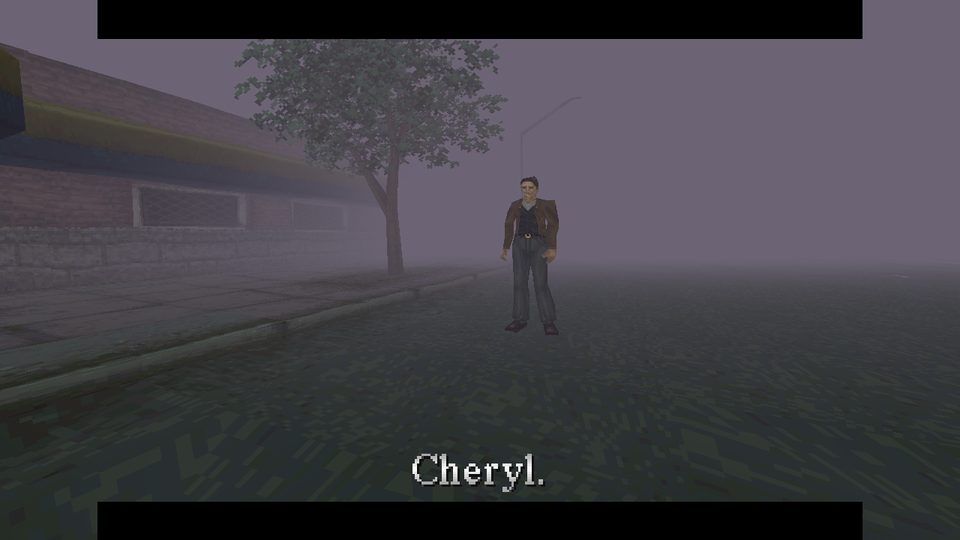
Silent Hill · Xbox 360 alpha port artwork
SlickAmogus · published Xenia screenshot of the Xbox 360 port; original artwork by Konami, not a physical-console test screenshot
Native game portsZIP / XEX

Silent Hill · Xbox 360 alpha port

SlickAmogus / Silent Hill decompilation contributors; original game by Konami

Early native Xbox 360 port with classic or third-person camera options. It requires your own USA PlayStation disc data.

Version
Xbox 360 Alpha 1 · 2026-10-29
Console setup
BadUpdate + XeUnshackle is the publisher’s documented Xbox 360 route. Its BadUpdate entry point requires dashboard 17559; the app does not publish a separate motherboard or minimum-dashboard matrix.

Before you launchYour own Silent Hill USA .bin disc image in the silenthill subfolder; any filename ending in .bin is accepted. Keep the complete release folder writable for logs and saves. No game image is included.

Setup, paths & checksum

Temporary exploit: BadUpdate followed by XeUnshackle is explicitly documented. Re-establish that runtime after reboot. Other temporary payloads and Peer Pressure are not separately certified by this release.

HDD example
Hdd1:\Homebrew\SilentHill\
USB example
Usb0:\Homebrew\SilentHill\
Launch
default.xex
  1. Extract the ZIP on your PC. Copy its Silent Hill folder to a dedicated homebrew location, or copy that folder’s contents into the shown SilentHill path; avoid nesting it twice.
  2. Put your own USA .bin under silenthill\ beside the optional silenthill.cfg. The final executable sits one directory above the disc image.
  3. Launch default.xex from Aurora, FreeStyle or xbGuard after the documented runtime. Preserve silenthill\save\0.MCD when updating.

Alpha build: busy scenes can slow down and visual/combat/save behavior has known issues. Earlier test saves can have lost inventory items; memory cards are not interchangeable with the PC port. Keep your current saves and build. No physical-console execution was performed by this site.

SilentHill_Xbox360.zip
4,535,839 bytes · SHA-256
f9d0fccc547a0860c6541e8946f3213b2b5a7e906eb22928c4ea6936e27536e1

File structure and SHA-256 checked. No console execution test performed.

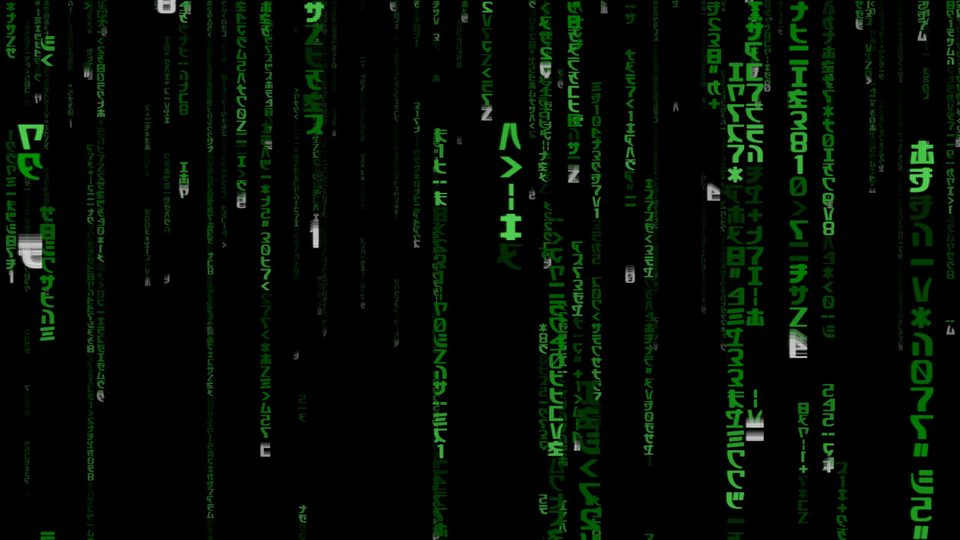
Matrix Code · V4 skin collection skin preview
Jeff Lonestar · packaged Matrix background artwork, not a console-test screenshot
Aurora skinsZIP / XZP

Matrix Code · V4 skin collection

Jeff Lonestar / JeffLonestar · Aurora base by Phoenix

Matrix Code and Trinity-themed Aurora skins, with original music and no-music variants kept together.

Version
V4 · 2025-09-01 publisher update
Console setup
Homebrew-enabled Xbox 360 with Aurora 0.7-family skin support. Bundled skin.ver values are 0.7.1595.2; the author does not pin a minimum Microsoft dashboard build or motherboard.

Before you launchAurora with compatible 0.7-family skins. The original ZIP contains 4 XZP files; no commercial game data is required.

Setup, paths & checksum

Temporary exploit: This collection requires an existing working Aurora setup. It does not provide an exploit or certify a temporary runtime / Peer Pressure combination.

HDD example
Hdd1:\Apps\Aurora\Skins\
USB example
Usb0:\Aurora\Skins\
Launch
Aurora → B / View → Skin
  1. Download the original ZIP from the creator’s linked Google Drive file page, then extract it on your PC.
  2. Copy the XZP files from inside the collection folder directly into the Skins folder of your actual Aurora install. Keep the original ZIP and existing skins; do not nest the collection folder under Skins.
  3. In Aurora’s View / Skin menu, choose the desired skin and restart Aurora. Keep a known working skin available.

Includes four skins: Matrix and Trinity startup variants, each with and without background music. The creator states V1/V2 are retired and recommends V4; no older local version is removed.

Matrix Skins Aurora V4.zip
27,446,593 bytes · SHA-256
05b079ebd41aacddca8f5dfd9cdd96fa60352680285b027f3a29d2396806a880

File structure and SHA-256 checked. No console execution test performed.

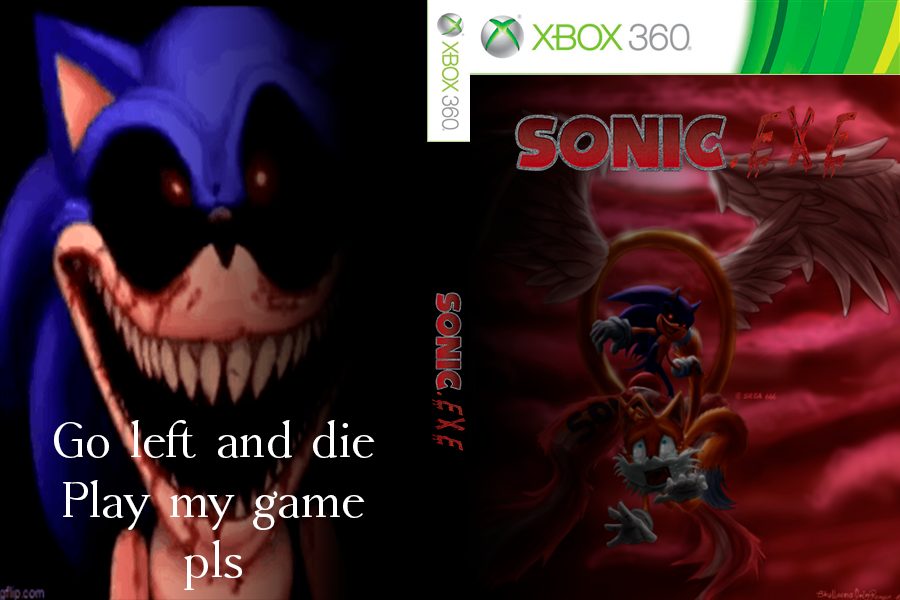
Sonic.exe · Xbox 360 remake artwork
ANDKFOX · original itch.io Xbox 360 cover artwork, also included unchanged in FinalUpdate.rar
Homebrew gamesRAR / XEX

Sonic.exe · Xbox 360 remake

ANDKFOX

ANDKFOX’s native Xbox 360 remake of the Sonic.exe horror fangame, built with Unity. The Final Update includes revised saves, D-pad control, HUD and title cards.

Version
Final Update · v1.0.2
Console setup
Xbox 360 capable of running unsigned homebrew. The original author identifies this as an Xbox 360 build but does not pin a dashboard version or motherboard.

Before you launchXbox 360 controller. The publisher supplies the game’s Media data in this archive; no external commercial disc image or game-data installation is requested.

Setup, paths & checksum

Temporary exploit: The publisher does not separately certify BadUpdate, ABadAvatar or Peer Pressure; use a compatible established unsigned-code setup.

HDD example
Hdd1:\Homebrew\SonicEXE\
USB example
Usb0:\Homebrew\SonicEXE\
Launch
default.xex
  1. Extract FinalUpdate.rar on your PC into a dedicated SonicEXE folder. Copy the complete extracted contents to the shown HDD or USB Homebrew directory.
  2. Keep Media and every companion file beside default.xex, including the managed XEX modules under Media\Managed. Launch default.xex through your existing homebrew file manager or add the directory to Aurora scan paths.
  3. Keep your current build and saves when upgrading. The included Changelog.txt describes the v1.0.0 save-system rework and v1.0.1–v1.0.2 fixes.

Horror fangame. Final Update is the exact Xbox 360 upload 19049130; Windows builds and older console releases are separate downloads. Archive integrity and executable formats were checked as data; no physical-console execution was performed.

FinalUpdate.rar
99,590,619 bytes · SHA-256
427ad55f5d64950135a969f0413d517c859d3b354e2d2032cb444d9bbf4c593d

File structure and SHA-256 checked. No console execution test performed.

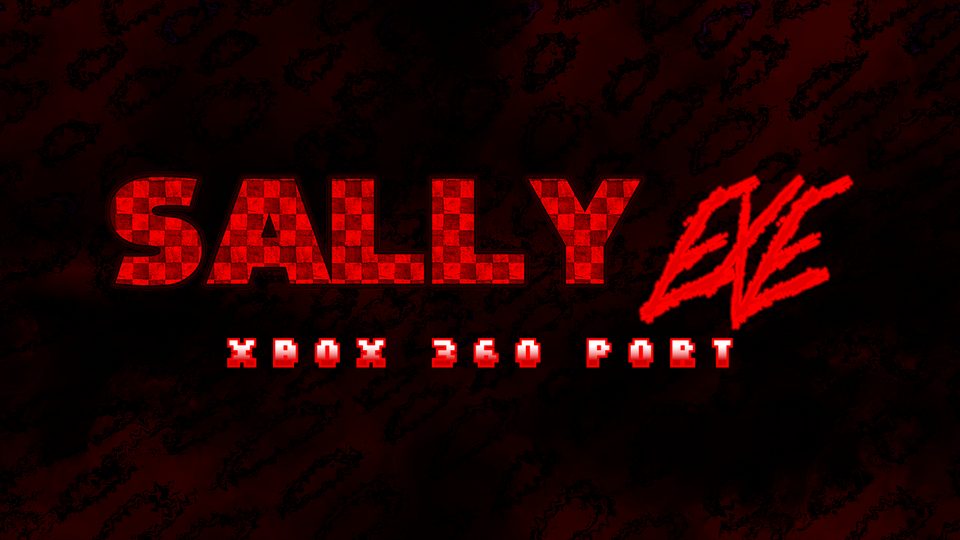
Sally.exe · Xbox 360 Demo 1 artwork
ANDKFOX · official Sally.exe artwork from the original author’s itch.io page
Homebrew gamesRAR / XEX

Sally.exe · Xbox 360 Demo 1

ANDKFOX

ANDKFOX’s Unity horror fangame demo, published as an Xbox 360 build. The package includes its native executable and game data.

Version
Demo 1 · v0.1.0
Console setup
Unsigned-code Xbox 360 homebrew setup. The author identifies the download as Xbox 360; no particular temporary exploit or minimum dashboard is certified on the source page.

Before you launchAn Xbox 360 environment capable of launching unsigned XEX homebrew. Keep default.xex beside the complete Media folder, including Media\Managed. The publisher does not publish an exact motherboard, dashboard or exploit compatibility matrix.

Setup, paths & checksum

Temporary exploit: BadUpdate, XeUnshackle and Peer Pressure compatibility are not separately stated by the publisher. Re-establish any temporary unsigned-code runtime used by your own setup after reboot.

HDD example
Hdd1:\Homebrew\SallyExe\
USB example
Usb0:\Homebrew\SallyExe\
Launch
default.xex
  1. Extract Demo1.rar on your PC into a dedicated SallyExe folder. This archive has no enclosing game folder: default.xex and Media are already at its root.
  2. Copy the complete extracted folder to the shown HDD or USB path. Keep Media and its Managed files beside default.xex; allow at least 819 MB for the complete extracted package.
  3. Launch default.xex through your Xbox 360 homebrew dashboard after establishing your unsigned-code runtime. Keep this demo in its own versioned folder when preserving an older build.

Demo 1 (v0.1.0), marked in development by the author. The complete publisher archive is retained, including its box art and debug symbol files. Download integrity and file layout were inspected; the game was not executed or tested on a physical console.

Demo1.rar
126,278,336 bytes · SHA-256
97b95de2304ab6c720cde266d60fd0f2dca578b18a833da70fbee283e52a877f

File structure and SHA-256 checked. No console execution test performed.

Silent Hill · Aurora skin collection skin preview
Jeff Lonestar · packaged Silent Hill 3 Heather background artwork, not a console-test screenshot
Aurora skinsZIP / XZP

Silent Hill · Aurora skin collection

Jeff Lonestar / JeffLonestar · Aurora base by Phoenix

Silent Hill character and welcome-sign themes for Aurora, preserved as the original creator’s collection.

Version
Publisher collection · 2025-09-12
Console setup
Homebrew-enabled Xbox 360 with Aurora 0.7-family skin support. Bundled skin.ver values are 0.7.1595.2; no exact minimum Microsoft dashboard build or motherboard is specified.

Before you launchAurora with compatible 0.7-family skins. The original ZIP contains 7 XZP files; no commercial game data is required.

Setup, paths & checksum

Temporary exploit: This collection requires an existing working Aurora setup. It does not provide an exploit or certify a temporary runtime / Peer Pressure combination.

HDD example
Hdd1:\Apps\Aurora\Skins\
USB example
Usb0:\Aurora\Skins\
Launch
Aurora → B / View → Skin
  1. Download the original ZIP from the creator’s linked Google Drive file page, then extract it on your PC.
  2. Copy the XZP files from inside the collection folder directly into the Skins folder of your actual Aurora install. Preserve the original ZIP and existing skins; do not nest the collection folder under Skins.
  3. In Aurora’s View / Skin menu, choose the desired skin and restart Aurora. Keep a known working skin available.

The original collection and every contained variant are retained together. Individual skin names may include their own revision suffixes; these are not separate game builds.

Silent Hill Skins Aurora Xbox360.zip
154,625,941 bytes · SHA-256
d764fcd76d4f3b582de6ec8d7cbc34667fdcb6f94b38011fe5912ab9330c2cf8

File structure and SHA-256 checked. No console execution test performed.

Sources & release checks

Reviewed 2026-11-02. All 41 entries include source links, filenames, versions, byte counts and SHA-256 checksums. Publisher files remain unchanged; convenience bundles assembled from pinned runtime files are labelled. Native XEX2 executables, Aurora’s RAR contents and the skins’ XUIZ headers were inspected. No downloaded build was run or tested on physical Xbox 360 hardware.

Download availability notes

Two lowercase package URLs in the official store catalogue returned HTTP 404: Starship and Homebrew App Store. The direct buttons use the verified manual release assets instead. The smaller store packages for Balatro360 and CTR360 remain available as labelled alternatives with their separate hashes.