Call of Duty: Black Ops 2 · PS4/PS5 Resources

Downloads, screenshots and supplied guides for Call of Duty: Black Ops 2 in the PS4/PS5 collection.

Call of Duty: Black Ops 2 · PS4/PS5 Resources

Injectors

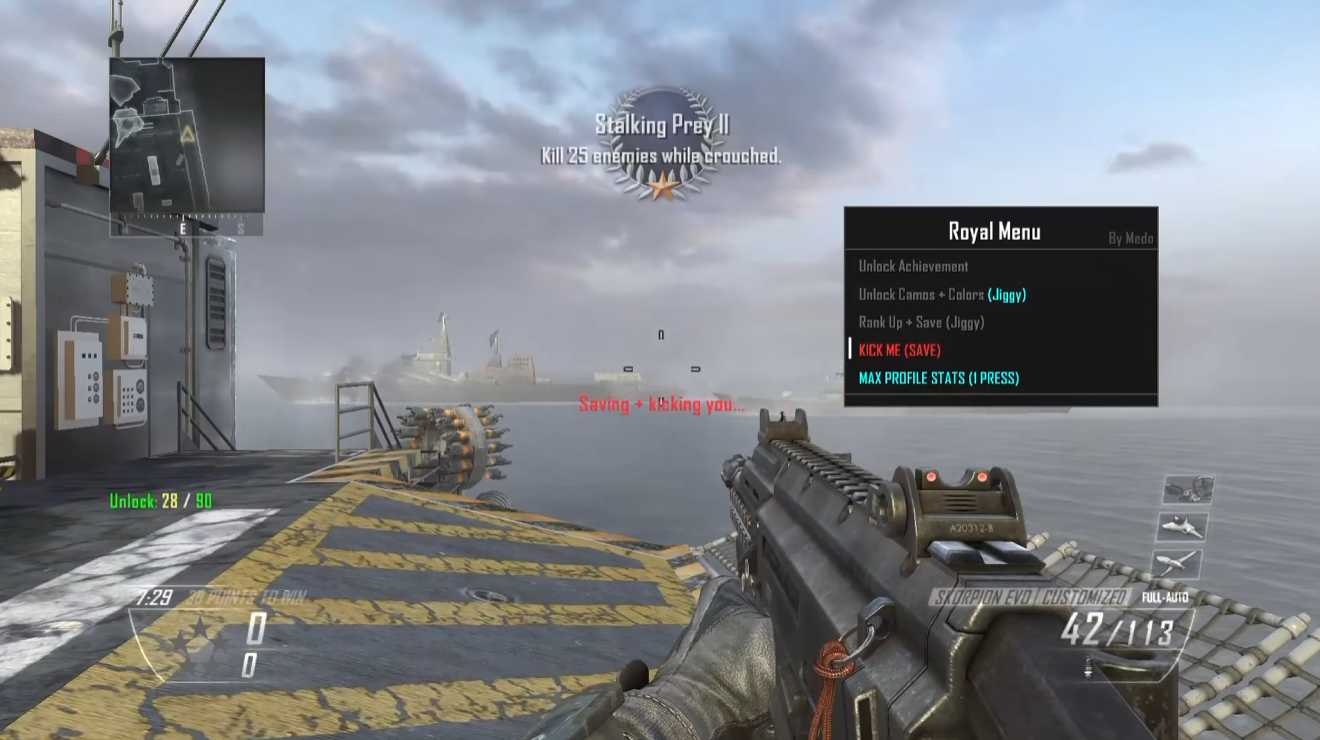
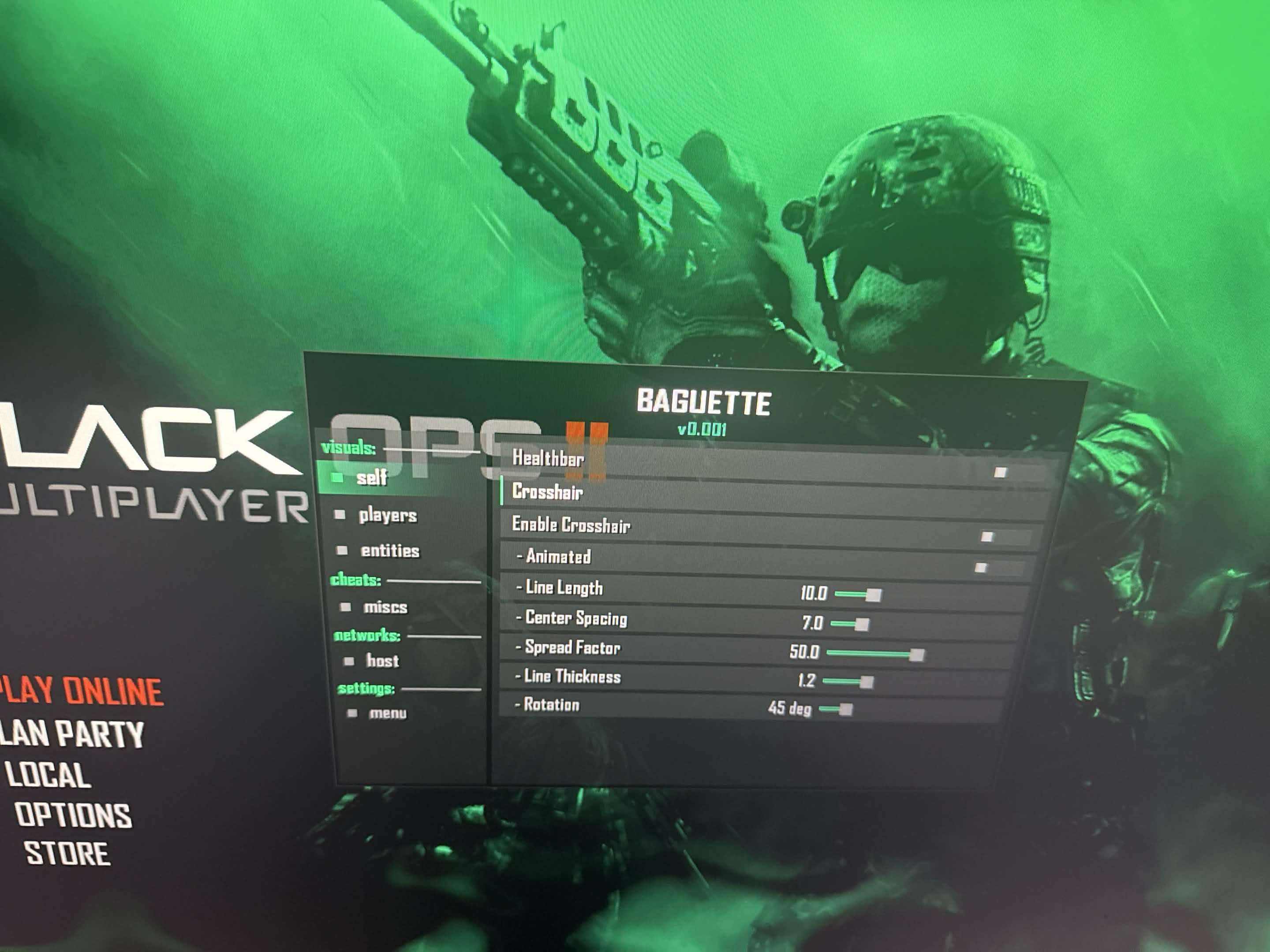
Royal Menu + Injector screenshot

Royal Menu + Injector

v1.5.0

Windows x64 desktop helper requiring .NET 8 Desktop Runtime and a jailbroken PS4 running ps4debug.
  • Injector
  • BO2
  • Windows
  • Guide

RTM tools

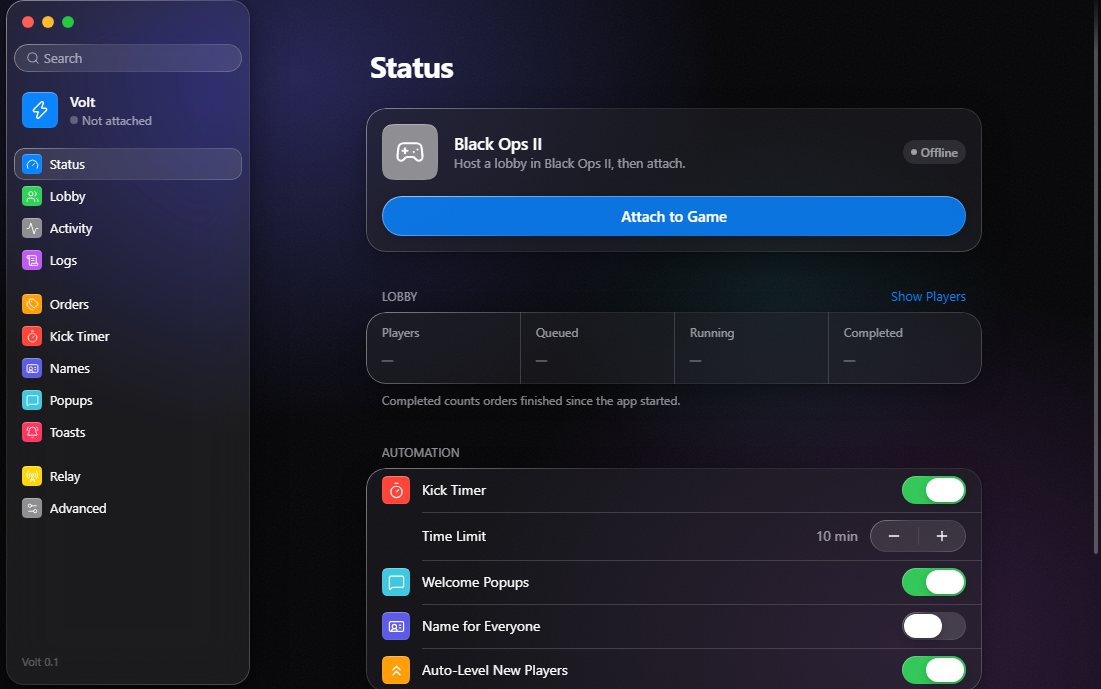
VOLT screenshot

VOLT PC TO PSN RTM AIO TOOL RELAY

The GoFile folder returned HTTP 401 during the archive check on 2 November 2026. No local copy was retrieved.
  • RTM tool
  • BO2
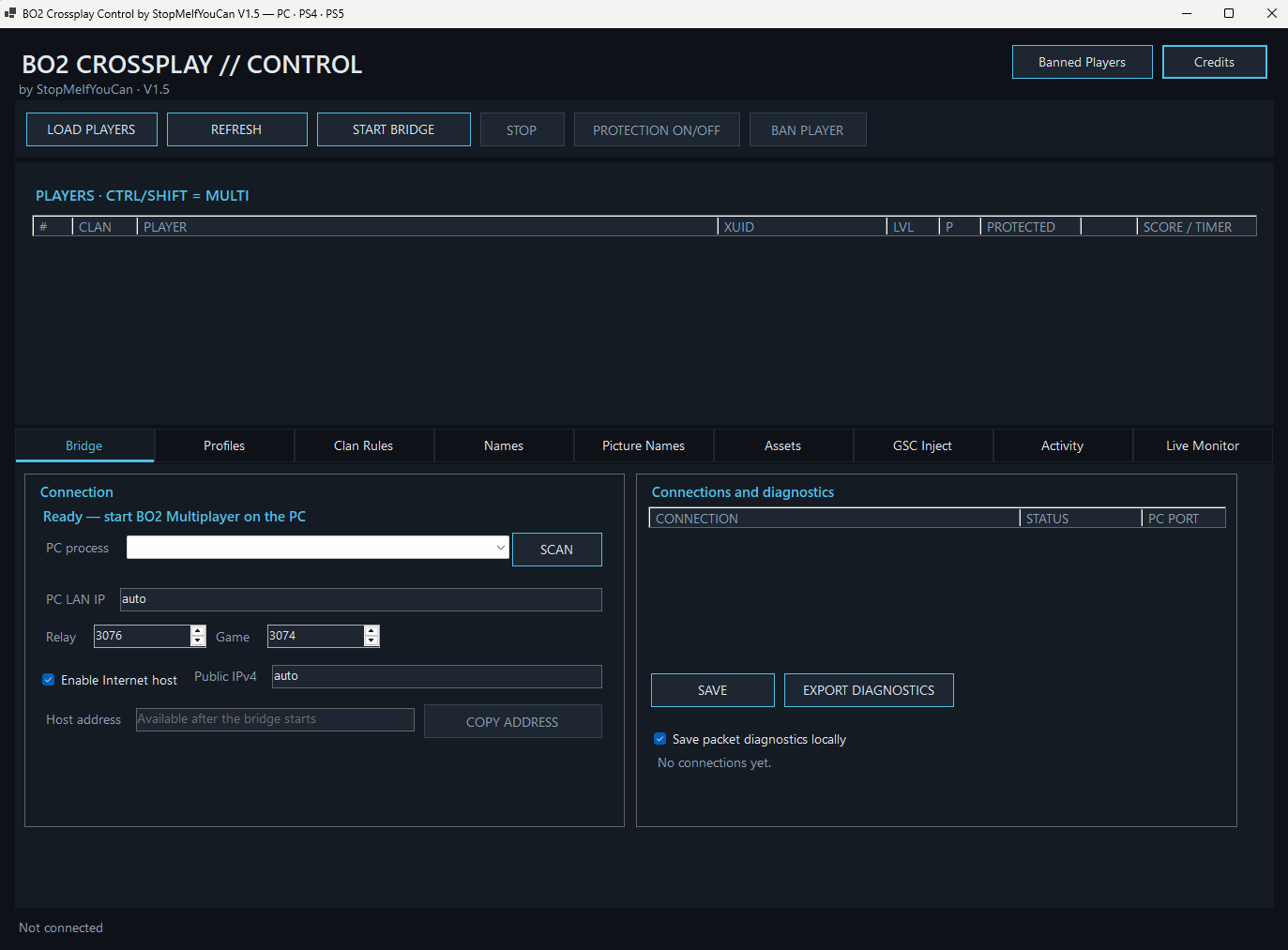
Relay screenshot supplied with the forum post.

BO2 Relay setup guide

PC-host instructions for the BO2 Resurge and Microsoft Store clients, as described by the supplied tutorial.
  • RTM tool
  • BO2
  • Guide
Call of Duty: Black Ops 1 artwork

ials96 BO2 1.2.0

Windows desktop tool; includes BO1 LAN Fix and Lobby Modded Classes.

  • RTM tool
  • BO1
  • BO2
  • Windows

GSC Injector v1.0 — BO1 & BO2 (PS4/PS5)

Included Menus

  • BO2 MP — Jiggy • Project Abyss
  • BO2 ZM — ByGrEk • ByGrEk Nexus • Heidi v13 • EnCoReV9 • Project Iconic V3 • RMT
  • BO1 MP — Redemption • Encore v8 (+7 patches incl. NaTo V1 Treason Edit)
  • BO1 ZM — Encore V8 ZM

Injector filename

The attached PRX downloads as gsc2520injector.prx. The post’s installation steps and plugins.ini example use gsc%20injector.prx. Keep the installed filename and its plugins.ini path identical.

Install

  1. Put gsc%20injector.prx in /data/GoldHEN/plugins/
  2. Use the included plugins.ini (or add the injector lines to yours) → /data/GoldHEN/
  3. Copy the GSC Injector folder → /data/GSC Injector/
  4. Reboot, launch the game, load into a match

The complete example below also contains default and Playroom entries. Merge the relevant injector entries into your existing configuration.

Post’s plugins.ini example

; Note: lines starting with semicolon are for comments.
; Load plugins for any title.

[default]
/data/GoldHEN/plugins/game_patch.prx

; Load plugins only for Playroom.

[CUSA00001]
/data/GoldHEN/plugins/afr.prx
/data/GoldHEN/plugins/no_share_watermark.prx

[CUSA57548] ; This will load when toggled for this title ID.
/data/GoldHEN/plugins/gsc%20injector.prx

[CUSA57547] ; This will load when toggled for this title ID.
/data/GoldHEN/plugins/gsc%20injector.prx

Usage

Hold L2 + R2 + tap X → pick a menu with Square → start a new match → menu loads
Most menus open with Aim + Knife (Iconic & EnCoReV9: D-Pad Down)

Bugs / Reports

Send your /data/GSC Injector/log.txt with what you did before the issue.

Credits

Treason • aimyz • ByGrEk — DeadOps release, groundwork, menu ports & testing
Original menu creators keep full credit for their work (CabCon, SeriousHD-, and others)

Controls

Hold L2 + R2, tap X
In-game panel
Square
Pick a menu → start a new match → menu loads
Aim + Knife
Most menus
D-Pad Down
Iconic & EnCoReV9

VOLT PC TO PSN RTM AIO TOOL RELAY

VOLT screenshot

Baguette off host ported for ps4

Screenshot supplied with the forum post.

Royal Menu + Injector

Bundled SPOMEN workflow

  1. Prepare the LAN lobbyPlace the modified PS4 and the second PS4 or PS5 in a LAN Party lobby.
  2. Connect and injectUse CONNECT, then ATTACH; choose your menu file and select INJECT.
  3. Start the matchStart Match on the modified PS4.
  4. Use the countdown actionWhen the countdown shows 3, select PUBLIC MATCH in the desktop tool.

Credits

Aban created the tool; Medo is credited for its base.

Royal Menu + Injector screenshot

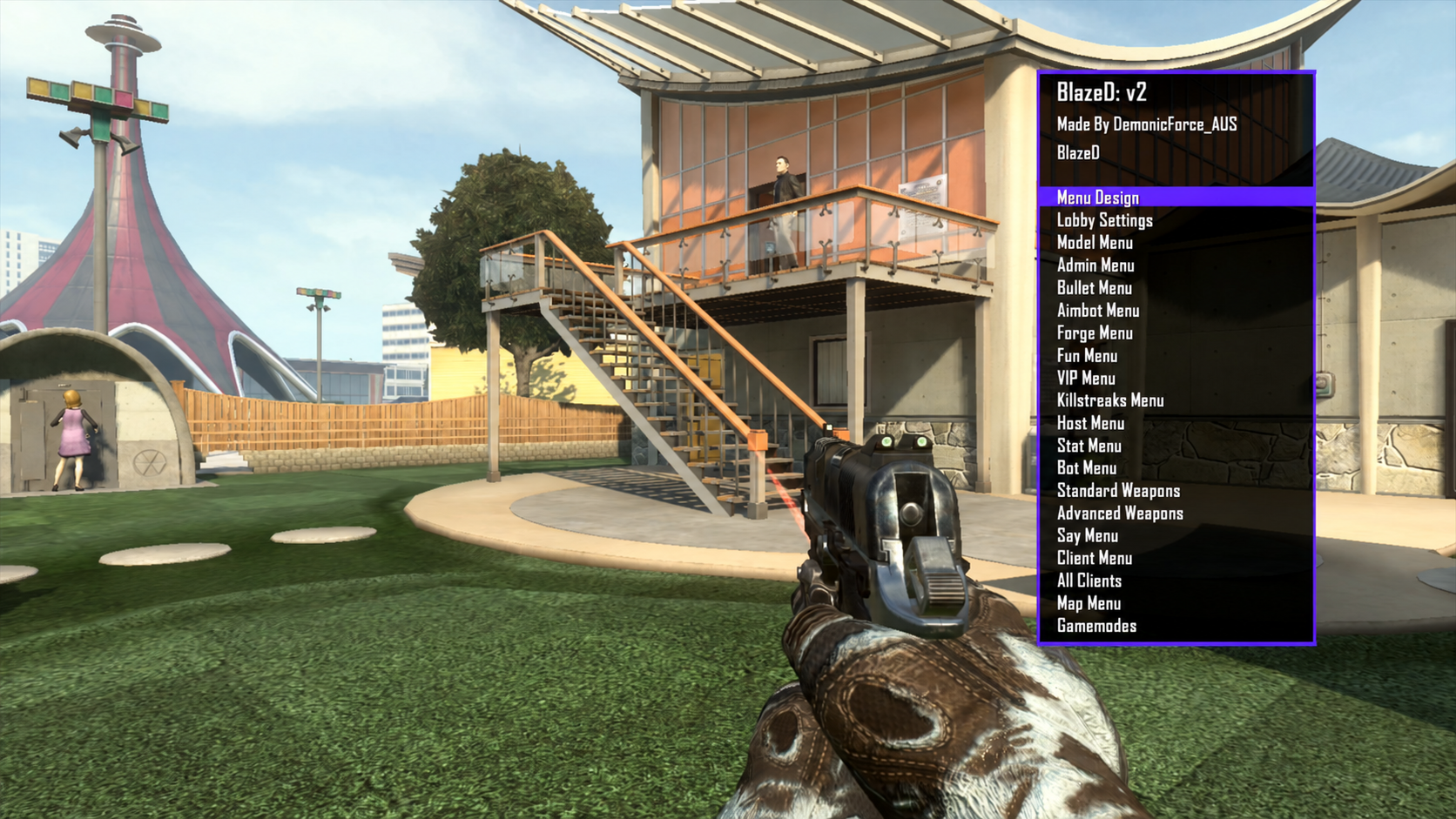
BlazeD v2

BlazeD v2

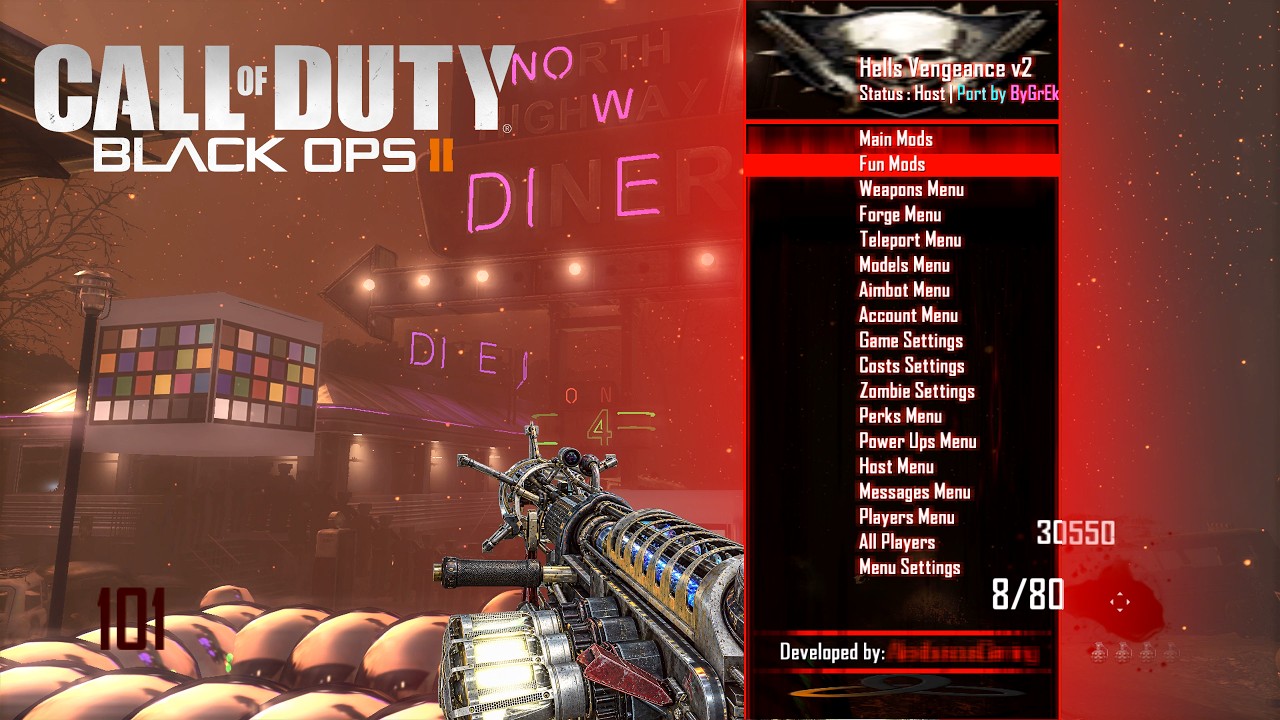
Vengeance v2

Vengeance v2 screenshot

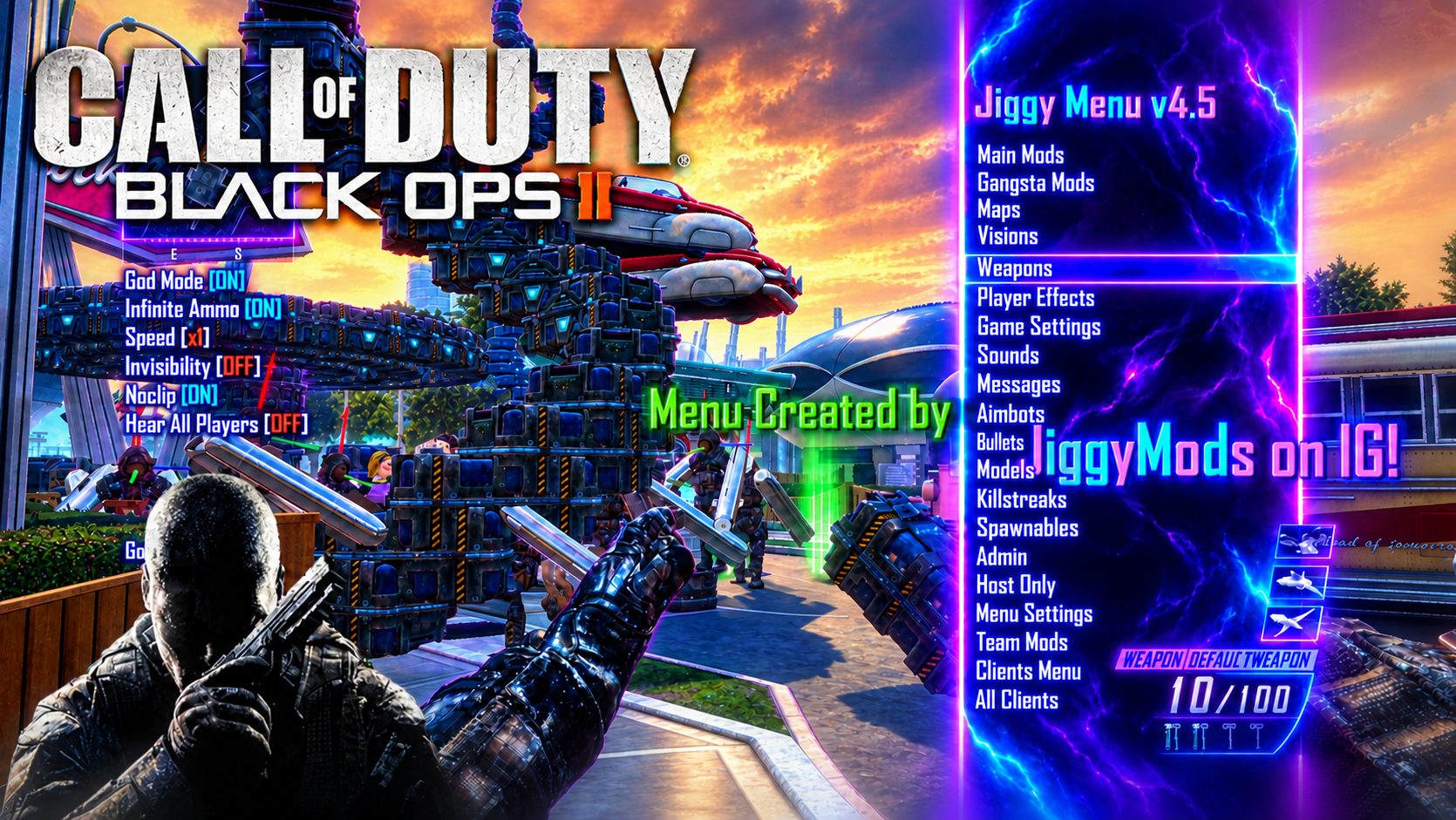
Jiggy Menu v4.5

Jiggy Menu v4.5

BO2 Relay setup guide

Scope of the supplied tutorial

This is a Windows PC-host setup for the BO2 Resurge or Microsoft Store client. The source describes a UDP relay for friends joining a custom game behind NAT. It does not establish PS4/PS5 game compatibility. The associated packages are not offered here while their distribution/capture review remains incomplete.

Prepare the host

  • Install Wireshark with Npcap selected, then install WinPcap 4.1.3. The source calls for both capture drivers, in that order. Reboot after both installations.
  • Confirm that Wireshark lists the active Ethernet or Wi-Fi interface. The source runs RUN_GUI.exe with administrator privileges.
  • Keep the relay package, supported PC game client and access to the router configuration available.

Configure the network

  1. Record the host and gateway addressesRun ipconfig in Command Prompt. Under the active adapter, note IPv4 Address for the host PC and Default Gateway for the router. The tutorial recommends a DHCP reservation or static host address.
  2. Set the router forwarding ruleOpen the default gateway address and find Port Forwarding/NAT. Forward external UDP 3074 to internal UDP 3077 at the host PC’s IPv4 address. Enable and save the rule.

Source port mapping

Protocol: UDP
External game port: 3074
Internal relay port: 3077
Destination: host PC IPv4 address

Open the custom game before starting the relay

  1. Prepare RUN_GUIOpen the relay tool as administrator. Set Game Port to 3074 and Relay Port to 3077. Do not choose Start yet.
  2. Open the lobbyLaunch the supported PC client and open a Custom Game lobby/map first.
  3. Start the relayReturn to RUN_GUI and choose Start. Check the traffic/log output, then have a friend test joining through the public address or the client’s normal invite method.

VPS option in the tutorial

  • The source offers a VPS with public IPv4 when home forwarding is unavailable, including CGNAT/shared-network setups.
  • It opens inbound UDP 3074 and 3077 in both provider and operating-system firewalls, with outbound UDP permitted.
  • Its alternatives are the same relay on the VPS pointed at the home/public or VPN address, or WireGuard forwarding VPS UDP 3074 to the home client’s UDP 3077. Friends join the VPS public address.
  • The Windows machine running RUN_GUI still needs the packet-capture drivers.

Check a failed connection

  • For missing traffic, check both capture drivers, required permissions, the selected active network interface and the custom-game-before-Start order.
  • For join failures, check UDP forwarding, the host address, double NAT and CGNAT. Use a UDP-specific test rather than a TCP-only port checker.
  • If the setup stops working after a reboot, confirm that the host PC address has not changed. Preserve the full error text and relay logs when reporting a problem.

Screenshot and written ports

The supplied screenshot shows Relay 3076 and Game 3074 as interface defaults. The attached written tutorial uses Relay 3077 and Game 3074. These source differences do not establish console compatibility.

Relay screenshot supplied with the forum post.

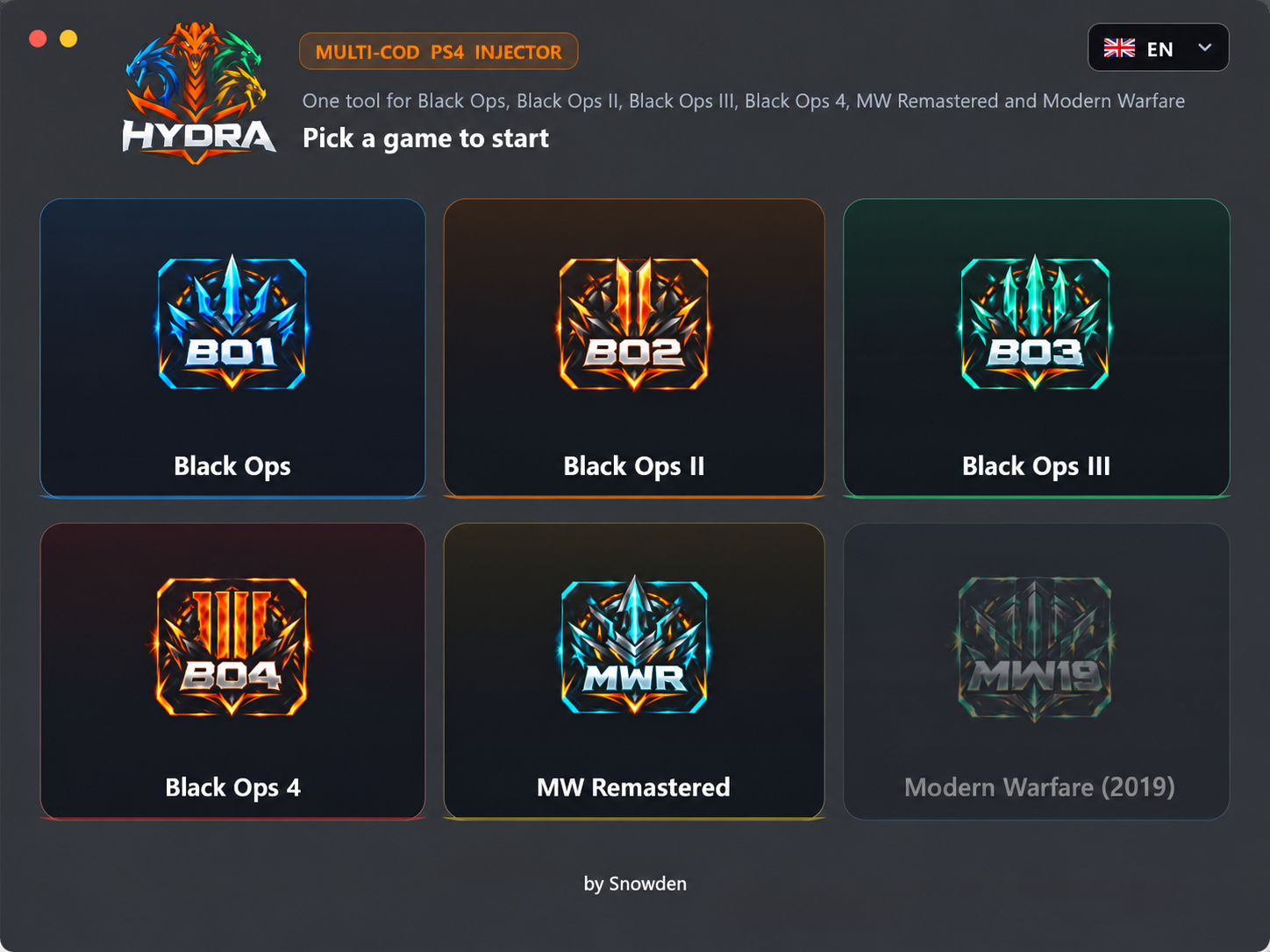
HYDRA v1.0.0

HYDRA supplied preview

Payload Injector + ps4debug.bin

Observed connection demonstration

The short video begins with address and port fields already filled. It does not show the initial payload receiver or firmware setup.

Fields shown in the source

PS4 Payload Injector
Console address: <CONSOLE_LAN_IP>
Port: 9090
Payload: ps4debug.bin

BO2 PlayStation tool
Console address: <CONSOLE_LAN_IP>
Port: 744
Local Client: 0

Sequence visible in the clip

  1. Select the debug payloadIn PS4 Payload Injector, open the file picker and select ps4debug.bin.
  2. Injector state shownWith the payload path selected, the source displays Connected while the cursor is over Send Payload.
  3. Connect in the BO2 toolThe BO2 PlayStation tool uses the same console LAN address, port 744 and Local Client 0. Clicking Connect PS4 changes its display from Not connected to Attached • codmp.elf • pid 76 • RPC ready in the recorded session.

Local Client meaning

The source explains that Local Client 0 is the PS4 main player. Other values are local split-screen clients, not remote PS5 lobby slots.

Shared resources · game-specific support

Call of Duty: Black Ops 2 artwork

GSC Injector v1.0 · BO1 & BO2 menu pack

Multiplayer: Jiggy and Project Abyss. Zombies: ByGrEk, ByGrEk Nexus, Heidi v13, EnCoReV9, Project Iconic V3 and RMT.

Setup & source

Multiplayer: Jiggy and Project Abyss. Zombies: ByGrEk, ByGrEk Nexus, Heidi v13, EnCoReV9, Project Iconic V3 and RMT.

The post labels this PS4/PS5 and supplies a GoldHEN plugin configuration. Match that documented game environment and installed PRX filename; exact game update and console firmware ranges are not stated.

Call of Duty: Black Ops 1 artwork

ials96 BO2 1.2.0 · shared Windows tool

BO2 tool; v1.2.0 notes describe local verification for Send debug and Inject. Exact game update and title IDs are not supplied in these notes.

Setup & source

BO2 tool; v1.2.0 notes describe local verification for Send debug and Inject. Exact game update and title IDs are not supplied in these notes.

Windows desktop application. These release notes do not establish native console execution, a complete BO1 menu port or PS5 compatibility.
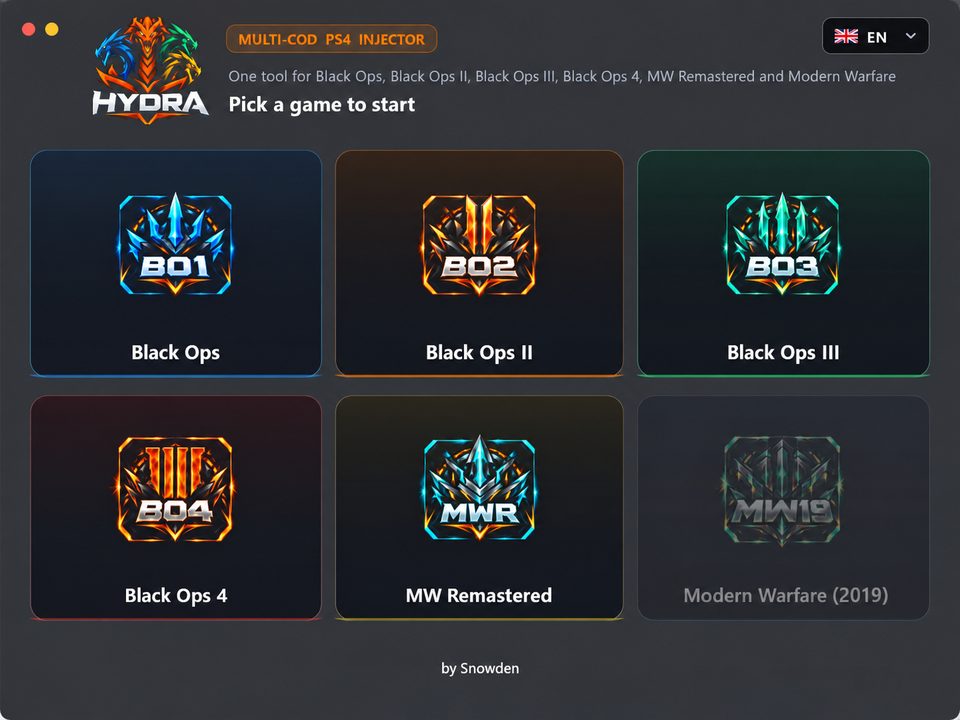
HYDRA supplied preview

HYDRA v1.0.0 · historical BO1/BO2 entry

BO2 resource mapping retained from the captured BO1/BO2 post. Exact v1.0.0 file unavailable.

Setup & source

BO2 resource mapping retained from the captured BO1/BO2 post. Exact v1.0.0 file unavailable.

Historical Windows RTM entry. No ready download or new game, region, update or PS5 compatibility claim is inferred from newer HYDRA releases.