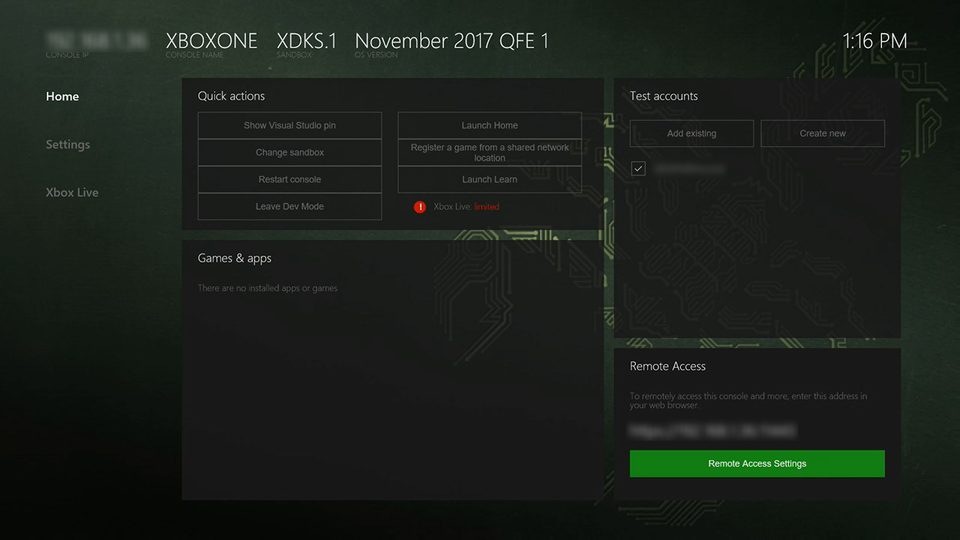
Xbox One / Series X|S · Device Portal
Enable Remote Access and connect from a computer on the same local network.
2 · Open Device Portal over your LAN
- Find Developer HomeDev Home shows the console’s name, IP address and OS version. Keep the computer and console on the same local subnet; wired Ethernet is useful for large transfers.
- Enable remote accessIn Dev Home open Home → Remote Access Settings. Enable Xbox Device Portal, set a username and password, and save. Read the Remote Access URL shown on that console.
- Connect from your computerOpen the displayed URL in a browser. The usual form is
https://<console-system-IP>:11443. Check the address matches your console before handling its console-generated certificate warning. Sign in using the Remote Access username and password. - Use the correct credentialsThe Developer Home “Show Visual Studio pin” action is for Visual Studio pairing. Browser access uses the Remote Access login. Visual Studio and the Windows SDK are not required just to upload these prepared packages through Portal.