PlayStation 2 · Softmods & boot methods

Start with your PS2 model and compare FreeMcBoot and OpenTuna, keeping their memory-card and console requirements separate.

Start with your PS2 model

Memory-card boot tools, file managers, loaders and save utilities for real PlayStation 2 hardware.

  1. Check the model and boot methodRead the SCPH model on the console. On a system that already launches homebrew, use wLaunchELF or PS2Ident to check the boot ROM. Late SCPH-900xx systems with ROM 2.30 or newer and PS2 TV cannot autoboot FreeMcBoot.
  2. Prepare a homebrew entry pointUse an already prepared, compatible memory card or an existing ELF launcher to start the installer. Copying an installer file onto an ordinary USB drive does not itself make an unmodified PS2 boot homebrew.
  3. Back up the memory cardKeep a separate copy of your saves and existing setup before installing. OpenTuna’s installer removes APPS, FORTUNA and OPENTUNA folders from the selected card.
  4. Choose FMCB or OpenTunaUse FreeMcBoot for a compatible automatic memory-card boot menu. For a supported later Slim or another OpenTuna-compatible model, follow the OpenTuna installer documentation and its browser trigger.
  5. Add your appsExtract downloaded archives on your computer and transfer their ELF files and required data folders. Launch apps through your prepared menu or wLaunchELF; keep each app’s accompanying files together.

Memory-card softmods & boot tools

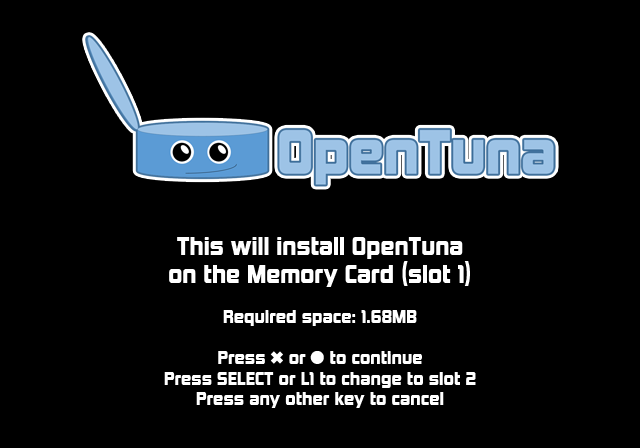
Official OpenTuna memory-card installer artwork

OpenTuna installer

Memory cardBrowser exploitFat & SlimOpenTuna

Memory-card browser exploit for supported Fat and Slim PS2 systems, including later Slims that cannot autoboot FMCB. The project lists SCPH-18000 through SCPH-90010 and PS2 TV. Back up the card: installation deletes existing APPS, FORTUNA and OPENTUNA folders.