PlayStation 2 · Storage & installation

Choose USB, network or internal storage and check app folders, save backups and dependencies before installing.

Choose storage for your setup

USB & app folders artwork

USB & app folders

Use storage supported by the app you are launching. Extract archives first; an ELF launcher starts the executable, while some apps also need their data folders in the documented location.

Saves & virtual memory cards artwork

Saves & virtual memory cards

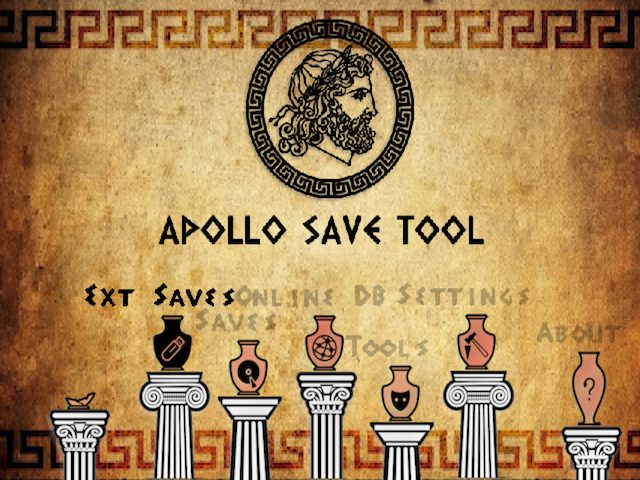
Back up original physical-card saves before importing or applying patches. Apollo supports physical memory cards and supported VMC images; follow its documented save-format rules.

Storage & dependency checklist

  1. Start with a working ELF boot methodA downloaded ELF does not make an unmodified PS2 boot homebrew. Use the model-specific FMCB/OpenTuna guidance above, then launch apps through wLaunchELF or a configured menu. No region bypass is required by these homebrew downloads; the boot method still depends on your model and ROM.
  2. Use a conservative USB starting pointFAT32 USB is the starting layout for these instructions. PS2ME explicitly requires it. Memory Card Annihilator’s mca_new supports exFAT. Do not assume that an older app gains exFAT, SMB or MX4SIO support because OPL can use a device.
  3. Keep package folders and assetsExtract ZIP or TAR.GZ files on your computer before copying them. SuperTux needs its APPS tree at the USB root. PicoDrive needs its skin/config files. A direct ELF is only convenient where its optional or external dependencies are explained on its card.
  4. Separate USB, SMB and internal HDD supportOPL 1.1.0 offers USB, SMB and internal HDD routes; these are OPL features, not universal app services. Internal-HDD tools need a real internal drive interface. The Quake ports document their own USB/APA-PFS loading paths. SMB requires working Ethernet and share settings.
  5. Bring the right data and savesNES cartridge ROMs, Mega CD BIOS files, Java JARs and Quake PAKs are different requirements. They are not included in these runtime downloads. SuperTux includes its free game data. Keep an original save backup and a memory card available for apps that save there.
  6. Match the display and controllerUse a PS2 pad for the documented controls. Follow each app’s PAL/NTSC options; do not force an unsupported display mode. PadOS normal is 4:3 with Widescreen OFF. A theme changes OPL’s interface and does not patch game rendering.

Images & project credits

Tool, emulator and game illustrations are original SVG artwork made for this catalogue; they are not gameplay captures. Theme previews are the maintainers’ screenshots.

Download versions and hashes were checked on 2 November 2026. Follow the linked release and setup documentation for known issues. Existing project artwork and credits remain in the original resources above.