PS4 File Manager & Transfers

Prepare a whatwhatboy download folder, save PS4 files to internal or supported USB storage, and explicitly extract reviewed archives through ezRemote.

Choose a transfer method

ezRemote Client 2.08 artwork

ezRemote Client 2.08

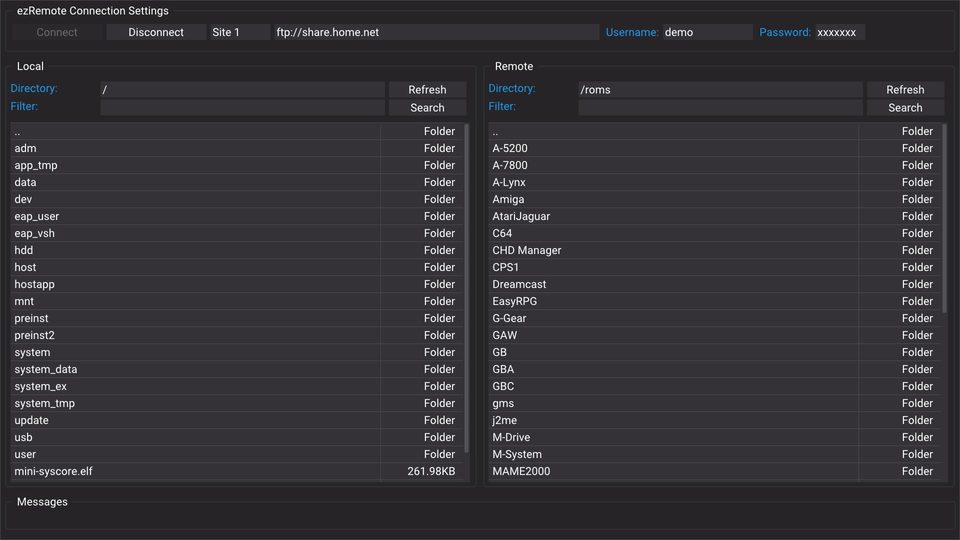
An on-console file manager for local storage and FTP, SFTP, SMB, NFS, WebDAV or HTTP sources. Install the PS4 PKG through your existing compatible homebrew setup.

whatwhatboy console downloader artwork

whatwhatboy console downloader

After starting ezRemote’s bundled background server, open the installed local companion and explicitly choose Save to console. It saves files; it does not install or execute them.

Prepare the real destination in ezRemote

  1. Start the installed client and background serviceOn the PS4 home screen, start ezRemote Client 2.08 and keep its web service running on its default port 8080. For downloads, also start its bundled background server on port 6701. Install the local companion using the Downloads setup guide; the stock website cannot launch an arbitrary installed app.
  2. Choose actual storageInternal downloads default to /data/whatwhatboy. For a USB HDD, SSD or flash drive, inspect the device in ezRemote and choose its real mounted path with a whatwhatboy subfolder. A physical USB socket does not identify a numbered mount path. The background server has no USB-mount discovery API.
  3. Create or verify the download folderIn the local downloader, choose Prepare download folder. This opens the installed companion through the client on port 8080. Press Create or verify download folder: missing child folders are created, existing directories are preserved, colliding files are refused and the result is checked. For USB, confirm the actual mounted device first. Choose Use this verified folder in the downloader to return.
  4. Confirm storage and save the fileCheck write access and available space in ezRemote, then tick the selected folder’s confirmation and choose Save to console. The downloader checks the current queue and target/partial-file collisions before submitting. Confirm the finished file in the file manager; submission alone is not completion.

Extract only after a separate action

Ready files are shown first in Downloads. PKGs still need a compatible installer, BIN/ELF files need their loader, and scripts or plugins may need a complete support pack. Saving does not install or launch them.

For an archive, save the complete ZIP, RAR or 7z first. On its local downloader card, choose Extract a saved copy on console. Reviewed archives up to 32 MiB can be SHA-256 checked and explicitly extracted into a new folder through the running client on port 8080. Existing output folders are refused and the original archive is retained. Larger or unreviewed archives use the real native file-manager workflow.

The extraction API reports a final result, without a percentage. If the connection is lost, inspect ezRemote and any partial output before trying again. Nothing extracts automatically when you open a page.

Archive and installation guide

Transfer from another device

  1. Start a supported serviceUse the FTP server in your existing supported environment, or the pinned PS4 ftpsrv ELF listed on the Payloads page. The listed ftpsrv build documents port 2121; keep each tool’s exact service and port separate.
  2. Connect with a file-transfer clientUse the console’s local IP and the port shown by the running service. Browse and create folders through that client. The public website does not gain filesystem access from knowing an IP address.
  3. Use the local downloader from a computerIn PS4 Downloads, expand the console-address control and enter the PS4’s LAN address. Save on PS4 opens its installed companion on port 6701 with the file selected; folder preparation uses the same installed file on client port 8080. Enable the client’s web access when connecting from another device, then choose each action explicitly.