
Ready console files and complete archive packs serve different purposes. Use the download centre for PS4 or PS5, then choose the format required by the app or game guide.
Identify what you downloaded
| Format | What to check |
|---|---|
.pkg | The package's target console, required firmware and compatible installer. |
.elf / .bin | Exact payload platform, firmware and loader. Saving it does not run it. |
.prx / .sprx | The console, game version, title ID and plugin-loading environment. The extensions are not interchangeable. |
.json / .xml | The documented cheat or patch engine and matching game build. These are data, not executable payloads. |
.zip / .rar / .7z | The complete pack, required companion files, extraction support and folder layout. |
Choose Ready files (no extraction) when an inspected ready build is offered. Choose Archives & complete packs when the app requires supporting files or the original archive is the available format. Renaming .rar to .zip does not convert it.
Extract a supported saved archive
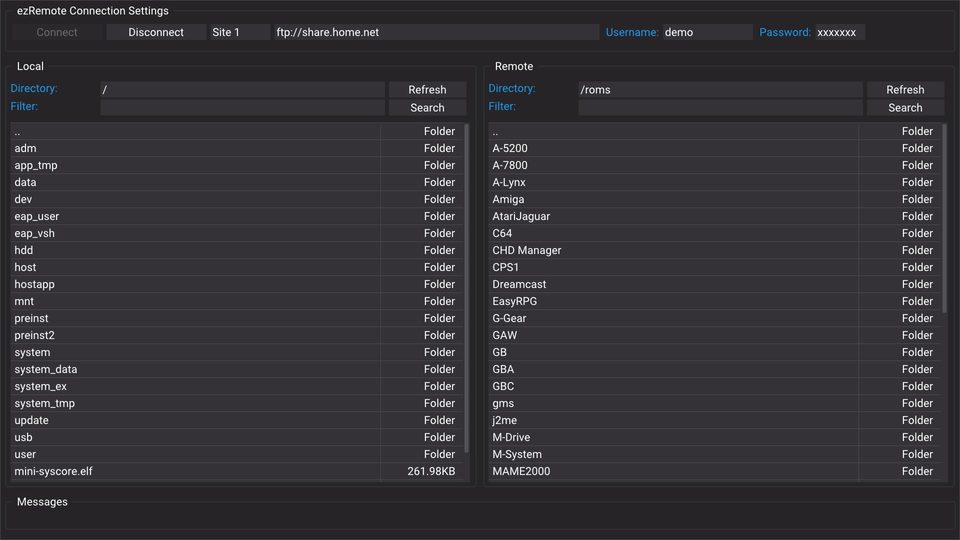
The site's local companion offers Extract a saved archive on your console through the running ezRemote Client file service: PS4 port 8080, PS5 port 9090. This is separate from its background download receiver on port 6701. Open Folders & extraction from the matching download centre, or use the preparation action supplied by the local downloader.
Keep the matching ezRemote Client running and use the companion installed on the console, not its public preview.
Choose the actual storage folder containing the saved archive.
For an archive enabled for the site's extraction action, choose a new output folder name and press Verify checksum & extract into new folder.
Keep the original archive. Confirm the extracted files and required layout in the file manager before installing, configuring or loading anything.
The companion's automatic action is deliberately limited to a matching, content-reviewed catalogue archive of at most 32 MiB, whose saved bytes match the recorded SHA-256. Its review must record acceptable relative paths, no links, device files, alternate streams or encrypted entries, at most 5,000 entries and at most 128 MiB expanded content. An existing output folder is refused.
An archive without that matching review, an oversized archive, or a format the installed app cannot handle uses Open ezRemote file manager for manual inspection/extraction. Encryption and unsupported variants may require another appropriate archive tool. The website does not promise that every RAR/7z works on every PS4/PS5 file manager. PS4 ezRemote 2.08 documents ZIP extraction; use the exact app's notes for other formats.
Preserve complete packs and existing configuration
Keep readmes, licenses, keys, data folders and other files needed by the release. A loose payload or plugin is not an equivalent replacement for a pack that requires those files. Do not merge into installation directories until you have read the matching app/game guide.
For GoldHEN plugins, preserve your existing plugins.ini and unrelated game entries. For an app's data folders, keep the release's documented directory layout. Download-folder preparation only creates the separate whatwhatboy storage folder; it does not automatically configure GoldHEN or run a mod.
The PS4 archive guide documents the complete Expulsion V5.0 ZIP option and the exact GTA V update/title ID for that pack. Use its build-specific instructions rather than applying its paths to another game or menu.
If something fails
Archive download returns a web page: use the original publisher page or a verified local mirror. Do not rename an HTML error response to a package.
No writable folder or missing drive: open the real file manager, verify the device is mounted, and prepare or choose a valid destination.
Checksum differs: do not extract that copy through the verified action. Inspect the transfer and obtain the matching complete file.
Request times out or connection drops: inspect the native app and output folder before retrying; an operation may still be running.
The app/game fails after saving: confirm installation, loader requirements, game update and supporting files. A successful download only establishes that the file was saved.
For another console, use its own guide and file types: PS3 downloads and Nintendo Switch homebrew. PS3 SPRX and Switch NRO workflows are separate from this PS4/PS5 companion.