
Use the PS5 download centre. A PS4 mod or package listed elsewhere on the site is not automatically a PS5 build. Match firmware, loader, game update and title ID before choosing a file.

Use the native payload catalogue
In the documented PS5 Payload Manager 0.6.3, open Settings > Manage Sources > Add Source and paste the source URL shown in the PS5 download centre. This source contains ready PS5 ELF/BIN payloads with checksums. The documented manager location for repository downloads is /data/pldmgr/payloads/repo/.
Open the site's Payload Manager page for its loader and service requirements. Repository downloads, app packages and complete archive packs are different things; the payload feed does not install every kind of PS5 homebrew.
Prepare the local downloader once
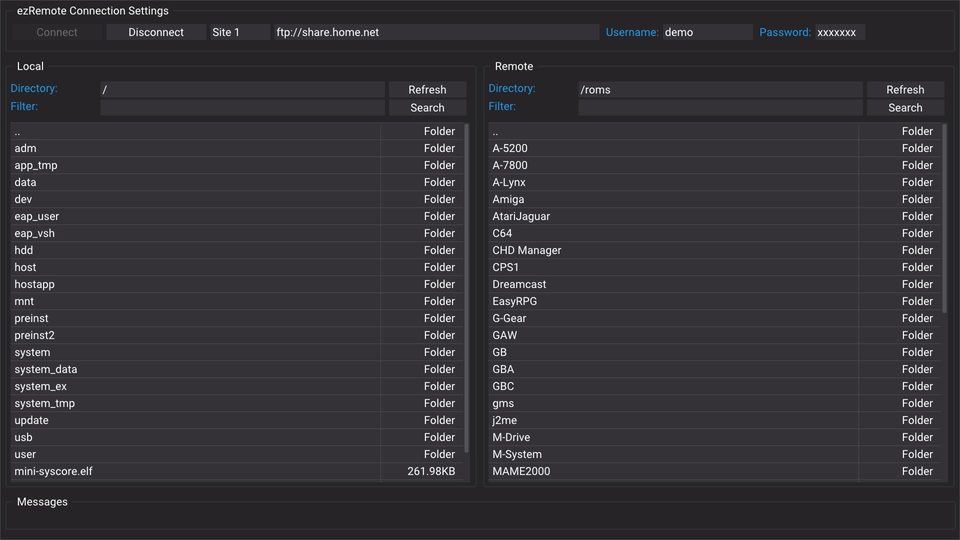
Follow PS5 transfer tools for ezRemote Client 2.18, its websrv requirement and the documented homebrew-folder layout.
Save the download centre's companion HTML URL as
/data/homebrew/ezremote-client/assets/whatsite-ps5.html.Enable ezRemote background downloads and start its bundled server. Leave the background server running and keep the console awake during a transfer.
Open
http://127.0.0.1:6701/whatsite-ps5.htmlin the PS5 browser. The public copy of the companion is a preview with saving disabled.
From another device, enter the PS5's actual LAN address in the download centre. Use 127.0.0.1 only when the browser itself is running on that PS5.
Prepare internal or mounted external storage
The download folder defaults to /data/whatwhatboy. Choose Prepare download folder to open the installed companion through the running ezRemote Client on port 9090. Press Create or verify download folder to request creation of the missing whatwhatboy directory or verify the existing folder.
The client must remain running for folder creation and extraction. The background receiver on port 6701 handles download requests; it does not provide those client file-management operations by itself.
For external storage, choose Detect mounted storage with PS5 websrv running on port 8080. Select an actually detected writable mount and verify the destination folder. The downloader checks the mount again before saving, so a disconnected drive is not treated as present just because its old directory still exists.
USB mount numbers do not identify physical USB sockets. System-managed PlayStation Extended Storage is usable here only if the homebrew service exposes a writable general-purpose folder on it.
Download, inspect and launch separately
Choose Ready files (no extraction) for the simplest path. Select Save on PS5, then choose the destination and press Save to console in the local companion. Use the receiver queue and file manager to confirm completion.
Downloading an ELF/BIN payload does not run it. Use the selected payload's documented compatible loader or manager and launch it explicitly. An etaHEN .plugin follows etaHEN's plugin installation flow; it is not a standalone ELF. A PKG needs a compatible package installer. Keep an archive's full accompanying data instead of assuming that one extracted binary is the whole app.
If a file or partial copy already exists, inspect it in ezRemote or choose a different destination rather than repeatedly submitting the same transfer. For an uncertain submission or lost queue record, inspect the destination before retrying.
Continue to Console files and archives, or browse PS5 apps, PS5 payloads and PS5 transfer tools.