
Use the PS4 download centre for PS4 builds. Keep your installed firmware and check each app's homebrew-enabler requirements. The website does not establish support for a different firmware merely by listing a download.

Choose a download route
The native PS4 catalogue is for PS4 Games Installer. Its documented source setting is Options > Settings > Games JSON URL. Copy the source shown in the download centre, test the connection and save it in the app. The pinned r40 documentation tests PS4 11.00 with GoldHEN; that is not evidence of 14.00 support.
For a file destination you choose yourself, prepare the site's ezRemote downloader. The ordinary Download link saves through the browser you are currently using. Save on PS4 opens the separately installed local downloader.
Prepare ezRemote once
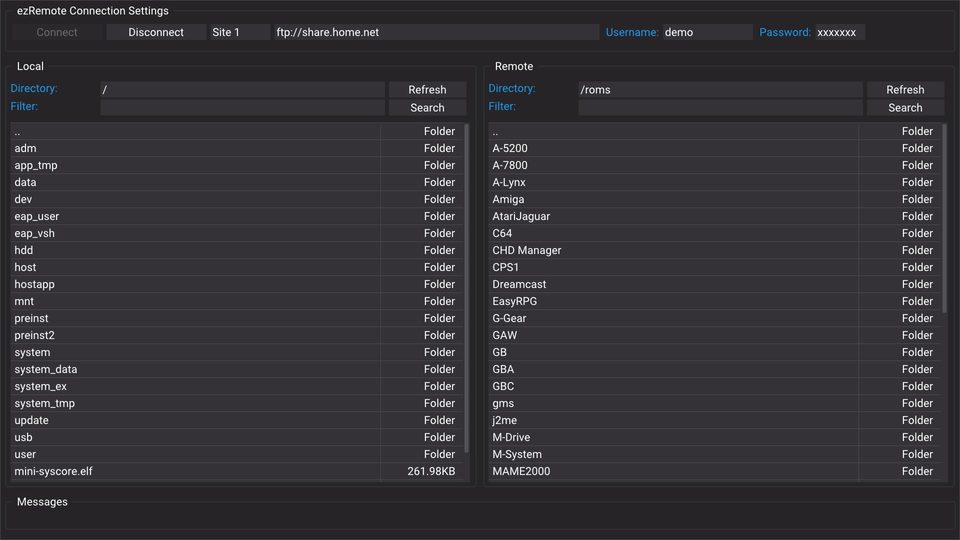
Open PS4 transfer tools and follow the matching ezRemote Client 2.08 installation instructions on a supported homebrew setup. Enable the required BIN Loader when starting its bundled server.
Save the companion HTML URL supplied by the download centre as
/data/whatsite-ps4.htmlusing ezRemote's direct-link download feature.Enable background downloads and start ezRemote Server. Keep the console awake during a transfer.
Open
http://127.0.0.1:6701/data/whatsite-ps4.htmlin the console browser. The copy on the public website is a preview; it cannot write console files.
When browsing from a phone or computer, use the console's LAN address in the download centre. 127.0.0.1 means the device running that browser, so it should only be used as the console address when browsing on the PS4 itself.
Create a download folder and choose storage
The companion defaults to /data/whatwhatboy. Choose Prepare download folder and keep the ezRemote Client app running. This opens the installed companion through the client's web service on port 8080, separately from the background download receiver on port 6701.
Press Create or verify download folder to create a missing whatwhatboy directory or verify an existing one. Creating it requires this explicit action; saving a file does not silently create arbitrary installation folders.
For USB HDD, SSD or flash storage, inspect the actual mounted device in ezRemote and confirm its existing writable folder. The pinned PS4 background receiver does not enumerate USB mounts. A path such as /mnt/usb0 must be verified on your console; the number is not a front/rear physical USB-port label.
PlayStation Extended Storage is system-managed game storage. Use an external destination only when the homebrew service exposes a writable file folder on it.
Save, then use the correct tool
Start with Ready files (no extraction) and select the exact PS4 file.
Check its firmware, title ID, game update, loader and required companion files.
Choose the folder, check the receiver, and press Save to console.
Watch the receiver transfer queue and confirm the completed file in ezRemote. A queued request is not a completed download.
| File | Next action |
|---|---|
.pkg | Install explicitly with a compatible package installer. |
.bin / .elf | Use the loader documented for that specific PS4 payload. |
.prx / script files | Follow the matching game's mod guide and keep required accompanying files. |
Cheat .json / patch .xml | Use the matching cheat or patch engine; these are not standalone payloads. |
.zip / .rar / .7z | Extract with a tool supporting the format, then follow the pack's guide. |
A file for GoldHEN's plugin directory must be placed and configured according to that plugin's instructions. Preserve existing plugins.ini entries and saves; do not replace the whole configuration with a downloaded example.
For extraction and troubleshooting, continue to Console files and archives. Browse PS4 apps, PS4 payloads or PS4/PS5 game mods for the matching guide.